Events
Events are actions aMule can take automatically when certain things happen. They are configured on the Events tab of the Preferences dialog, or — when running amuled — in the per-event [UserEvents/<Event>] sections of amule.conf.
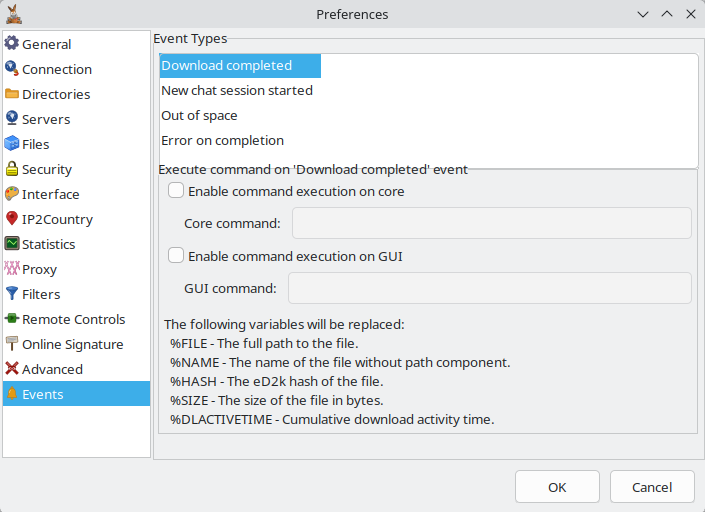
Event types
Four events are supported:
| Event | Trigger |
|---|---|
| Download completed | A file finishes downloading. |
| New chat session started | Another user initiates a chat session with you. |
| Out of space | aMule runs out of disk space on the partition used for temporary files. |
| Error on completion | aMule cannot move a completed file from the temporary directory to the incoming directory (typically caused by insufficient disk space). |
Command types
For each event you can specify two independent commands:
| Type | Executed by |
|---|---|
| Core command | Any aMule flavour that has a core: amuled or the monolithic amule. |
| GUI command | Any aMule flavour that has a GUI: amulegui or the monolithic amule. |
When running monolithic amule, both commands are executed if both are specified.
Variables
Each event exposes a set of variables that are substituted in the command string before execution:
Download completed
| Variable | Value |
|---|---|
%FILE | Full path and filename of the downloaded file. |
%NAME | Filename only (without path). |
%HASH | eD2k hash of the downloaded file. |
%SIZE | Size in bytes. |
%DLACTIVETIME | Cumulative time the download was active, formatted as hours and minutes. |
New chat session started
| Variable | Value |
|---|---|
%SENDER | Username of the person initiating the chat. |
Out of space
| Variable | Value |
|---|---|
%PARTITION | Always substituted with the fixed text Temporary partition (the partition used for temporary files), not the real partition name or device. |
Error on completion
| Variable | Value |
|---|---|
%FILE | Full path and filename of the file that could not be moved. |
Command syntax
aMule does not run the command through a shell. The command string is split into an executable plus its arguments and executed directly, so shell features such as pipes (|), redirections (>) and operators (&&, ;) are not interpreted. To use any of those, put them inside a shell script and call the script instead.
A command is therefore either a single program with optional parameters, or the path to a script followed by optional parameters:
MyScript.sh %NAME %FILE %HASH %SIZE "%DLACTIVETIME"
If a variable value may contain spaces (e.g. %NAME, %FILE, %DLACTIVETIME), enclose the variable in quotes:
MyScript.sh "%NAME" "%FILE" %HASH %SIZE "%DLACTIVETIME"
Inside a shell script, the variables are received as positional parameters $1, $2, $3, etc. The script must be in $PATH or specified with a full pathname.
If a command fails to execute for any reason, the failure is logged in aMule's log file.
Examples
The scripts below are minimal, self-contained starting points. Make each one executable (chmod +x script.sh) and place it somewhere in your $PATH (or call it with a full pathname).
Linux — email on disk full
Sending an email needs a pipe, which aMule cannot run directly (see Command syntax above). Put it in a small script and set the Out of space command to:
diskFull.sh "%PARTITION"
#!/bin/bash
#
# diskFull.sh - sends an email when aMule runs out of disk space
# Call like this: diskFull.sh "%PARTITION"

echo "aMule error: $1 is full." | mail -s "aMule: out of disk space" mymail@domain.tld
mail (from mailutils or bsd-mailx) delivers through the local mail system. To send through an external SMTP server (Gmail, your provider, etc.) install msmtp and msmtp-mta and configure it as the system sendmail backend in ~/.msmtprc. msmtp is the maintained replacement for the older ssmtp, which is unmaintained and has been removed from current distributions.
Linux — email notification on download completed
Set the Core command for Download completed to:
doneDL.sh "%NAME" "%FILE" %HASH %SIZE "%DLACTIVETIME"
#!/bin/bash
#
# doneDL.sh - sends an email when an aMule download completes
# Call like this: doneDL.sh "%NAME" "%FILE" %HASH %SIZE "%DLACTIVETIME"
#
# Enter your email address here:
EMAIL="youremail@address.com"

name=$1
path=$2
hash=$3
size=$4
dlTime=$5

{
    echo "aMule completed this download:"
    echo
    echo "File:  $name"
    echo "Path:  $path"
    echo "Hash:  $hash"
    echo "Size:  $size bytes ($(( size / 1024 / 1024 )) MiB)"
    echo "Time:  $dlTime"
} | mail -s "aMule: $name" "$EMAIL"
Linux — desktop notification with sound
Show a desktop notification (and optionally play a sound) on the machine running aMule. These use notify-send (package libnotify-bin) and play (package sox). Install them first:
apt-get install libnotify-bin sox
Set the Core command for each event to its matching script:
# Download completed:
doneDL.sh "%NAME" "%FILE" %HASH %SIZE "%DLACTIVETIME"

# New chat session:
newMsg.sh "%SENDER"

# Out of space:
noDiskSpace.sh "%PARTITION"

# Error on completion:
errorDL.sh "%FILE"
doneDL.sh — download completed:
#!/bin/bash
#
# doneDL.sh — desktop notification on download complete
# Call like this: doneDL.sh "%NAME" "%FILE" %HASH %SIZE "%DLACTIVETIME"
#
# Sound file (the freedesktop sound theme is installed on most desktops):
soundPath="/usr/share/sounds/freedesktop/stereo/complete.oga"

notify-send -i amule "Download completed" \
    "File: $1
     Path: $2
     Size: $4 bytes
     Active download time: $5" \
    && play -q "$soundPath"
errorDL.sh — error on completion:
#!/bin/bash
#
# errorDL.sh — desktop notification on download error
# Call like this: errorDL.sh "%FILE"
#
soundPath="/usr/share/sounds/freedesktop/stereo/complete.oga"

notify-send -i amule "aMule error" \
    "Could not complete the download of: $1" \
    && play -q "$soundPath"
newMsg.sh — new chat session:
#!/bin/bash
#
# newMsg.sh — desktop notification on new chat message
# Call like this: newMsg.sh "%SENDER"
#
soundPath="/usr/share/sounds/freedesktop/stereo/complete.oga"

notify-send -i amule "New message" \
    "The user $1 sent you a message." \
    && play -q "$soundPath"
noDiskSpace.sh — out of space:
#!/bin/bash
#
# noDiskSpace.sh — desktop notification on disk full
# Call like this: noDiskSpace.sh "%PARTITION"
#
soundPath="/usr/share/sounds/freedesktop/stereo/complete.oga"

notify-send -i amule "No disk space available" \
    "The partition $1 does not have enough space to continue downloading.
     Free some space to resume." \
    && play -q "$soundPath"
If you don't have sox, drop the && play … part, or use paplay (PulseAudio/PipeWire) or canberra-gtk-play -i complete instead.
Windows — toast notification
Show a native Windows 10/11 toast notification when a download completes. The easiest way is the BurntToast PowerShell module. Install it once (in an elevated PowerShell):
Install-Module BurntToast -Scope CurrentUser
Save this script as e.g. C:\Scripts\notify.ps1:
param([string]$Name)
New-BurntToastNotification -Text "aMule", "Download completed: $Name"
In Preferences → Events → Download completed, enable command execution and set the command to:
powershell.exe -ExecutionPolicy Bypass -File C:\Scripts\notify.ps1 "%NAME"
The old net send / Windows Messenger service approach no longer works: that service was removed from Windows starting with Windows Vista. Use toast notifications (as above) on modern Windows.