Client Details
The Client Details window shows technical information about a specific client on the network. It covers the client's identity, the software it is using, its current network status, transfer history with you, and its position in your upload queue.
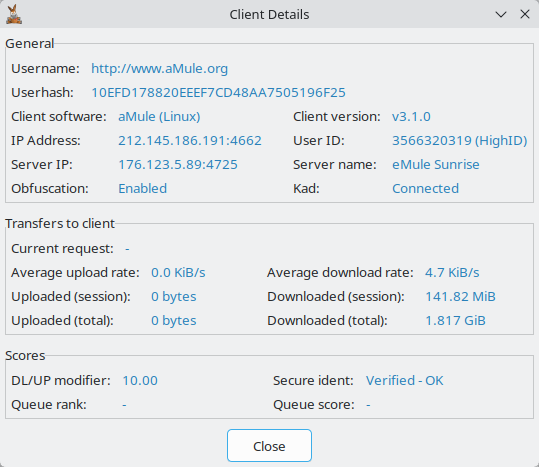
Open it by double-clicking a client in any client list — the Downloads source list, the Clients page or the client list of the Shared Files window (in the Downloads source list and the Shared Files client list, middle-clicking works too; see Keyboard & Mouse Shortcuts) — or by choosing Show Details in the client's context menu or in the friends list. Click Close when you have finished reading the information.
A client from the Known list of the Clients page may have no live connection. In that case only what aMule has stored about it (in clients.met) is shown — username, userhash, client software and version, last IP address and port, obfuscation, the total transfers and the DL/UP modifier — while the fields that describe a live session show a dash (-), and Server IP / Server name read Unknown.
Some fields display a dash (-) when the value is not available, or Unknown when it is not yet known. The values are captured when the window opens and are not refreshed while it stays open; close and reopen it to see current figures.
General
| Field | Description |
|---|---|
| Username | The nickname the client has set |
| Userhash | The client's unique userhash |
| Client software | The application the client is using to connect to the network (aMule, eMule, and other eD2k clients). When the client reports its operating system (typically multiplatform clients such as aMule), it is shown in brackets |
| Client version | The exact version of the application |
| IP Address | The client's IP address and its standard client TCP port (usually 4662), as IP:port |
| User ID | The client's numeric ID on the server it is connected to, with the ID type (HighID or LowID) in brackets. A HighID is derived from the client's IP address; a client that is only on Kademlia shows a HighID when it is reachable and a LowID when it is firewalled. A known client without a live session shows a dash (-) |
| Server IP | The IP address and port of the server the client is connected to; Unknown if the client is connected only through Kademlia |
| Server name | The name of the server the client is connected to; Unknown if the client is connected only through Kademlia |
| Obfuscation | The status of protocol obfuscation for this client (see below) |
| Kad | Connected when the client exposes a Kad UDP port, and Disconnected otherwise |
| Protocol extensions | Extra protocol capabilities the client advertises beyond the standard eMule extensions (for example those of eMuleAI-based clients). Shown only when the client reports any |
Obfuscation values:
| Value | Meaning |
|---|---|
| Enabled | Obfuscation is active for this connection |
| Supported | The client supports obfuscation but it is not currently in use |
| Not supported | The client does not support obfuscation |
| Disabled | Protocol obfuscation is disabled in your own preferences |
| Unknown | The obfuscation status is not yet known |
Transfers to Client
| Field | Description |
|---|---|
| Current request | The name of the file the client has requested you to upload, or a dash (-) if it has not requested any file |
| Average upload rate | Your current upload speed to this client, averaged over the last few seconds; 0 when no upload is in progress |
| Average download rate | Your current download speed from this client, averaged over the last few seconds; 0 when no download is in progress |
| Uploaded (session) | Data uploaded to this client during the current session |
| Downloaded (session) | Data downloaded from this client during the current session |
| Uploaded (total) | All data you have uploaded to this client, as recorded in clients.met |
| Downloaded (total) | All data you have downloaded from this client, as recorded in clients.met |
Scores
| Field | Description |
|---|---|
| DL/UP modifier | The client's current score modifier (credit), which affects its position in your upload queue. Also shown for known clients without a live connection |
| Secure ident | The result of Secure User Identification (SUI) verification (see below) |
| Queue rank | The client's current waiting position (queue rank) in your upload queue. A dash (-) if the client is not in the upload queue (because it has not requested a file or the queue is full) |
| Queue score | The client's calculated queue score; a dash (-) if the client is not in the upload queue |
Secure ident values:
| Value | Meaning |
|---|---|
| Not Available | SUI is not available on your client (cryptography is disabled) |
| Not supported | The remote client does not support SUI |
| Failed | The client failed the SUI challenge |
| Not complete | The identification process is still in progress |
| Bad Guy | The client's userhash was verified through SUI from a different IP address than the one it uses now (possible userhash theft); its queue score is set to 0 |
| Verified - OK | The client successfully identified through SUI |