Networks
The Networks window manages your connections to the eD2k and Kademlia networks.
Overview
The window is split into two panels separated by a draggable divider:
- Upper panel — a tabbed notebook with two tabs: ED2K and Kad.
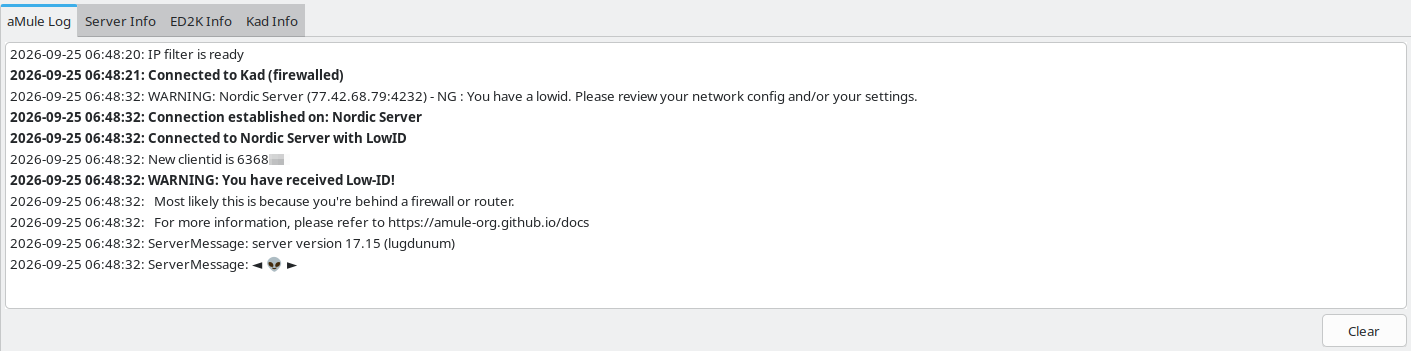
- Lower panel — a tabbed notebook with four tabs: aMule Log, Server Info, ED2K Info, and Kad Info.
amuleguiadds a fifth tab, aMuleGUI Log, right after aMule Log.
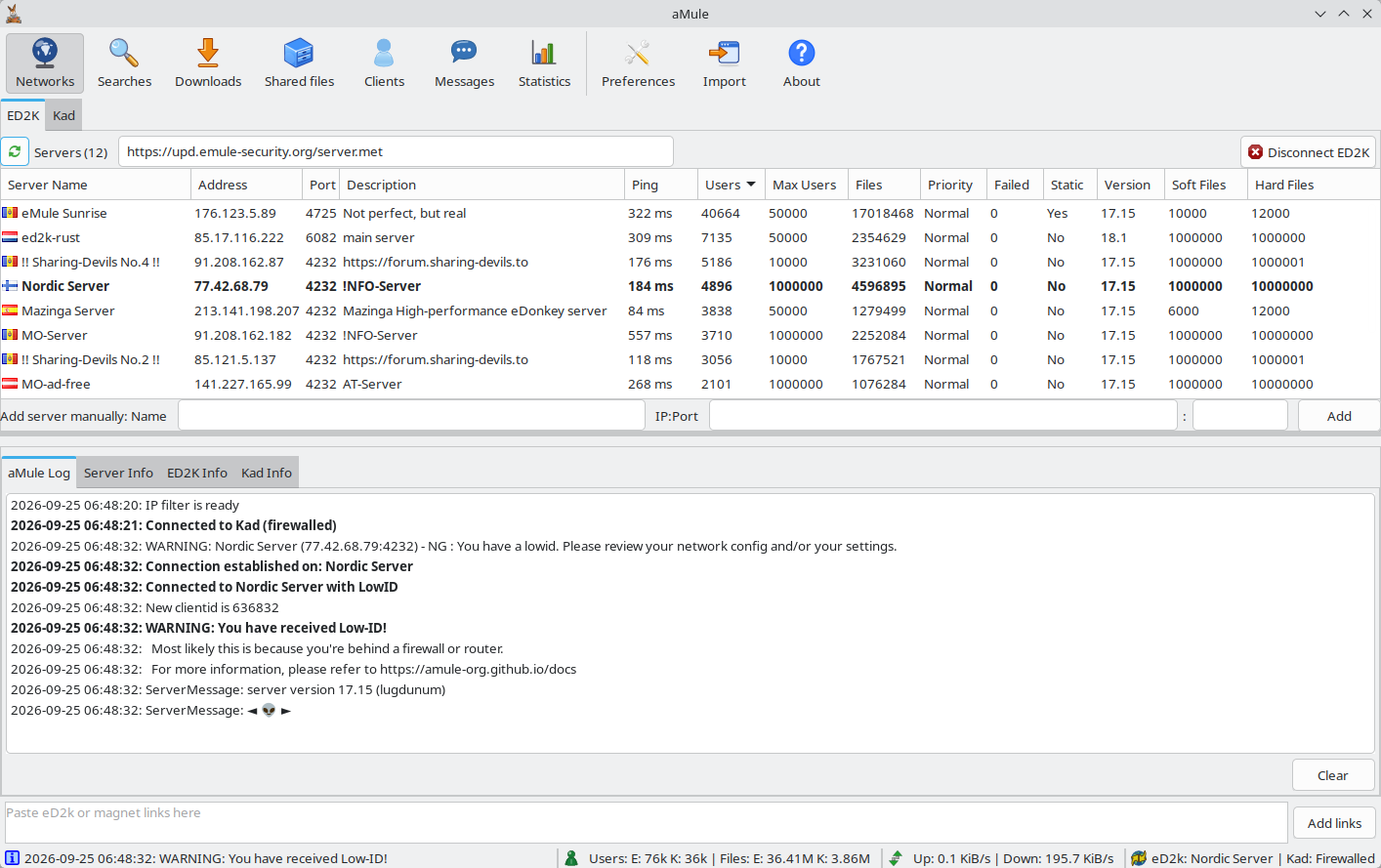
ED2K
The ED2K tab manages your connection to the eDonkey server network.
Connecting
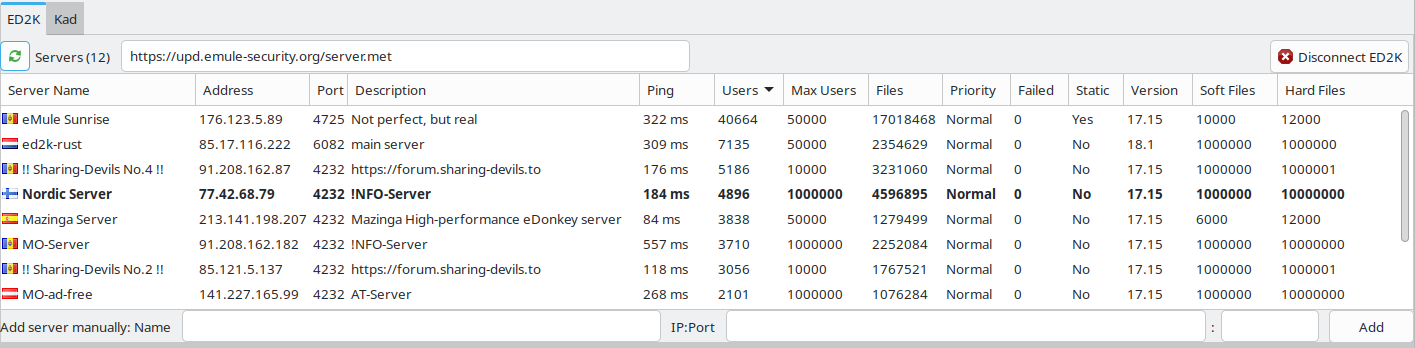
The button at the top right of the ED2K tab connects to and disconnects from the eD2k network. Its label shows the current state:
| Label | State | Clicking it |
|---|---|---|
| Connect ED2K | Not connected | Connects to any server in the list. With Use priority system enabled in Preferences → Servers (the default), aMule tries each server in priority order — High, then Normal, then Low — until a connection is established; with Autoconnect to servers in static list only, only static servers are tried. |
| Cancel ED2K | Connection attempt in progress | Cancels the attempt. |
| Disconnect ED2K | Connected | Disconnects from the current server. |
The button is disabled while the eD2k network is disabled in Preferences → Connection → Networks, and while the IP filter is still loading.
To connect to a specific server instead, double-click its row in the server list (or select it and press Enter). aMule disconnects from the current server first if necessary.
The toolbar has no Connect button since aMule 3.1.0: each network has its own button on its tab. Autoconnect on startup in Preferences → Connection connects both enabled networks at startup, and the system tray menu has a Connect / Disconnect entry for both networks at once.
Updating the Server List from a URL
The URL field next to the Servers (N) label contains the address of a remote server.met file. Click the reload button to the left of the label (or press Enter while the URL field is focused) to download a fresh list of servers from that address.
aMule pre-populates this field with a known working URL on first run and remembers whatever you last entered.
You only need to update the server list occasionally. Once you have a populated list, aMule keeps track of which servers are reachable.
Adding a Server Manually
Fill in the Add server manually: Name field (optional) and the IP:Port fields (IP address or hostname, then port), then click Add. When a new server is added the fields clear automatically. If the server address is already in the list, the existing entry's name is updated instead and the fields are left unchanged.
Server List
Each row in the server list represents one known eD2k server:
| Column | Description |
|---|---|
| Server Name | Human-readable name of the server |
| Address | IP address or hostname |
| Port | TCP port, followed in brackets by any auxiliary ports the server advertises |
| Description | Server description (if provided) |
| Ping | Round-trip latency, shown as e.g. 42 ms |
| Users | Number of users currently connected |
| Max Users | Maximum number of users the server accepts |
| Files | Number of files available on the server |
| Priority | Connection priority: Low, Normal, or High |
| Failed | Number of consecutive failed connection attempts |
| Static | Whether the server is marked as static (see below) |
| Version | Server software version |
| Soft Files | Soft limit on the number of files the server indexes per user, as advertised by the server. Blank until the server reports it |
| Hard Files | Hard limit on the number of files the server indexes per user, as advertised by the server. Blank until the server reports it |
| TCP Flags | Supported TCP capabilities (hidden by default) |
| UDP Flags | Supported UDP capabilities (hidden by default) |
The currently connected server is highlighted. When IP2Country is enabled, the Server Name column shows the flag of the server's country; servers whose country cannot be resolved show no flag.
Like every list in aMule, the server list can be sorted by clicking a column header, and right-clicking the header lets you show or hide columns (for example the hidden TCP Flags and UDP Flags). See Working with lists.
Right-Click Context Menu
Right-clicking one or more servers opens a context menu:
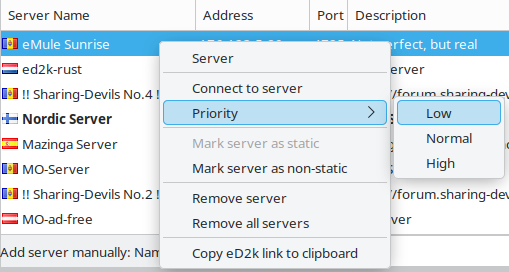
| Option | Action |
|---|---|
| Connect to server / Reconnect to server | Connect directly to the selected server |
| Priority → Low / Normal / High | Set the connection priority for the selected server(s) |
| Mark server as static / Mark servers as static | Prevent the server from being removed during automatic list cleanup |
| Mark server as non-static / Mark servers as non-static | Remove the static protection |
| Remove server / Remove servers | Delete the selected server(s) from the list |
| Remove all servers | Delete every server from the list |
| Copy eD2k link to clipboard / Copy eD2k links to clipboard | Copy the server's ed2k:// link as plain text |
Connect to server is only available with a single server selected. Mark server as static is disabled when every selected server is already static, and Mark server as non-static when none of them is.
You can also press the Delete key to remove the currently selected server(s) without opening the context menu.
You cannot remove the server you are currently connected to. Disconnect first.
Static servers are never removed during automatic list cleanup. Mark your preferred servers as static to ensure they remain in your list across restarts.
Kademlia (Kad)
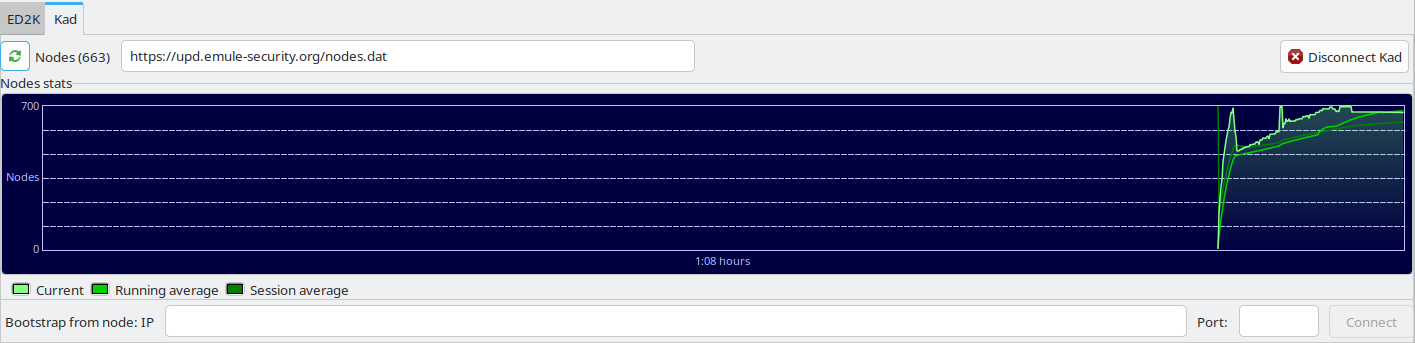
The Kad tab manages your connection to the Kademlia distributed network. Unlike ED2K, Kad does not rely on centralised servers.
Connecting
The button at the top right of the Kad tab starts and stops Kademlia, using the node list already stored on disk (nodes.dat). Like its ED2K counterpart, its label shows the current state:
| Label | State | Clicking it |
|---|---|---|
| Connect Kad | Kad not running | Starts Kad and bootstraps from the known nodes. |
| Cancel Kad | Kad running but not yet connected | Stops Kad. |
| Disconnect Kad | Connected | Stops Kad. |
The button is disabled while the Kademlia network is disabled in Preferences → Connection → Networks.
Updating the Nodes List from a URL
The URL field next to the Nodes (N) label contains the address of a remote nodes.dat file. Click the reload button to the left of the label (or press Enter in the URL field) to download a fresh list.
Updating the nodes list removes your current nodes and restarts the Kademlia connection. A confirmation dialog will appear before any changes are made.
You do not need to update the nodes list regularly. aMule keeps nodes.dat up to date while it is running. Only update manually if you cannot connect to Kad at all.
Nodes Stats Graph
The graph displays the number of Kad nodes known to your client over time. Three lines are shown:
| Line | Description |
|---|---|
| Current | The node count at each sample point |
| Running average | Smoothed average over recent samples |
| Session average | Average since aMule started |
The graph auto-scales upward as the node count grows. The Nodes (N) label at the top of the tab shows the current number of known Kad nodes at a glance.
Hover the mouse over the graph to show a crosshair and a readout of the values at that point in time, the same as in the Statistics graphs.
Bootstrapping from a Specific Node
If you know the IP address and port of a Kad node, enter the IP address in the Bootstrap from node: IP field (in x.x.x.x format) and the port in the Port field, then click the Connect button next to them. The button is enabled only when both fields contain a value.
Log and Information Panels
The lower panel contains four tabs with live status information (five in amulegui).
aMule Log
A scrollable log of all application events: connections, downloads, errors, and internal messages. Click Clear to clear the log. In amulegui this tab shows the log of the connected core, and Clear also empties that log in the core.
aMuleGUI Log
Only in amulegui: the remote GUI's own log messages (connection to the core, reconnections, local errors), kept apart from the core's log. It has its own Clear button, which only clears the remote GUI's log.
Server Info
A scrollable log of eD2k server events: connection attempts, server messages, and status updates. Click Clear to clear the log (in amulegui this also clears it in the core).

ED2K Info
Live eD2k connection details:
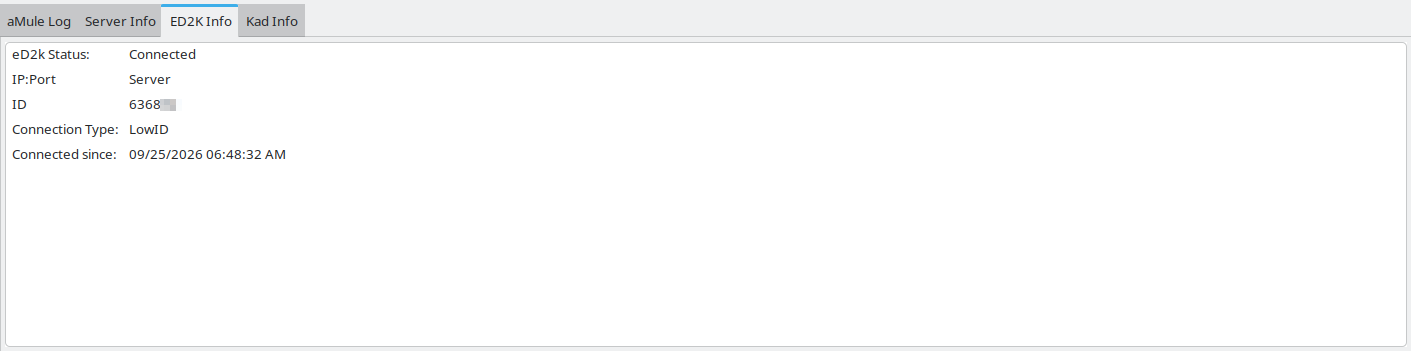
| Field | Value |
|---|---|
| eD2k Status | Connected or Not Connected |
| IP:Port | Your external IP address and TCP port (when HighID), or Server (when LowID) |
| ID | Your numeric eD2k user ID |
| Connection Type | HighID or LowID |
| Connected since | Local date and time the current server connection was established |
Only eD2k Status is shown while disconnected.
A HighID means your ports are reachable from the internet and you have full connectivity. A LowID means you are behind a firewall or NAT and other clients cannot connect to you directly, which significantly reduces transfer performance. See Network Connectivity for how to fix this.
Kad Info
Live Kademlia connection details. While Kad is not running only Kademlia Status is shown, and the rows from Connected since onwards appear only while Kad is connected:
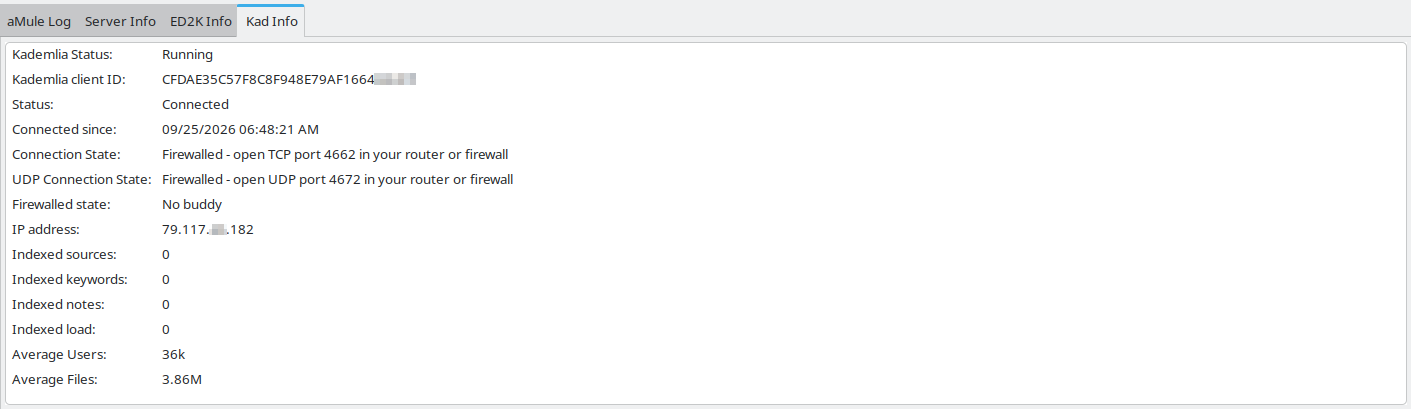
| Field | Value |
|---|---|
| Kademlia Status | Running, Running in LAN mode, or Not running |
| Kademlia client ID | Your 128-bit Kad identity as a hex string |
| Status | Connected or Disconnected |
| Connected since | Local date and time the Kad connection was established |
| Connection State | OK, or Firewalled - open TCP port N in your router or firewall |
| UDP Connection State | OK, or Firewalled - open UDP port N in your router or firewall |
| Firewalled state | Buddy connection status (only shown when firewalled) |
| IP address | Your external IP address as seen by the Kad network |
| Indexed sources | Number of file sources your node is indexing for the network |
| Indexed keywords | Number of search keywords your node is indexing |
| Indexed notes | Number of file comments your node is indexing |
| Indexed load | Total indexing load |
| Average Users | Estimated total number of users on the Kad network |
| Average Files | Estimated total number of files on the Kad network |
The Firewalled state row only appears when Kad is connected and at least one of your ports (TCP or UDP) is firewalled. If both Connection State and UDP Connection State show OK, this row is not shown at all — that is the normal, healthy case.
When a port is firewalled, aMule attempts to find a buddy — another Kad node that relays incoming connections on your behalf. The row then reflects the current buddy status:
| Value | Meaning |
|---|---|
No buddy required - TCP port open / No buddy required - UDP port open | Only one of the two ports is firewalled, so no buddy is needed |
No buddy | A buddy is needed but none has been found yet |
Connecting to buddy | aMule is establishing a buddy connection |
Connected to buddy at <IP:Port> | A buddy is connected and relaying for you |
For the best Kad performance, both TCP and UDP ports should show OK. If either shows Firewalled, open and forward the indicated port in your router or firewall.
You can copy the contents of the ED2K Info and Kad Info panels to the clipboard: press Ctrl+C, or right-click and choose Copy. With rows selected, only those rows are copied; with no selection, the whole panel is copied. Values are placed on the clipboard as tab-separated label / value pairs, one per line.