Priority
aMule allows you to set priority levels on both downloads and uploads, giving you control over which files receive more attention when bandwidth and queue slots are limited.
Download Priority
Download priority controls how aggressively aMule seeks sources and processes incoming data for a file relative to other downloads.
Set download priority by right-clicking a file in the Downloads window and choosing Priority.
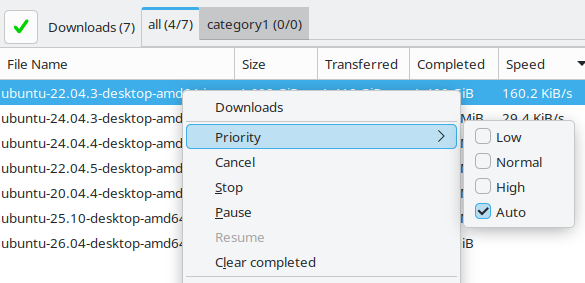
| Priority | Description |
|---|---|
| High | The file should be downloaded as fast as possible. aMule gives it preference over Normal and Low priority files. |
| Normal | The default priority. No preference over other Normal priority files. |
| Low | The file is less urgent. It receives fewer resources than Normal and High priority files. |
| Auto | aMule automatically adjusts the priority based on the number of available sources. Rare files (roughly 50 sources or fewer by default) are set to High, common files (around 100 sources or more) to Low, and everything in between to Normal. These thresholds are recalculated dynamically from the distribution of your active downloads, maximising the chance of completing rare files before they become unavailable. |
Upload Priority
Upload priority controls how willingly aMule serves a given shared file to clients in the upload queue.
Set upload priority by right-clicking a file in the Shared Files window and choosing Priority.
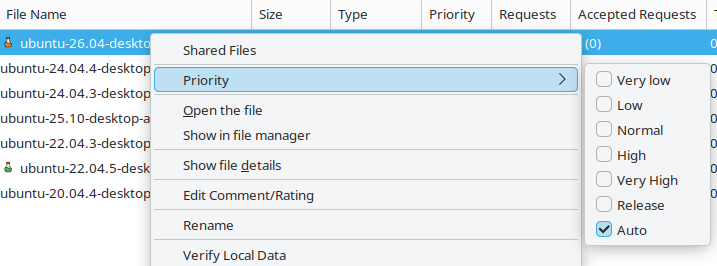
| Priority | Description |
|---|---|
| Release | The file is given overwhelming preference whenever a client requests it, and its uploads are protected from the normal slot rotation. See Release Priority below. |
| Very High | It is critically important that clients receive this file quickly. |
| High | There is an urgency to upload this file to as many clients as possible. |
| Normal | The default priority. No particular urgency. |
| Low | No urgency; given lower precedence than Normal priority files. |
| Very low | No urgency at all; the lowest precedence. |
| Auto | aMule automatically adjusts the priority based on how many clients are waiting in the queue for the file. Files with few or no clients queued are promoted (to High), while heavily requested files are lowered (to Low), so your upload bandwidth is spread out instead of concentrated on the few files everyone already wants. |
Release Priority
Release is a special upload priority designed to distribute files you want to make as widely available as possible — for example, content you are the original seeder for.
Behaviour
When a file is set to Release priority:
- Clients requesting it are given an enormous boost when aMule picks who to upload to next, so a Release file is served almost immediately whenever someone asks for it, regardless of how many other files you are sharing or downloading.
- Its uploads are treated as VIP slots (like friend slots): they are not kicked by the normal "rotate after 10 MB or 1 hour" rule, so a Release transfer keeps its slot. This protection holds as long as VIP uploads (friends + Release) occupy at most half of your total upload slots; beyond that, the normal rotation rules apply again.
- If Release-priority files do not consume all available upload bandwidth, files with other priorities fill the remaining bandwidth, ensuring your upload capacity is always used efficiently.
- Upload to other (non-Release) files is not stopped. Clients downloading non-Release files simply wait for an available slot as normal.
Comparison to eMule PowerShare
In eMule, the equivalent feature is called PowerShare. The key difference is that aMule's Release priority does not interrupt or abort ongoing uploads to other clients in order to start a Release upload. The requesting client waits for a slot to become free.
Practical Use
Release priority is ideal when you want to:
- Seed a file you originally created or obtained exclusively.
- Maximise the availability of a rare file on the network.
- Ensure a file you care about is always being uploaded whenever someone requests it, without disrupting normal sharing behaviour.