Shared Files
The Shared Files window lets you view and manage the files you are currently sharing with the eD2k and Kademlia networks. It also shows per-file statistics on how often each file has been requested and how much data has been uploaded.
Overview
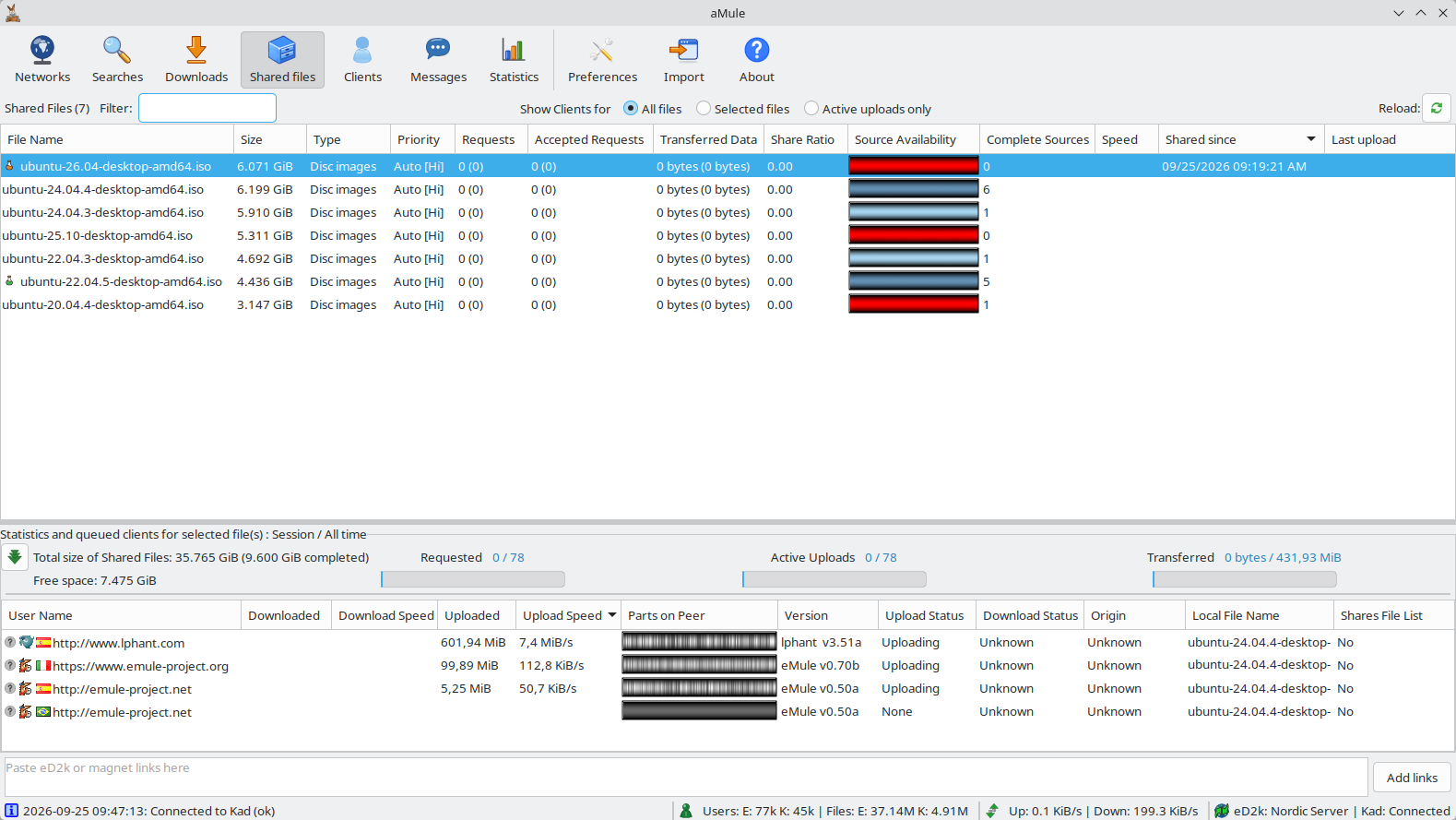
The window is split into two areas by a movable divider:
- Upper area — the list of shared files, with the header row (filter, client selection and Reload: button).
- Lower area — the statistics of the selected file(s) and the list of clients for your shared files.
What Files Are Shared
A file is considered shared by aMule if it matches any of the following conditions:
- It is located inside a directory you have configured as a shared directory (see Shared Directories below).
- It has been completed and is still in the Incoming directory.
- It is being downloaded and at least one chunk has been completed — only the completed chunks are shared.
Files List

The main panel lists all currently shared files. Its header reads Shared Files (N), or Shared Files (N, hashing M more) while newly found files are still being hashed. Type in the Filter: box next to it to show only the files whose name contains the typed text (case-insensitive); the list updates as you type.
Each row represents one file and has the following columns:
| Column | Description |
|---|---|
| File Name | Name of the file |
| Size | Total file size |
| Type | Media type |
| Priority | Current upload priority for this file. A file on Auto shows Auto [Lo], Auto [No] or Auto [Hi], with the level aMule has currently chosen |
| Requests | Requests received, as session (all time) |
| Accepted Requests | Times parts were uploaded, as session (all time) |
| Transferred Data | Bytes uploaded, as session (all time) |
| Share Ratio | All-time data uploaded for this file divided by the file size |
| Source Availability | Visual bar: parts known to be held by other clients shown in blue (darker = more clients have them); parts no client is known to have shown in red |
| Complete Sources | Estimated number of clients that have the complete file |
| Speed | Current upload speed for this file |
| Shared since | When the file was first shared |
| Last upload | When data of this file was last uploaded |
| Directory Path | Full path to the file's folder on your system; for files still being downloaded, the Temporary directory |
| Length, Bitrate, Codec | Playing time, bitrate and codec of audio and video files. Hidden by default |
| Artist, Album, Title | Tags of audio files. Hidden by default |
For Requests, Accepted Requests and Transferred Data, the first two clicks on the header sort by the session value (ascending, then descending) and the next two by the all-time value.
The six media columns are filled by media metadata extraction, which reads audio and video files with ffprobe. Show them by right-clicking the column header (see Working with lists).
Double-clicking a file (or pressing Enter) opens it, as Open the file in the menu below does; if it cannot be opened (for example a partial file without a preview), File Details opens instead. See Keyboard & Mouse Shortcuts for the other shortcuts.
Files whose name matches the Exclude files matching patterns in Preferences → Directories (by default common OS junk such as .DS_Store or Thumbs.db) are never shared and do not appear in the list.
Managing Files
Select one or more files, then right-click (or Control-click on a Mac with a single-button mouse) to open the file management menu.
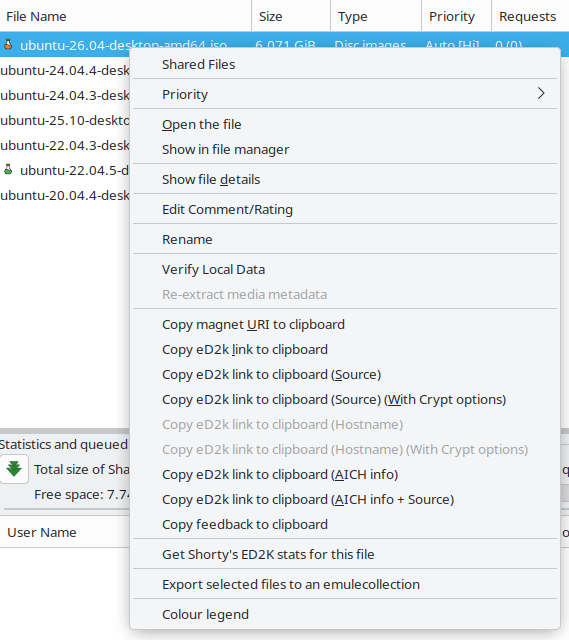
Setting Priority
Use Priority to set the upload priority for the selected file(s). See Priority for a description of all priority levels.
Adding a Comment or Rating
Select Add Comment/Rating (Edit Comment/Rating if the file already has one) to open the comment and rating window. The window contains:
- A text field for the comment — enter up to 50 characters of descriptive text that other clients downloading the same file will be able to read.
- Clear — erases the comment text field.
- A rate selector drop-down to assign a quality rating to the file. For a description of available rating values, see Comments.
- Apply (or press Enter) — saves the comment and/or rating.
- Cancel — discards all unsaved changes and closes the window.
When a file has a rating or a comment, an icon appears next to its name in the file list: the rating icon when it is rated, otherwise the comment icon.
Renaming a File
Select Rename (or press F2) to rename the file on your local storage. A dialog opens with a text field pre-filled with the current filename:
- Type the new name and click OK to confirm.
- Click Cancel to keep the existing name.
Collections
For files with the .emulecollection extension, the menu shows Add files in collection to transfer list, which queues every file listed in the collection for download.
To create a collection, select the files and choose Export selected files to an emulecollection. A save dialog proposes a name like amule-shared-YYYYMMDD-HHMMSS.emulecollection; the file is written as plain UTF-8 text with one eD2k link per selected file, and a confirmation reports how many files were exported. Another aMule or eMule user can open it to queue the same files.
Other Menu Options
| Option | Action |
|---|---|
| Open the file | Open the file: media files in the configured video player, anything else with the system's default application. Labelled Preview for a file that is still downloading, and then enabled only if a preview is possible. Enabled only when the file is on this computer (see Path Mappings for amulegui) |
| Show in file manager | Open the folder containing the file in the system file manager. Not available for files that are still downloading |
| Show file details | Open the File Details window, with the file's sharing statistics and media information. The down/up arrow buttons in that window step through the shared files list |
| Verify Local Data | Re-hash the selected file(s) to check that the data on disk still matches the file's hash. Not available for files that are still downloading |
| Re-extract media metadata | Read the media information (length, bitrate, codec, tags) of the selected audio and video files again, for example after editing their tags. When more than one file is eligible, aMule asks for confirmation first. It then runs in the background and reports progress, and any skipped files, in the log. Disabled when none of the selected files is a complete audio or video file, or when media metadata extraction is turned off in Preferences |
| Copy magnet URI to clipboard | Copies a magnet link for the file as plain text |
| Copy eD2k link to clipboard | Copies the file's eD2k link as plain text |
| Copy eD2k link to clipboard (Source) | Copies the eD2k link with you added as a source, so other clients downloading via that link know to try downloading from you immediately. Requires a High ID; otherwise aMule warns that it cannot create a valid source link |
| Copy eD2k link to clipboard (Source) (With Crypt options) | Same as the Source option but also embeds your protocol-obfuscation (encryption) capabilities |
| Copy eD2k link to clipboard (Hostname) | Same as the Source option but uses your hostname instead of your IP; available only when a hostname is configured in Preferences |
| Copy eD2k link to clipboard (Hostname) (With Crypt options) | Same as the Hostname option but also embeds your protocol-obfuscation (encryption) capabilities |
| Copy eD2k link to clipboard (AICH info) | Copies the eD2k link with the AICH Root Hash included; available only when a verified AICH hash exists for the file |
| Copy eD2k link to clipboard (AICH info + Source) | Copies the eD2k link with both the AICH Root Hash and you added as a source |
| Copy feedback to clipboard | Copies a plain-text report with your nick, aMule version, and the selected file(s) name, size, share ratio and upload/queue statistics — handy for posting feedback |
| Get <stats server> for this file | Open the configured statistics web site for the file. Shown only when a statistics server is configured |
| Colour legend | Explains the colours of the Source Availability bar (while a file is being re-hashed, the bar shows the hashing progress and the legend explains that instead). Shown only while that column is visible |
File Statistics
Selecting a file (or multiple files) updates the statistics panel at the bottom of the window, titled Statistics and queued clients for selected file(s) : Session / All time.

Totals
Next to the clients toggle button at the left of the panel (see Clients below), the panel always shows two totals, whatever is selected:
- Total size of Shared Files — the combined size of the files currently shown (after the Filter:). While shared files are still downloading, the completed share is added in brackets: Total size of Shared Files: X (Y completed).
- Free space — the free space in the Incoming directory.
Counters
Each value is shown as session / all-time in a single field:
| Value | Description |
|---|---|
| Requested | Requests received for the file — this session / since aMule was installed (or last configuration reset) |
| Active Uploads | Number of times parts of the file have been uploaded (accepted requests) — this session / all time |
| Transferred | Bytes of the file uploaded — this session / all time |
Below the counters, three bars show how much of the selected file(s)' all-time requests, accepted uploads and transferred data happened this session.
Clients
The toggle button at the left of the panel shows or hides the list of clients (peers) for your shared files. The Show Clients for buttons in the window header choose which clients it lists:
| Option | Clients shown |
|---|---|
| All files (default) | Clients for any of the files shown in the list (after the Filter:) |
| Selected files | Clients for the file(s) selected in the list |
| Active uploads only | Only the clients you are currently uploading to |
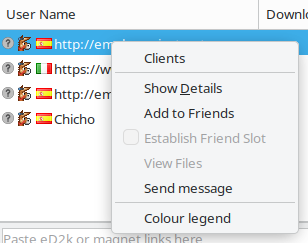
When IP2Country is enabled, the User Name column shows each client's country flag. Its columns are User Name, Downloaded, Download Speed, Uploaded, Upload Speed, Parts on Peer, Version, Upload Status, Download Status, Origin, Local File Name and Shares File List. It uses the same client context menu as the Clients page (plus Colour legend for the Parts on Peer bar while that column is shown), and double-clicking or middle-clicking a client opens the Client Details window.
Reloading the Shared Files List
Click the Reload: button (tooltip Reload your shared files) at the right of the Shared Files window's header row to rescan all shared directories and refresh the list. Use this after external changes such as files being added, moved, renamed, or deleted outside aMule.
By default you rarely need to do this: aMule watches your shared folders and reloads the list automatically when files are added, removed or renamed outside the application — including renaming or deleting a whole shared folder (a renamed folder stays shared when it is inside a recursive share). This is controlled by the Automatically rescan shared folders for changes option in Preferences → Directories. Disable it if the automatic watching is undesirable — for example on systems that hit a file-watch limit — and rely on the Reload: button instead.
Shared Directories
You manage which directories are shared from Preferences → Directories: double-click a directory to share that directory only, or right-click it to share it recursively (including all its subdirectories). The Incoming directory and the verified chunks of files still downloading are always shared.
For the full reference — the directory tree and its font/icon states, recursive shares, the rescan options, and the editable shareddir-*.dat configuration files — see Shared Directories.
Be careful which directories you share. Sharing your home directory, documents folder, or any directory containing passwords, address books, or sensitive personal data will make that data available to every client on the network.