Skins
A skin is a file or set of files that changes an application's visual appearance, allowing users to customize the icons and images displayed in the interface.
aMule supports two independent skinning systems:
- aMule bitmap skins — replace aMule-specific toolbar and client icons with custom images (zip-file based).
- GTK theme skins — change fonts, colors, shapes, and widget behavior for all GTK applications on the system (Linux/BSD only).
aMule bitmap skins
What can be skinned
aMule bitmap skins replace the icons in the toolbar and the client icons shown in the client lists (download sources, Clients page). Toolbar images are 32×32 px and client images are 16×16 px. Any image not present in the skin falls back to the aMule default.
Enabling a skin
- Open Preferences → Interface.
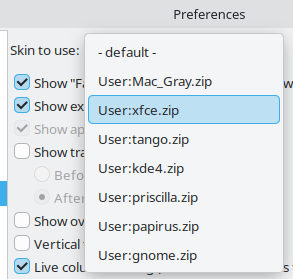
- In the Skin to use dropdown, select the skin you want to apply.
- Click OK. The toolbar icons change immediately; the client icons change after restarting aMule.
To disable skins, select - default - from the dropdown.
The dropdown is automatically populated with skins found in the user and system skins directories. Each entry shows the full zip file name prefixed with User: or System: respectively — for example, System:gnome.zip or User:crystal-project.zip.
Bundled skins
aMule ships with several ready-to-use skins. They are installed to the system skins directory and appear in the Skin to use dropdown with a System: prefix. Below is how each one renders the main toolbar, with the default aMule icons shown first for comparison:
Default (- default -) — the standard aMule icons

gnome — GNOME icon theme

kde4 — KDE 4 icon theme

Mac_Gray — macOS-style gray icons

papirus — Papirus icon theme

priscilla — Classic aMule skin

tango — Tango icon theme

xfce — Xfce icon theme

Community skins
The following skins are available for download. To install, copy the zip file to the user skins directory for your platform.
Crystal Project — version 0.2.3, download skin-crystal-project-0.2.3.zip

Skin file paths
Skins are looked for in two locations: a per-user directory and a system-wide directory.
| Platform | User skins | System skins |
|---|---|---|
| Windows | %APPDATA%\aMule\skins\ | ..\share\amule\skins\ (relative to amule.exe in bin\) |
| macOS | ~/Library/Application Support/aMule/skins/ | aMule.app/Contents/SharedSupport/skins/ |
| Linux / Solaris / BSD | ~/.aMule/skins/ | /usr/share/amule/skins/ (or /usr/local/share/amule/skins/ for local builds) |
System skins are available to all users on the machine; user skins are only available to the current user.
Installing a skin
- Download the skin zip file.
- Copy it to the user skins directory for your platform (see Skin file paths above).
- It will appear in the Skin to use dropdown the next time you open Preferences.
Skin file format
A skin file is a standard zip archive containing PNG images. The file names inside the zip must match the names listed below exactly. Any missing image falls back to the aMule default.
Toolbar images (32×32 px)
Each of these buttons is described in detail on the Toolbar page.
| File | Element |
|---|---|
Toolbar_Network.png | Networks window button |
Toolbar_Transfers.png | Downloads window button |
Toolbar_Search.png | Searches window button |
Toolbar_Shared.png | Shared Files window button |
Toolbar_Clients.png | Clients window button |
Toolbar_Messages.png | Messages window button |
Toolbar_Stats.png | Statistics window button |
Toolbar_Prefs.png | Preferences window button |
Toolbar_Import.png | Import Tool window button |
Toolbar_About.png | About window button |
Toolbar_Blink.png | Blink/notification indicator |
Older skins may also contain Toolbar_Connect.png, Toolbar_Disconnect.png and Toolbar_Connecting.png. aMule ignores them, because the toolbar has no Connect button (see Toolbar).
Client images (16×16 px)
The meaning of each client icon is described in Downloads → Client Icons.
| File | Element |
|---|---|
Client_A4AFNoNeededPartsQueueFull.png | A4AF client with full queue and no needed parts |
Client_aMule.png | aMule client |
Client_BadGuy.png | Bad/banned client |
Client_CommentOnly.png | Client with comment only |
Client_Connecting.png | Connecting client |
Client_CreditsGrey.png | Client with credits (grey) |
Client_CreditsYellow.png | Client with credits (yellow) |
Client_eDonkeyHybrid.png | eDonkey Hybrid client |
Client_eMule.png | eMule client |
Client_Encrypted.png | Encrypted connection |
Client_ExcellentRatingOnFile.png | Client with excellent file rating |
Client_ExtendedProtocol.png | Overlay for a client that does not support the extended protocol |
Client_FairRatingOnFile.png | Client with fair file rating |
Client_Friend.png | Friend |
Client_GoodRatingOnFile.png | Client with good file rating |
Client_InvalidRatingOnFile.png | Client with invalid file rating |
Client_lphant.png | lphant client |
Client_mlDonkey.png | mlDonkey client |
Client_OnQueue.png | Client on queue |
Client_PoorRatingOnFile.png | Client with poor file rating |
Client_SecIdent.png | Secure identification active |
Client_Shareaza.png | Shareaza client |
Client_StatusUnknown.png | Unknown client status |
Client_Transfer.png | Transferring client |
Client_Unknown.png | Unknown client |
Client_Upload.png | Uploading client |
Client_xMule.png | xMule client |
GTK theme skins (Linux/BSD)
Most Windows and macOS users will not need this section. It applies only to aMule builds linked against GTK (which is the normal case on Linux/BSD).
What GTK skins do
aMule uses the GTK toolkit. GTK allows all widgets (scrollbars, buttons, fonts, colors, etc.) to be themed at the toolkit level using a GTK theme. This changes the appearance of all GTK applications on the system, not just aMule. GTK themes cannot replace aMule-specific icons — use aMule bitmap skins for that.
Determine your GTK version
amule --version
Example output:
aMule 3.0.0 compiled with wxGTK3 v3.2.4 (OS: Linux)
The wxGTK version string tells you which GTK version your aMule build is linked against:
wxGTK3→ GTK3 (most modern builds)wxGTK2→ GTK2 (older builds)
Applying a GTK theme
The tool to switch GTK themes depends on your desktop environment:
| Desktop | Tool |
|---|---|
| GNOME | GNOME Tweaks (gnome-tweaks) → Appearance |
| KDE Plasma | System Settings → Colors & Themes → GTK Theme |
| LXDE / LXQT / general GTK | lxappearance |
| Command line (GTK3) | gsettings set org.gnome.desktop.interface gtk-theme <theme-name> |
GTK themes must be installed on the system before they can be selected. On Debian/Ubuntu:
# Install lxappearance (works for both GTK2 and GTK3)
apt-get install lxappearance

# Browse available GTK3 themes
apt-cache search gtk3-engines
apt-get install gnome-themes-extra

# Browse available GTK2 themes
apt-cache search gtk2-engines
apt-get install gtk2-engines