Directories
aMule uses two separate directories to manage downloads: a Temporary directory for in-progress downloads and an Incoming directory for completed files. A separate set of Shared directories controls which files are offered to the network for upload.
All three are configured in Preferences → Directories.
This page explains the directories related to downloading files. aMule's own configuration lives in a separate directory, described in Configuration Files.
When you back up aMule or move it to a new computer, any download directory outside the configuration directory needs its own backup. See Backup and Restore.
Incoming Directory
Completed files are moved here when the download finishes and all chunks have been hash-verified. This is the folder you open to find your downloaded files.
Default Locations
| Platform | Default Incoming Directory |
|---|---|
| Windows Vista / 8 / 10 / 11 | C:\Users\<user>\Documents\aMule Downloads |
| Windows XP | C:\Documents and Settings\<user>\My Documents\aMule Downloads |
| macOS | ~/Documents/aMule Downloads |
| Linux / BSD | ~/.aMule/Incoming |
Changing the Incoming Directory
Open Preferences → Directories and change the path in the Incoming Directory field.
On Linux, .aMule is a hidden directory. Enable Show hidden files in your file manager to see it.
Temporary Directory
While a file is downloading, aMule stores its data here as a set of temporary files. Once a download completes, the finished file is moved to the Incoming directory and the temporary files are deleted.
Keep the Temporary and Incoming directories on the same partition (filesystem). When a download finishes, aMule moves the file from Temp to Incoming. On the same filesystem this is an instant rename; if they are on different partitions, aMule must copy the whole file byte-for-byte, which can turn a sub-second operation into minutes for large files.
Default Locations
| Platform | Default Temporary Directory |
|---|---|
| Windows Vista / 8 / 10 / 11 | C:\Users\<user>\AppData\Roaming\aMule\Temp |
| Windows XP | C:\Documents and Settings\<user>\Application Data\aMule\Temp |
| macOS | ~/Library/Application Support/aMule/Temp |
| Linux / BSD | ~/.aMule/Temp |
Changing the Temporary Directory
Open Preferences → Directories and change the path in the Temporary Directory field.
Temporary Files
Each in-progress download is represented by a group of files in the Temp directory. aMule names them after a sequential three-digit number — the lowest free number in the Temp directory (001, 002, …) — not the file's hash. The file's MD4 hash is stored inside the .part.met file. All temporary files belonging to the same download share that number. For full details on these files, see Temporary download files (*.part, *.part.met).
| File | Purpose |
|---|---|
<NNN>.part | The actual download data. Pre-allocated to the full file size, or created as a sparse file depending on the Create files without needing to reserve disk space setting. Downloaded chunks overwrite the zero-filled placeholders. |
<NNN>.part.met | Metadata: filename, size, hash, which chunks have been verified. Required to resume the download. |
<NNN>.part.met.bak | Periodic backup of the .part.met file. Rename to .part.met to recover from a crash. |
<NNN>.part.met.seeds | Up to 10 known source addresses for the file. Only created when Save sources for rare files is enabled, and only for rare files (those with 20 sources or fewer). |
If you have in-progress downloads from eMule, copy their .part and .part.met files into aMule's Temp directory. aMule will re-hash them and resume the downloads automatically on the next start. See Migrate from eMule for the full migration guide. For other clients (mlDonkey, eDonkey2000, xMule), see Migrate from Other Clients.
Per-Category Incoming Folders
Each download category can have its own incoming directory. When a completed file belongs to a category that has a folder configured, it is saved there instead of the default Incoming directory.
To set a category folder, right-click a category tab in the Downloads window and select Edit category, or create a new one with Add category.
Shared Directories
aMule shares files with the eD2k and Kademlia networks from the following sources:
- Any directory explicitly marked as a shared directory.
- The Incoming directory — completed downloads are automatically shared.
- Partially downloaded files — only the verified chunks are shared while the download is in progress.
Configuring Shared Directories
Go to Preferences → Directories. The Shared Directories panel shows a directory tree. You toggle sharing directly on the tree (there are no checkboxes):
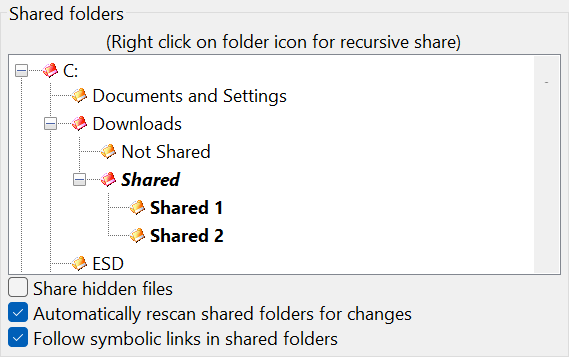
- Double-click a directory to share that directory only (its subdirectories are not affected). Double-click again to stop sharing it.
- Right-click a directory to share it recursively, including all its subdirectories. Right-click again to stop sharing the whole subtree.
The font and folder icon show the current state:
- Normal font — directory is not shared.
- Bold font — directory is shared.
- Bold italic font — directory is the root of a recursive share (it and all its subdirectories are shared).
- Yellow folder icon — none of its subdirectories are shared.
- Red folder icon — at least one subdirectory is shared.
A directory inside a recursive share cannot be un-shared on its own. To remove it, modify or un-share the recursive root above it.
A few related options control how shared directories are scanned:
- Share hidden files — include hidden files from shared directories.
- Automatically rescan shared folders for changes — watch the shared folders so files added, changed, removed or renamed outside aMule are picked up automatically, without pressing Reload.
- Follow symbolic links in shared folders — follow symbolic links (to files or directories) when scanning shared folders. Enabled by default; disable it to skip symlinked entries.
Be careful which directories you share. Sharing your home directory, documents folder, or any directory containing passwords, address books, or sensitive personal data will make that data available to every client on the network.
Managing Shared Files
The Shared Files window shows all files currently being shared, including per-file upload statistics, upload priority settings, and options to copy eD2k links. Use the Reload button after adding, moving, or deleting files outside aMule to refresh the list.
Configuring via the shared-directory files
Shared directories can also be configured by editing the shared-directory files directly. All three live in the aMule configuration directory (~/.aMule/), with one full directory path per line:
| File | Purpose |
|---|---|
shareddir-explicit.dat | Non-recursive roots — only the immediate files in each listed directory are shared. |
shareddir-recursive.dat | Recursive roots — each listed directory is shared, including all its subdirectories. |
shareddir.dat | Derived union of the two files above. aMule regenerates it automatically on every save, so edit the two canonical files, not this one. |
See shareddir.dat and related files for full details.
Stop aMule before editing these files. Any changes made while aMule is running will be overwritten when aMule exits.
Disk Space Protection
To prevent downloads from filling the disk, open Preferences → Files and enable Check Disk Space, then set a minimum free-space threshold in Min Disk Space. When free space falls below the limit, aMule pauses downloads automatically with the Insufficient disk space status.