amulegui — Remote GUI
amulegui is a standalone graphical client that connects to a running amuled (or to a monolithic amule core) over the network using the External Connections (EC) protocol. It provides almost the same interface as the amule client, but without running the core locally.
Overview
amulegui is the preferred option when you want a full graphical interface to a headless amuled running on a remote machine, or on the same machine in a different session. Because the core runs as a separate process, you can keep amuled running 24/7 and attach or detach the GUI whenever you like.
If your connection to the amuled host is slow or unreliable, consider using amulecmd (CLI) or the amuleapi Web UI (browser) instead, as those interfaces transfer less data per interaction.
Known Limitations
- Feature parity with the local
amuleGUI is the design goal but may lag behind in practice. Settings the remote GUI cannot apply to the core are hidden in its Preferences. - The Import toolbar button is not available (see Import Tool).
Installation
See Installation for pre-built packages, or Compilation to build amulegui from source.
Configuration
Before amulegui can connect, the core (amuled or amule) must have External Connections enabled and a password configured.
Configuring the core
-
In
~/.aMule/amule.conf, set:[ExternalConnect]AcceptExternalConnections=1ECPassword=<md5hash>ECPort=4712 -
Generate the MD5 hash of your chosen password:
echo -n yourpassword | md5sum | cut -d ' ' -f 1Paste the result (without trailing whitespace) as the value of
ECPassword. -
By default, a new configuration makes the core listen only on the local machine (
ECAddress=127.0.0.1); a configuration created by an older version keeps its previous value (usually empty = all interfaces). To connectamuleguifrom another computer, setECAddressto the core's LAN IP address, or leave it empty to listen on all interfaces:ECAddress=
Connecting amulegui to the core
When amulegui starts, it presents the Connect to remote amule dialog.
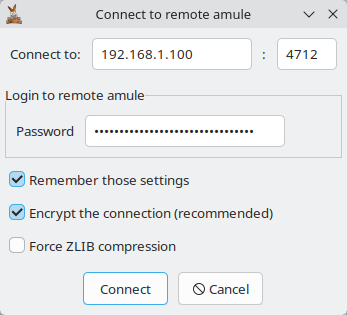
Enter:
- Connect to — hostname or IP address of the machine running the core (default:
127.0.0.1), and after the colon the EC port (default:4712). - Password — the plaintext password (not the MD5 hash);
amuleguihashes it internally before sending. A non-empty password is required. - Encrypt the connection (recommended) — encrypt all EC traffic between
amuleguiand the core. Ticked by default. A core with Require encrypted connections enabled in its Remote Controls preferences refuses unencrypted connections. - Force ZLIB compression — traffic is compressed with zlib by default, except when the core resolves to a local/LAN address (where compression is skipped); tick this to compress regardless — useful when the core is reachable over a VPN tunnel that resolves to a LAN IP.
Leave Remember those settings ticked (the default) to store the host, port, hashed password and the two checkbox choices (persisted as /EC/Encryption and /EC/ForceZLIB) so they are reused on the next launch. With saved settings in place you can start with the -s/--skip flag (see below) to bypass the dialog entirely.
If the connection fails or times out, see Remote Access Troubleshooting.
Interface
Once connected, the interface is the same as the monolithic amule client, with the same panels (Networks, Searches, Downloads, Shared Files, Clients, Messages, Statistics). Full documentation for each panel is in the GUI guides. The remote-specific behaviour is described below.
Core version
The status bar shows the version of the connected core as Core: <version>, in red when it differs from the version of amulegui itself. Click it to open a Version window with the core's address, whether the connection is encrypted, and both versions.
Losing the connection
If the connection to the core drops (or the core sends no reply for 30 seconds while requests are pending), amulegui does not exit. The interface is paused and a Connection lost window shows the reconnection progress: amulegui retries every 5 seconds until the core is reachable again, then resumes where it left off (it reloads everything if the core was restarted meanwhile). Click Abort and exit to give up and close amulegui.
While the window is minimized or hidden in the system tray, the reconnection runs silently, without the dialog; it appears if you restore the window before the connection is back. Each step is also logged.
Server Info, window layout and logs
The Server Info tab of the Networks window is filled with the core's server messages, and amulegui remembers its window size and position and the column layout of every list between sessions.
The Networks window's aMule Log tab shows the core's log, while a separate aMuleGUI Log tab holds the messages of amulegui itself — connection, reconnection and local errors. amulegui also writes its own log to remotelogfile in its configuration directory, next to remote.conf.
Shared folders
In Preferences → Directories, the local directory tree is replaced by the list of folders shared by the core. Type an absolute path as seen on the core's machine, tick Recursive to also share its sub-folders, and click Add; select an entry and click Remove to stop sharing it.
Opening files and path mappings
Open the file, Preview and Show in file manager in the Downloads and Shared Files windows work only on files this computer can reach. When the core runs on another machine, add a Path Mapping that rewrites the core's path prefix (e.g. /srv/amule/Incoming) to where the same folder is mounted locally (e.g. a network share). The mappings are stored in the [PathMappings] section of remote.conf.
Searches and chat
Kad searches can be widened with Extend, searches started from other interfaces appear as tabs, and View Files shows a client's shares as a folder tree, the same as in amule (see Searches). Chat sessions are held by the core, so conversations continue across amulegui sessions (see Chat in amulegui).
Preferences in amulegui
The Preferences window only offers settings the core can apply over EC. It adds the Path Mappings page, which is specific to amulegui, and hides or disables, among others, the External Connections settings of the core, the web server and External Connections UPnP options (always), the P2P UPnP options when the core has no UPnP support, the online-signature and ffprobe Browse buttons, the ffprobe Detect button, and the IP2Country page when the core has no GeoIP support.
Command-Line Options
| Flag | Description |
|---|---|
-h, --help | Display usage information and exit. |
-v, --version | Display the current version number and exit. |
-c, --config-dir <dir> | Read config from <dir> instead of ~/.aMule. |
-o, --log-stdout | Print log messages to stdout. |
-r, --reset-config | Reset config to default values (the old config is backed up as .backup). |
-s, --skip | Skip the connection dialog and connect using the saved settings. |
-geometry <geom> | Set the window geometry, using the standard X11 format [=][<width>{xX}<height>][{+-}<xoffset>{+-}<yoffset>]. |
--configure-autostart=on|off | Enable or disable starting amulegui on user login, then exit. |
--configure-protocols=<value> | Register or unregister aMule as the default handler for ed2k:// and magnet: links, then exit. on|off sets both schemes; ed2k:on, ed2k:off, magnet:on or magnet:off sets one. |
--configure-file-assoc=on|off | Register or unregister aMule as the handler for .emulecollection files, then exit. |
-d, --disable-fatal | Don't catch fatal exceptions or block exit on assertions (useful under systemd / watchdog scripts). Not available on Windows. |
-i, --enable-stdin | Do not close stdin (closed by default). Not available on Windows. |
-t, --category <num> | Category for passed eD2k links (default: 0). |
You can also pass one or more eD2k links, magnet: links or .emulecollection files as arguments to enqueue them into the connected core:
amulegui -t 1 "ed2k://|file|example.iso|123456|<hash>|/"