File Details
The File Details window provides a comprehensive view of a file: its current state, its download progress and ICH corruption-handling statistics, its sharing statistics and media information, the alternative file names reported by sources, and controls to rename the file before it completes.
Open it from either file list:
- In the Downloads window, right-click a file and choose Show file details, or double-click a file that cannot be opened or previewed.
- In the Shared Files window, right-click a file and choose Show file details, or double-click a file that cannot be opened.
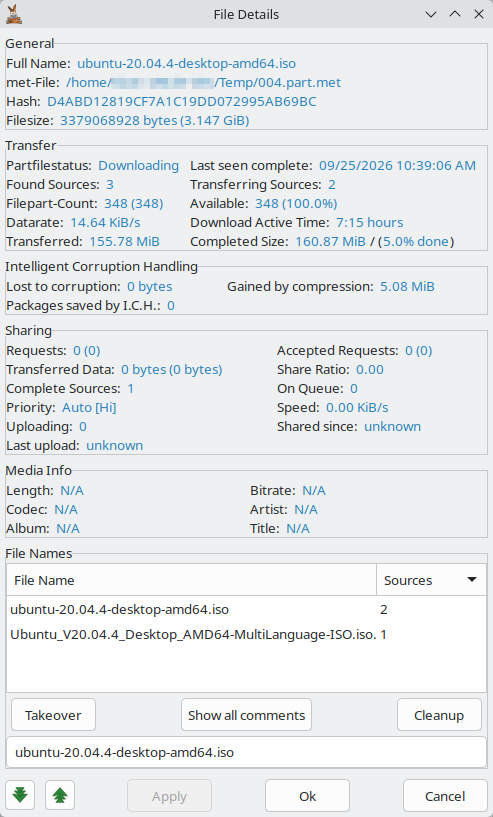
The window can be resized and maximized. Which sections it shows depends on the state of the file, not on the list it was opened from:
| Section | Shown for |
|---|---|
| General, Media Info, File Names | Every file |
| Transfer, Intelligent Corruption Handling | A file that is still downloading |
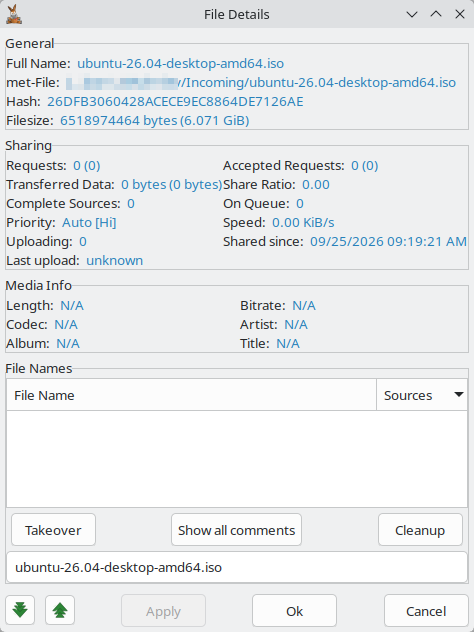
| Sharing | A completed file, or a download that already has some data downloaded |
View Details
General
| Field | Description |
|---|---|
| Full Name | The name the file will have when it completes (or its current name if already complete) |
| met-File | Path to the file's part.met metadata file; for completed files this is the full path of the file |
| Hash | The file's eD2k hash |
| Filesize | The file's total size when complete (or current size if complete) |
Transfer
The Transfer section shows the status and progress details of a download:
| Field | Description |
|---|---|
| Partfilestatus | The file's current status (see table below) |
| Last seen complete | The last time a source with the complete file was seen on the network |
| Found Sources | Number of sources currently known for the file |
| Transferring Sources | Number of sources currently uploading to you |
| Filepart-Count | Total number of chunks the file is divided into; in brackets, the number of chunk hashes known |
| Available | Number of chunks known to be available from sources, and in brackets the percentage of total chunks |
| Datarate | Current download speed for this file (more precise than the Downloads window; shows up to two decimal places) |
| Download Active Time | Total time the file has spent actively downloading, shown as hours and minutes |
| Transferred | Total data received for this file (includes any corrupted data that was later discarded) |
| Completed Size | Amount of data already written to disk (the file size minus the parts still missing), followed by the percentage of the total file size shown in brackets, e.g. 12.3 MiB / (45.6% done) |
Partfilestatus values:
| Status | Description |
|---|---|
| Completing | The download has finished and the file is being finalized (moved into place) |
| Hashing | The file's hash is being computed or it is waiting to be hashed |
| Allocating | Disk space for the file is being allocated |
| Downloading | The file is actively being downloaded (at least one source is uploading to you) |
| Waiting | The file is waiting for a source to upload to you (no source is currently uploading) |
| Paused | The file has been paused |
| Stopped | The file has been stopped |
| Insufficient disk space | There is not enough free disk space to continue |
| Erroneous | An error occurred reading or creating the file |
Stopped is not a separate internal state: it is shown whenever the file is stopped, overriding every other status except Hashing and Allocating.
Intelligent Corruption Handling
This section shows statistics from the ICH (Intelligent Corruption Handling) subsystem:
| Field | Description |
|---|---|
| Lost to corruption | Amount of downloaded data that was discarded after being identified as corrupt |
| Gained by compression | Data saved thanks to the eD2k protocol's zlib compression — less is transferred over the network than the data written to disk |
| Packages saved by I.C.H. | Number of packets rescued from corrupt chunks by ICH, avoiding a full re-download |
Sharing
Upload statistics for the file: the same statistics as the Shared Files list, plus On Queue and Uploading. Counters are shown as session (all time):
| Field | Description |
|---|---|
| Requests | Requests received for the file |
| Accepted Requests | Times parts of the file were uploaded |
| Transferred Data | Data of the file uploaded |
| Share Ratio | All-time data uploaded divided by the file size |
| Complete Sources | Estimated number of clients that have the complete file |
| On Queue | Number of clients waiting in your upload queue for the file |
| Priority | The file's upload priority |
| Speed | Current upload speed for the file |
| Uploading | Number of clients the file is being uploaded to right now |
| Shared since | When the file was first shared (unknown if not recorded) |
| Last upload | When data of the file was last uploaded (unknown if never) |
Media Info
Media information read from audio and video files by media metadata extraction. Fields that are not known show N/A.
| Field | Description |
|---|---|
| Length | Playing time |
| Bitrate | Bitrate, e.g. 128 kbps |
| Codec | Codec name |
| Artist, Album, Title | Tags of audio files |
File Names
This is a list of names that other clients have reported for the same file (identified by its hash). Like the other lists, it can be sorted by clicking a column header:
| Column | Description |
|---|---|
| File Name | The name as reported by a source |
| Sources | Number of sources that reported this name |
By default the list is sorted by source count (most-reported names first) and is useful for detecting fakes — if many sources report a different name from what you downloaded, the file may not be what it claims to be.
Not all sources report a filename. The list is rebuilt from the file's current sources on each refresh, so it empties once the file completes and its sources are released; for a completed file it is always empty.
Rename
You can change the name the file will receive when it completes. Type the new name in the text field below the File Names list and click Apply to rename without closing the window, or Ok to rename and close it at once. Apply is enabled only after you edit the name, and only while the file is still downloading; for a completed file, Ok still renames the file on disk.
To use one of the names from the File Names list, select it and click Takeover (or double-click the name) to copy it into the text field, then click Apply.
Cleanup Function
Click Cleanup to automatically clean up the filename currently in the text field before renaming.
The cleanup function performs the following steps in order:
- Makes the extension lowercase and does not touch it further (the dot before the extension is also preserved throughout).
- Replaces dots (
.), underscores (_), and HTML space codes (%20) with single spaces. - Removes the literal scene tag
hYPNOTiC(matched with that exact mixed-case spelling, before the name is lowercased). - Makes the entire filename lowercase.
- Uppercases the substring
xxxtoXXX. - Removes known release-group and site tags:
www pornreactor comsharereactorfound via www filedonkey comdevianceadunanza-ftvflt[]()
- Uppercases the following acronyms:
CD,VCD,DVD,ISO,PC.CD,VCD, andDVDare also uppercased when directly followed by a digit (e.g.cd1→CD1), whileISOandPCare only matched as standalone words. - Capitalises the first letter of every word.
- Removes duplicate spaces.
- Removes spaces directly before a dot.
- Removes trailing spaces.
- Replaces
Bywithby.
To rename a completed file you can also use the Rename option in the Shared Files window.
Other
Click Show all comments to open the Comments window for this file. The button is enabled when comments have been received for the file or Kad is connected, so that notes can be fetched from Kad. This is especially useful on macOS with a single-button mouse, where the right-click menus need a Control-click.
The down and up arrow buttons at the bottom move to the next or previous file of the list the window was opened from, without closing the window.
Click Cancel to close the window. Any unapplied rename changes are discarded.