Messages
The Messages window provides two related features: a friends list for keeping track of known clients on the network, and a chat system for direct messaging between clients. Both work in the all-in-one amule client and in the remote amulegui, where the chat sessions are held by the connected core.
Friends List
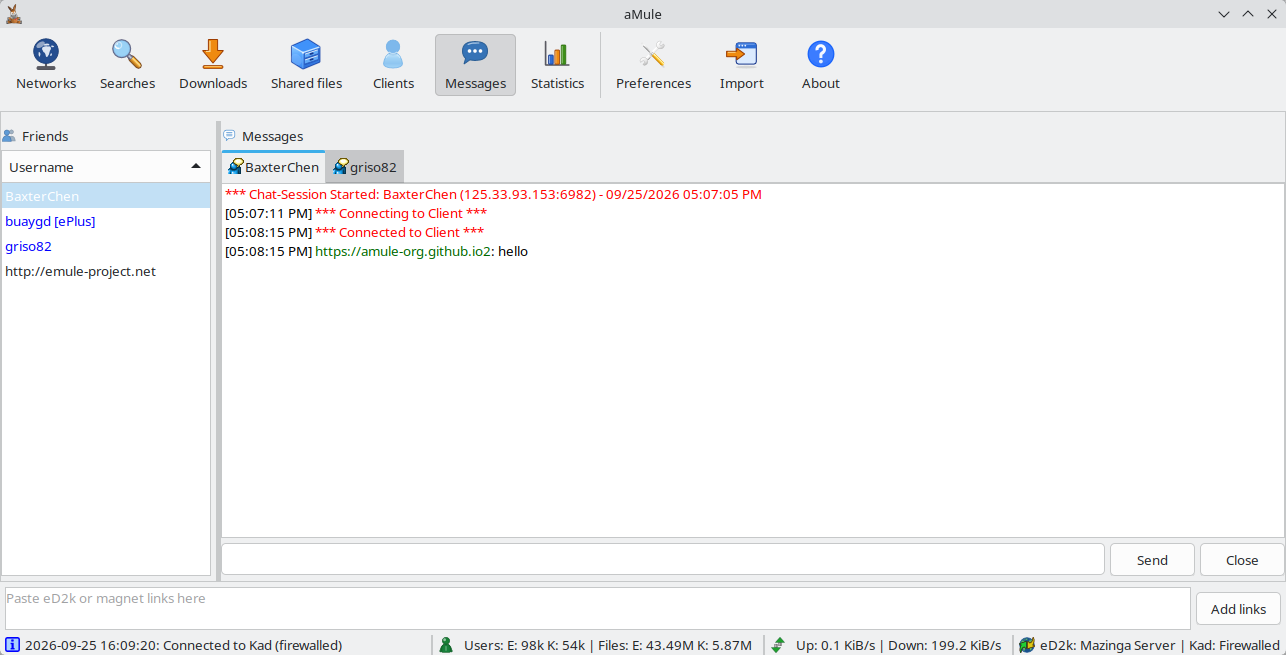
The friends list is on the left side of the Messages window.
Friends remain in the list permanently unless you explicitly remove them. This allows you to keep track of clients even when they are offline — unlike the source lists of the Downloads window, which only hold the clients aMule currently knows about for each file.
Friends that aMule currently has a live client for (usually because they are connected) are shown in blue; the others use the system's default text colour.
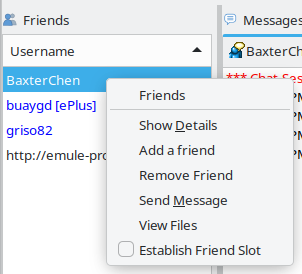
Right-clicking the list opens the friends menu. With a friend selected it contains every entry below; with no friend selected only Add a friend is shown:
| Option | Action |
|---|---|
| Show Details | Open the Client Details window for the friend. Enabled only while the friend is shown in blue (aMule has a live client for it) |
| Add a friend | Open the Add a Friend dialog (see below) |
| Remove Friend | Remove the selected friend, after confirmation. Pressing the Delete key does the same |
| Send Message | Open a chat tab with the friend. Double-clicking the friend (or pressing Enter; see Keyboard & Mouse Shortcuts) does the same |
| View Files | Request the friend's shared-files list (see below) |
| Establish Friend Slot | Reserve an upload slot for the friend (see below) |
You can also add a client as a friend from other windows: choose Add to Friends in the client context menu of the Downloads source list or the Clients page, or in a chat tab's menu.
Adding a Friend
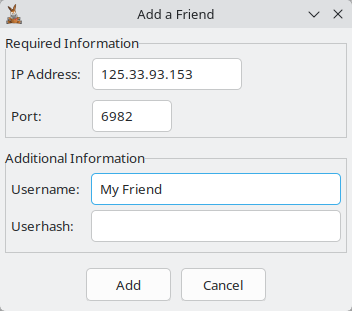
Choose Add a friend to open the Add a Friend dialog:
| Field | Required | Description |
|---|---|---|
| IP Address | Yes | The friend's IP address |
| Port | Yes | The friend's standard client TCP port (usually 4662) |
| Username | Optional | Displayed in the list until the client is contacted and the real username is confirmed |
| Userhash | Optional | The friend's userhash. Providing this prevents another client reusing the same IP/port from being mistaken for your friend, since every client has a unique userhash |
Click Add to add the friend, or Cancel to close without adding. aMule refuses an invalid IP address or port, or a malformed userhash.
Viewing a Friend's Shared Files
View Files requests the list of that client's shared files. If successful, it appears as a new tab in the Searches window, named after the friend and shown as a folder tree.
Whether a client honours the request is governed by its Who can see my shared files setting (Everybody, Friends, or No one), configured on the Security preferences tab. The default is No one, so by default clients deny shared-file-list requests for privacy reasons. A refused request marks the tab as Failed and is reported in the log.
Establishing a Friend Slot
You can reserve a dedicated upload slot for a specific friend, guaranteeing them upload bandwidth regardless of queue position. Only one friend slot can be active at a time. The menu entry acts as a toggle — selecting it again releases the slot — and the assignment is remembered, so it persists across reconnections and aMule restarts. It can be set while the friend is offline: it takes effect when the friend next connects.
Messaging
The right side of the Messages window contains the chat panel. When you send a message or receive one, a chat tab opens for that client.
Chatting
The conversation panel displays the full message history. Each message is preceded by the time it was sent or received, in your system's time format, and the sender's username (the session's first line also shows the date):
- Your username is displayed in green.
- The other client's username is displayed in blue.
The panel also shows control messages in red, such as connection and disconnection events, the other party's IP and port, and other informational messages.
To send a message, type it in the message input box at the bottom and press Enter or click Send.
Incoming messages longer than 450 characters are truncated.
Closing a Conversation
Click the Close button next to Send, or close the chat tab.
Chat Tabs
Each conversation opens in its own tab, labelled with the username of the client. Starting a new conversation adds a new tab; previous conversations remain accessible. Click any tab to switch to that conversation. A tab opened by an incoming message from a new client is brought to the front; sessions started from another interface connected to the same core open in the background.
To close a tab, click its close icon or middle-click its label. When more tabs are open than can fit in the window, scroll arrows appear at each end of the tab bar.
Tab Right-Click Menu
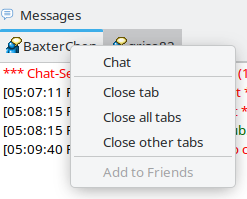
Right-clicking a tab opens a menu titled Chat with these options:
| Option | Action |
|---|---|
| Close tab | Close this tab |
| Close all tabs | Close all open tabs |
| Close other tabs | Close every tab except this one |
| Add to Friends | Add the client of this tab to your friends list (disabled if it already is a friend) |
Detecting Incoming Messages
When a message arrives while you are not on the Messages window:
- The Messages button in the toolbar blinks.
- The status bar log displays a notification message.
Incoming messages can be filtered before they ever reach the Messages window. The Filters preferences tab lets you ignore messages from people not on your friend list, from unknown clients, or containing specific words, as well as include the text of received messages in the log. Independently, an advanced spam filter may require a client that is not your friend to solve a CAPTCHA before its first message gets through; clients that send URLs in a first message or keep messaging without a reply are flagged as spammers and their session is closed automatically.
Chat in amulegui
In amulegui the chat sessions live in the connected core, which keeps the last 200 messages of up to 50 sessions in memory. The remote GUI shows the conversations already in progress when it connects and follows new messages as they arrive, and messages you send go out through the core. Messages replayed when amulegui connects are stamped with the time they were shown, not the time they were originally sent or received. The CAPTCHA/URL spam filter described above exists only in the all-in-one amule; with amuled, only the message filters of the Filters preferences apply. The same sessions are available over the amuleapi REST API and in its Web UI; the friends list is exposed there too.
Miscellaneous
aMule messaging uses direct IP:port connections, not the eD2k or Kademlia network overlay. This means:
- You can message a client even if you are only on eD2k and they are only on Kademlia, or vice versa.
- You can even message a client when neither of you is connected to any network — as long as both clients are online (running with an internet connection) and know each other's IP and port.