Searches
The Searches window lets you search for files across the eD2k and Kademlia networks and add results directly to your download queue.
Overview
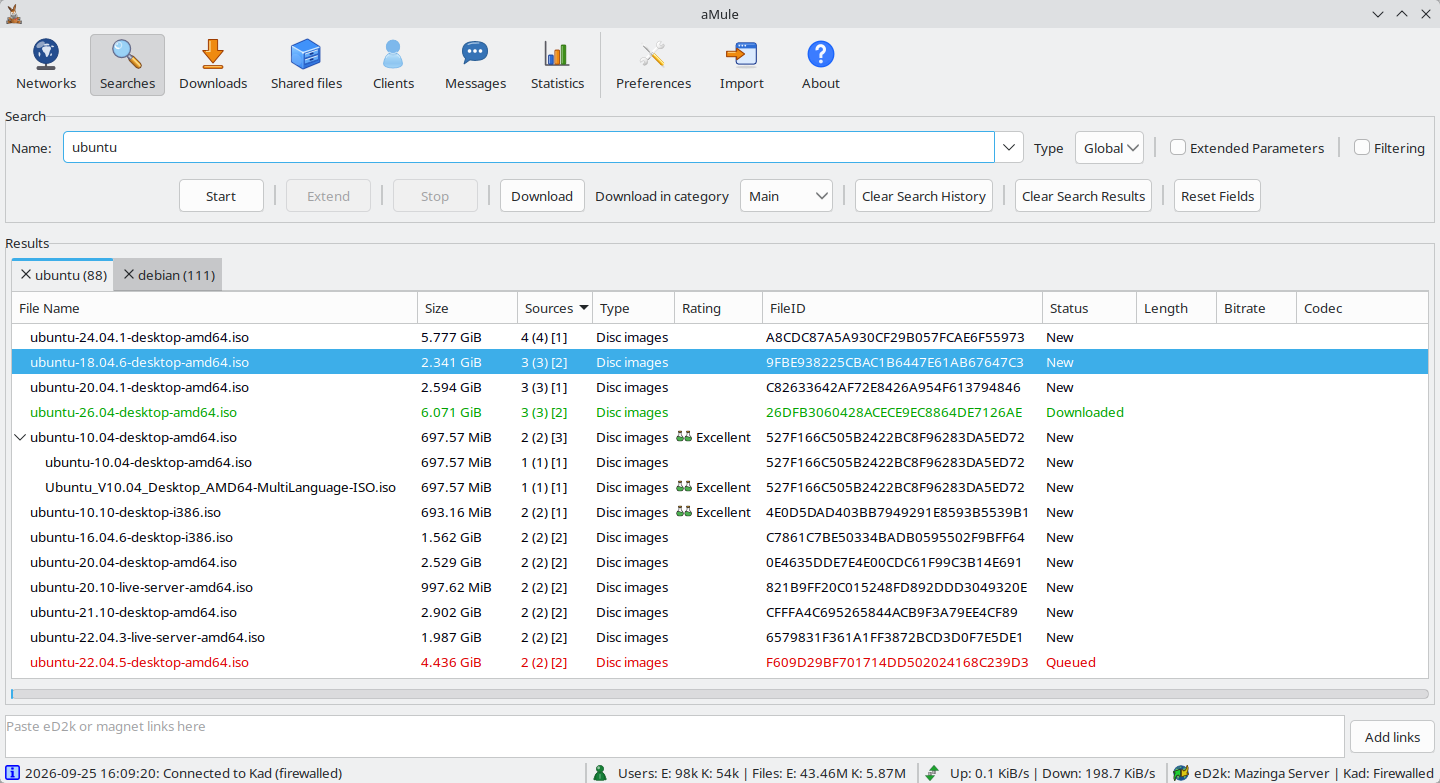
The window is divided into two main areas:
- The upper area holds the search controls: the search field and type, the optional extended parameters and filtering rows, and the action buttons.
- The lower area shows the results, one tab per search.

Basic Searching
Starting a Search
Type what you want to find in the Name field and click Start (or press Enter).
Search queries are matched against file names. For example:
amule— finds files whose name contains "amule"debian iso— finds files whose name contains both "debian" and "iso"
Search History
When Remember search history is enabled in Preferences → General (the default), the Name field is a drop-down that keeps your last 100 searches, newest first, and completes what you type from it. The history is saved in searchhistory.dat in the configuration directory and survives restarts.
To empty it, click Clear Search History or choose Clear Search History from the Name field's right-click menu; aMule asks for confirmation first. With the option disabled, the Name field is a plain text box, no new searches are recorded and the Clear Search History button is hidden. The existing searchhistory.dat is kept, and its terms come back if you enable the option again — clear the history first if you want it gone.
Search Logic (Boolean Operators)
aMule supports Boolean search expressions using the AND, OR, and NOT operators, and expressions can be grouped with parentheses. Listing several words separated by spaces is treated as an implicit AND. For example:
(knoppix AND V5.1.1) OR (knoppix AND V6.0)
Getting Results
Once a search starts, a results tab appears and fills as results arrive:
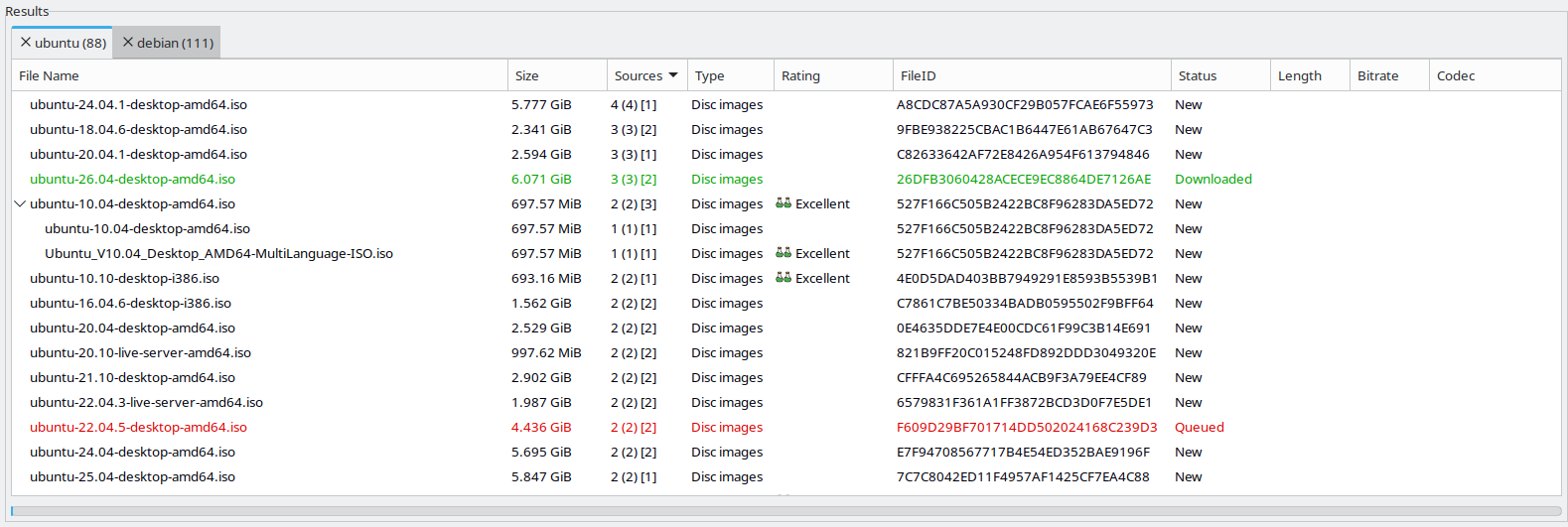
The results list has the following columns:
| Column | Description |
|---|---|
| File Name | Name of the file |
| Size | File size |
| Sources | Total sources, followed (when not zero) by the sources holding the complete file in parentheses, and an optional client count in square brackets |
| Type | File type, from the extension (see File Type) |
| Rating | Average rating reported for the file, shown as an icon and text (Invalid / Corrupt / Fake, Poor, Fair, Good, Excellent); empty when the file has not been rated |
| FileID | The file's eD2k hash |
| Status | New, Downloaded, Queued or Canceled (see Result Row Colours) |
| Length, Bitrate, Codec | Playing time, bitrate (e.g. 128 kbps) and codec of audio and video files, when the network reports them |
| Artist, Album, Title | Tags of audio files, when the network reports them |
| Directories | Only populated for results obtained from a View Files request |
Every column can be sorted by clicking its header, and hidden or shown by right-clicking it (see Working with lists).
When no files are found for the query, the results tab is empty. A progress bar below the results tracks the search of the visible tab: how far a global or Kad search has progressed, or how much of a View Files list has been received.
Stopping a Search
Click the Stop button to halt an active search, or close its tab (described in Tabs below).
The eD2k protocol allows only one Local or Global search at a time. If you start one while another is still running, aMule asks before stopping the running search; results already found are kept, only new ones stop arriving. Kad searches run in parallel and do not trigger this question.
Extending a Kad Search
For a Kad search, the Extend button asks the Kad peers that already answered to widen the search: each click queries the next-closest peer for more contacts, surfacing additional matches the initial search missed. The button is enabled only while the visible tab's Kad search is still running. A search can be widened at most four times; once no further widening is possible (or no peer is left to ask), the button greys out. It works in amulegui as well.
Downloading from Results
Once results appear there are several ways to start a download:
- Select one or more files and click the Download button. The files are added to the category chosen in the Download in category selector next to it (Main by default).
- Double-click a file, or select it and press Enter (see Keyboard & Mouse Shortcuts).
- Right-click the selection and choose Download, or Download in category to pick a category for just these files.
Double-clicking or pressing Enter downloads all currently selected files (the selection is not cleared), the same as the Download button. The only exception is a result with grouped variants (see below): double-clicking it expands or collapses its variants instead of downloading.
Right-click menus require a secondary click; on macOS with a single-button mouse use Control-click instead.
Result Row Colours
Files in the results list are colour-coded:
| Colour | Meaning |
|---|---|
| Green | Already downloaded or currently shared by you |
| Red | Already in the download queue |
| Blue | Not downloaded and not in the queue. The shade goes from the normal text colour (few sources) to strong blue (many sources) |
| Magenta | Previously queued for download but cancelled |
The shades are adjusted to stay readable in both light and dark themes.
Grouped Variants
When several results share the same file (identical hash) but differ in name, they are grouped under a single parent row. A grouped row can be expanded to reveal its variants and collapsed again. Double-clicking a grouped row expands or collapses it instead of starting a download. To download the file under one of the variant names, select that variant row and download it. The Directories column shows the source directory for variants that come from a View Files request.
Tabs
Each search opens its own results tab. Starting a new search adds another tab; previous tabs remain accessible, so you can switch between searches and compare them.
The tab label shows the search text followed by the result count in brackets, e.g. debian iso (42). While a Kad search is running its label starts with !. When a filter hides some results, the count appears as N/M, where M is the total number of results received and N is the number currently passing through the filter.
Searches started from another interface connected to the same core — amulegui, amulecmd or the amuleapi Web UI — also appear as tabs, without taking the focus away from the tab you are on.
Saved Searches
With Remember search history enabled, the results of the searches still open when aMule exits (the 20 most recent, up to 5000 results each) are saved in StoredSearches.met and reopened, unselected, the next time aMule starts. "View Files" tabs are not saved. After disabling the option, the saved results are deleted the next time aMule starts.
Closing a Tab
Click the close icon on the tab, or middle-click the tab label, to close it. Closing a tab also stops its search if it is still running. When there are more tabs than fit in the window, scroll arrows appear at the ends of the tab bar.
Tab Right-Click Menu
Right-clicking a tab opens a menu titled Close with three options:
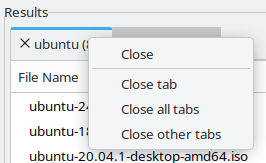
| Option | Action |
|---|---|
| Close tab | Close the clicked tab |
| Close all tabs | Close every open tab |
| Close other tabs | Close all tabs except the clicked one |
Advanced Searching
Search Type
The Type drop-down selects the search method:
| Type | Description |
|---|---|
| Local | Search only against the server you are currently connected to; instant results |
| Global | Broadcast the query to all known servers; slower but broader results |
| Kad | Search across the Kademlia network; slower, results trickle in over time |
Local and Global are offered whenever the eD2k network is enabled, and Kad whenever Kademlia is enabled. With both networks disabled no search is possible.
When the same file is reported more than once, aMule merges the source counts differently depending on the network: for Kad results it takes the maximum of the reported counts, whereas for eD2k it sums the counts reported by each server.
Extended Parameters
Tick Extended Parameters to reveal a row of additional search restrictions.
File Type
Restrict results to a specific media category: Any, Archives, Audio, Disc images, Pictures, Programs, Texts or Videos.
The category of a file is determined by its filename extension, not by its actual content — a file named Birthday.zip is classified as an Archive regardless of what it really contains. Extensions not listed below count as Any. The complete extension-to-category mapping is:
| Category | Extensions |
|---|---|
| Archives | .7z .ace .alz .arc .arj .bz2 .cab .cb7 .cba .cbr .cbt .cbz .gz .hqx .lha .lz .lz4 .lzh .lzma .pak .par .par2 .rar .sea .sit .sitx .tar .tbz2 .tgz .tlz .txz .uc2 .xz .z .zip .zoo .zst |
| Audio | .669 .aa .aac .aax .ac3 .aif .aifc .aiff .amf .amr .ams .ape .au .aud .audio .caf .cda .dbm .dff .dmf .dsf .dsm .dts .far .flac .it .m1a .m2a .m4a .m4b .mdl .med .mid .midi .mka .mod .mol .mp1 .mp2 .mp3 .mpa .mpc .mpp .mtm .nst .oga .ogg .okt .opus .psm .ptm .ra .rmi .s3m .snd .stm .ult .umx .wav .weba .wma .wow .wv .xm |
| Disc images | .b5t .b6t .bin .bwa .bwi .bws .bwt .ccd .cdi .cue .daa .dmg .img .iso .isz .mdf .mds .mdx .nrg .qcow2 .sub .toast .uif .vcd .vdi .vhd .vhdx .vmdk .wim |
| Pictures | .apng .arw .avif .bmp .cr2 .cr3 .dcx .dng .emf .gif .heic .heif .ico .j2k .jfif .jp2 .jpe .jpeg .jpg .jxl .nef .orf .pct .pcx .pic .pict .png .psd .psp .raf .rw2 .svg .tga .tif .tiff .wbmp .webp .wmf .wmp .xcf .xif .xpm |
| Programs | .apk .app .appimage .appx .bat .cmd .com .cpl .deb .exe .flatpak .hta .jar .js .jse .msc .msi .msix .ps1 .psd1 .psm1 .rpm .scr .sh .snap .vbe .vbs .wsf .wsh .xpi |
| Texts | .azw .azw3 .chm .css .csv .diz .djvu .doc .docm .docx .dot .dotx .epub .fb2 .hlp .htm .html .json .key .kfx .markdown .md .mobi .nfo .numbers .odp .ods .odt .otp .ots .ott .oxps .pages .pdf .potx .pps .ppsx .ppt .pptm .pptx .ps .rtf .stc .sti .stw .sxc .sxi .sxw .tex .text .txt .wri .xls .xlsm .xlsx .xlt .xltx .xml .xps .yaml .yml |
| Videos | .3g2 .3gp .3gp2 .3gpp .amv .asf .avi .bik .divx .dvr-ms .f4v .flc .fli .flic .flv .h264 .h265 .hdmov .hevc .ifo .m1v .m2t .m2ts .m2v .m4v .mkv .mov .movie .mp1v .mp2v .mp4 .mpe .mpeg .mpg .mps .mpv .mpv1 .mpv2 .mts .mxf .ogm .ogv .pva .qt .ram .ratdvd .rm .rmm .rmvb .rv .rv9 .smil .smk .swf .tp .ts .vid .video .vivo .vob .vp6 .webm .wm .wmv .xvid |
Extension
Show only files with a specific file extension (e.g., avi, mp3, iso).
Min Size and Max Size
Discard results smaller than Min Size or larger than Max Size. Each takes a number (0–4096) and a unit (Bytes, KiB, MiB or GiB; MiB by default). 0 means no limit.
Availability
Discard results with fewer sources than the specified minimum (0–1000).
Filtering
Tick Filtering to reveal a row of post-search filtering controls below the action buttons. Filters apply to all open result tabs simultaneously and take effect as you type. Unticking Filtering switches them off and shows every result again, while keeping their settings for the next time.
Filter
Type a wxRegEx expression in the Filter box. Files whose name matches the expression are displayed; all others are hidden. The match is case-insensitive, and a plain word (e.g. linux) matches any filename containing that word. The list is refiltered a quarter of a second after you stop typing, or immediately when you press Enter. While the expression is not a valid regular expression, the previous filter stays in effect.
Invert Result
Check Invert Result to reverse the filter: only files whose name does not match the expression are displayed.
Hide Known Files
Check Hide Known Files to remove from the results list every result that is not New — already downloaded, shared, queued or cancelled files. Files you queue while the filter is on stay visible until it is reapplied.
Reset Filters
Click Reset Filters to clear the expression and untick both checkboxes, showing every result again.
Clearing Searches
- Reset Fields clears the search text and resets all extended parameters to their defaults. The search type and the Download in category selection are kept.
- Clear Search Results stops the running search and closes all open tabs at once. You can also right-click any tab and choose Close all tabs.
- Clear Search History empties the search history.
Results Right-Click Menu
Right-clicking on a result row opens this menu:
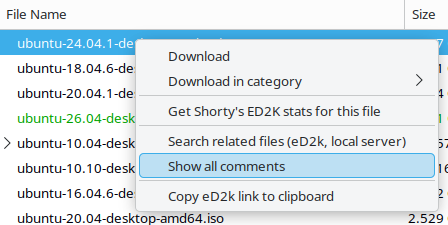
| Option | Action |
|---|---|
| Download | Add selected file(s) to the download queue |
| Download in category | Add selected file(s) to a specific category (Main or one of your categories); disabled when you have no user-defined categories |
| Get <stats server> for this file | Open a browser with the configured statistics server for the file (the first selected file if several are selected). The label shows the configured server name (default: "Shorty's ED2K stats"); this entry only appears when a statistics server is configured |
| Search related files (eD2k, local server) | Start a new Local search for files related to the selected file(s). Requires a connection to a server that supports related-file searches |
| Show all comments | Open the Comments window for the file, where comments and ratings can also be fetched from Kad. Single selection only |
| Copy eD2k link(s) to clipboard | Copy the eD2k link(s) of the selection as plain text |
Browsing a Client's Shared Files
Choosing View Files on a client (in the Downloads source list, the Clients page or the friends list) opens a tab named after that client listing the files it shares. The label shows name (N...) while the list is arriving, name (N) when it is complete, and name (Failed) if the client refused or could not be reached.
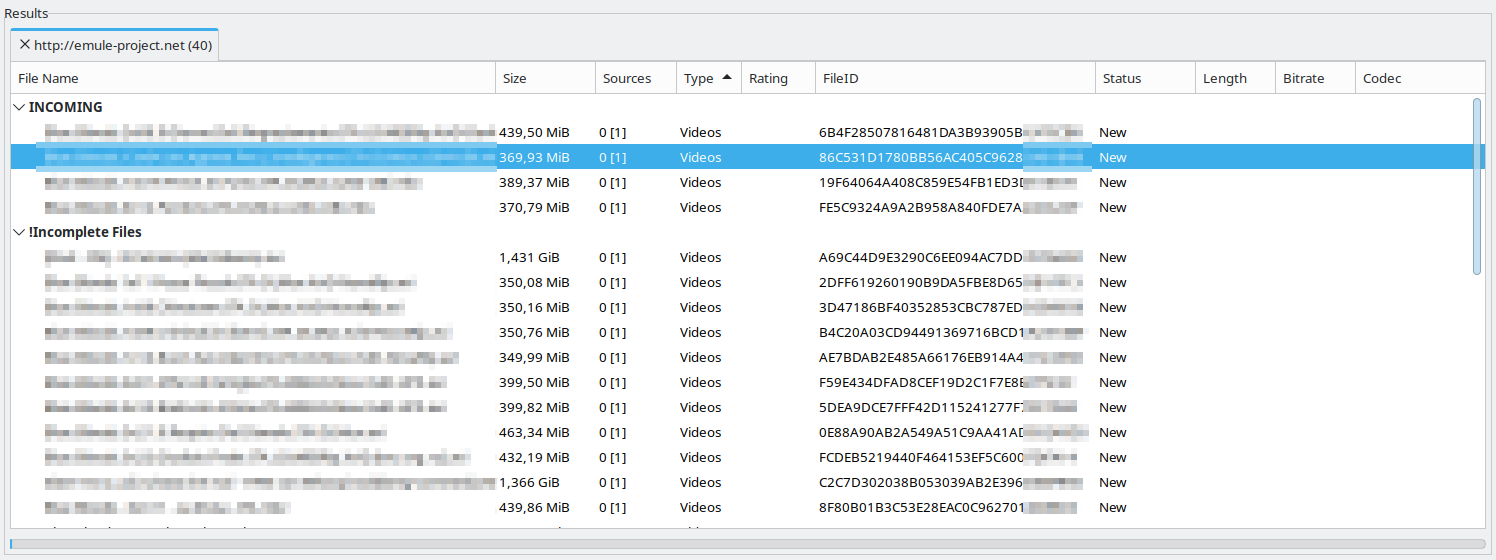
The files are shown as a folder tree built from the directories the client reports: folder rows are bold and always sort before files. Right-click a folder to Expand all or Collapse all. Clients that do not report directories are shown as a flat list.
Miscellaneous
The Fast eD2k Links Handler bar at the bottom of the Searches window lets you paste eD2k links or magnet links (placeholder Paste eD2k or magnet links here) and click Add links to add them directly to the download queue. It is always visible in the Searches window; enable Preferences → Interface → Show "Fast eD2k Links Handler" in every window to show it in the other windows too.