wxcas / cas — Statistics Tools
wxCAS and CAS are external statistics tools that read aMule's online signature file (~/.aMule/amulesig.dat) and produce status output in various formats. They are shipped with aMule and serve users who want to embed aMule statistics in a website, forum signature, or terminal dashboard.
| Binary | Interface | Output |
|---|---|---|
wxcas | Graphical (wxWidgets) | Graphical display of the same data |
cas | Command-line | Console text, PNG image, HTML page |
Prerequisites
Both tools read ~/.aMule/amulesig.dat, which aMule only generates when Online Signature is enabled:
- Open aMule → Preferences → Online Signature.
- Check Enable Online Signature.
- Restart aMule (or wait for the next update cycle).
The same options can be set directly in amule.conf via the OnlineSignature, OnlineSignatureUpdate and OSDirectory keys.
amulesig.dat is updated periodically while aMule runs. The file must exist for wxcas or cas to produce any output. If you change the signature directory (the Save online signature file in preference, or the OSDirectory key), point the wxcas amulesig.dat directory setting and cas -c DIR at the same location.
For the full format specification of amulesig.dat, see the amulesig.dat reference in the Configuration Files reference.
WxCAS — Graphical Statistics
wxcas provides a graphical window displaying the same statistics as cas. It is aimed at desktop users who want to monitor aMule status without a terminal.
Launch with:
wxcas
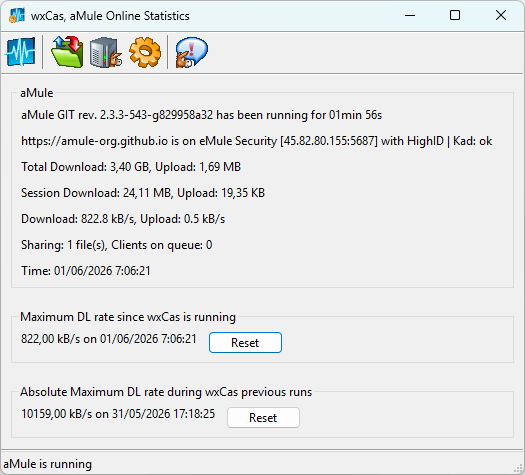
wxcas does not accept command-line arguments; all configuration is done through its Preferences dialog.
wxcas polls amulesig.dat periodically and refreshes the display automatically. The main window shows:
- aMule panel: the seven status lines (version/uptime, server connection, totals, session totals, current rates, shared files/queue, local time).
- Download records panel: peak download rate for the current session and the all-time record across all previous sessions.
- System panel (Linux only): system load averages (1, 5, 15 minutes) and system uptime.
Image Generation
wxcas can generate a statistics image automatically at every refresh cycle. Supported formats: PNG, JPG, BMP. The output directory is configurable.
Default output path: ~/aMule-online-sign.{png,jpg,bmp} (depending on the configured format). This is distinct from the cas default of ~/.aMule/aMule-online-sign.png.
FTP Upload
When auto image generation is enabled, wxcas can upload the image to an FTP server at a configurable interval. Configure the FTP URL, path, username and password from Preferences.
Preferences
Key settings available in the Preferences dialog.
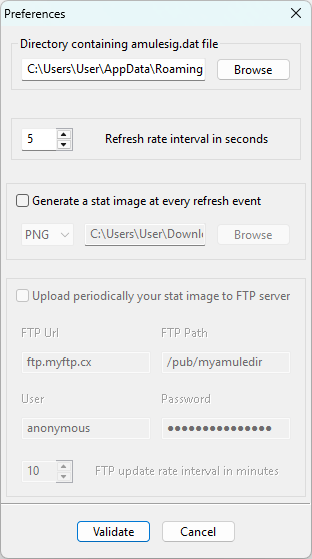
| Setting | Description | Default |
|---|---|---|
| amulesig.dat directory | Directory where aMule writes amulesig.dat | ~/.aMule |
| Refresh rate | How often to re-read amulesig.dat, in seconds (1–3600) | 5 |
| Generate stat image | Automatically save a statistics image on each refresh | disabled |
| Image format | PNG, JPG, or BMP | PNG |
| Image directory | Where to save the auto-generated image | ~/ |
| FTP upload | Periodically upload the image to an FTP server | disabled |
| FTP update rate | Upload interval in minutes (1–1440) | 10 |
CAS — C aMule Statistics
cas reads amulesig.dat and can produce:
- A formatted text summary on the console.
- A PNG image with statistics overlaid on a background template.
- An HTML page with all statistics.
Console Output Example
Running cas with no arguments prints a status summary similar to:
aMule 3.0.0 has been running for 1 D 05 h
user is connected to server.example.com [81.84.97.64:4661] with HighID | Kad: ok
Total Download: 171.36 GB, Upload: 188.96 GB
Session Download: 475.42 MB, Upload: 832.46 MB
Download: 2.3 kB/s, Upload: 10.0 kB/s
Sharing: 98 file(s), Clients on queue: 237
Time: Jan 01 2024, 12:00
Command-Line Options
| Option | Description |
|---|---|
-o, --picture, -P | Generate the statistics image (requires libgd at compile time) |
-p, --html, -H | Generate an HTML statistics page (and the image too if libgd is available) |
-c, --config-dir DIR | Read amulesig.dat from DIR instead of the default aMule config directory |
-h, --help | Show usage information |
To write the output to a custom location, use the alias forms that accept a path: cas -P /path/to/image.png or cas -H /path/to/page.html. With the long options the path must be attached with =: cas --picture=/path/to/image.png, cas --html=/path/to/page.html. The plain -o and -p short flags take no argument and always use the default location.
Note that -c DIR only changes where amulesig.dat is read from; casrc and the generated output files always live in the default config directory (~/.aMule).
Image Generation
When run with the -o flag, cas generates a PNG image (~/.aMule/aMule-online-sign.png) by writing statistics text onto a configurable background image. This option is only available if cas was compiled with libgd support (see Compilation).
The image is produced by:
- Loading the background image from
source_image. - Drawing up to seven lines of status text at the positions defined by the placement lines in
casrc, using the configured font and size. The status lines are taken directly from the corresponding lines ofamulesig.dat. - Saving the result to
~/.aMule/, asaMule-online-sign.pngwhenimg_typeis0oraMule-online-sign.jpgotherwise (the format and extension followimg_typeincasrc).

Configuration is stored in ~/.aMule/casrc (see below).
casrc Configuration File
Location: ~/.aMule/casrc. This file is created the first time cas is run with the -o or -p switch, and can be edited manually.
On that first run, cas only creates the default casrc, prints a message asking you to edit it and rerun cas, and exits without generating the image or HTML page. Run cas -o / cas -p again (optionally after editing casrc) to actually produce the output.
casrc uses a key-value format. Each non-empty, non-comment line is either a parameter or a line placement definition; lines beginning with # are comments.
| Parameter | Value | Description |
|---|---|---|
font | Path to a .ttf file | Font used to draw text in the generated image |
font_size | Floating-point number | Size of the font (e.g., 10.5) |
source_image | Path to an image file | Background image on which the text is rendered |
template | Path to an .html file | HTML template used to generate the HTML status page |
img_type | 0 or other integer | Output image format: 0 = PNG, any other value = JPG |
After the parameters come the line placement definitions that say where each piece of status text is drawn. The first seven placement lines encountered are used (one per status line displayed); any additional lines are ignored. Each has the form <identifier> <x>,<y>,<enable>:
| Field | Description |
|---|---|
identifier | Any text label (cas ignores it; it is for human readability only) |
x | Pixels from the left edge of the image to the start of the text |
y | Pixels from the top edge of the image to the baseline of the text |
enable | 1 to draw this line; 0 to skip it |
Example with all recognized options:
# cas config file

# font - full path to a TrueType font file
font /usr/share/fonts/corefonts/times.ttf

# font_size - font size in points
font_size 10.5

# source_image - background image to overlay text on
source_image /usr/share/cas/stat.png

# *_line - x,y,enabled (1=enabled, 0=disabled)
# Each line corresponds to one line of statistics text.
first_line   23,17,1
second_line  23,34,1
third_line   23,51,1
fourth_line  23,68,1
fifth_line   23,85,1
sixth_line   23,102,1
seventh_line 23,119,1

template /usr/share/cas/tmp.html

# img_type - 0 = PNG, any other value = JPG
img_type 0
Default system paths that cas uses when creating a new casrc:
| Resource | Default path |
|---|---|
| Font | /usr/share/fonts/corefonts/times.ttf |
| Background image | /usr/share/cas/stat.png |
| HTML template | /usr/share/cas/tmp.html |
HTML Statistics Page
Run cas with the -p/--html flag to generate ~/.aMule/aMule-online-sign.html, a full statistics page. It is produced from the HTML template referenced by the template parameter in casrc, with status values filled in from amulesig.dat.
Generated output files
cas creates the following files in ~/.aMule/, only after it has been run:
| File | Created when | Description |
|---|---|---|
casrc | First run with -o or -p | CAS configuration (font, background image, HTML template, line placement) |
aMule-online-sign.png | Run with -o and casrc configured | PNG (or JPG) status image |
aMule-online-sign.html | Run with -p | HTML status page |
Troubleshooting
can't open file '/home/user/.aMule/amulesig.dat'
aMule has not generated the signature file. Fix:
- In aMule: Preferences → Online Signature → Enable Online Signature.
- Ensure aMule is actually running and connected (the file is only written while aMule is active).
- If the file still does not appear, check that
~/.aMule/is writable.