Import Tool
The Import tool integrates eDonkey2000 part files into aMule so you can continue downloads that were in progress in eDonkey2000 without starting over. aMule detects the part files, converts them to its own format, and adds them to the download queue.
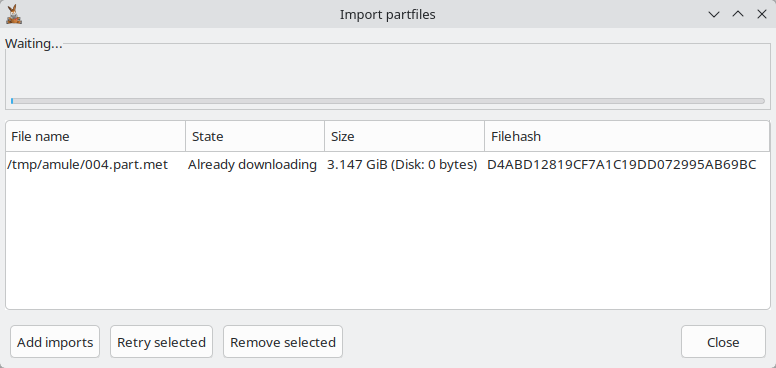
Open the Import tool by clicking the Import button in the toolbar. The window that opens is titled Import partfiles. The tool is part of the all-in-one amule client only; amulegui has no Import button.
If you are migrating from eMule, the temporary file format is directly compatible — no import needed. See Migrate from eMule for the full migration guide.
If you are migrating from a client other than eDonkey2000 (e.g., mlDonkey or xMule), see Migrate from Other Clients for an alternative approach.
Adding Files
Click Add imports to start selecting a directory to import from.
Your system's folder dialog appears. Navigate to the directory that contains your eDonkey2000 temporary files, then confirm it. The directory is searched including its subfolders, and every .part.met file found becomes one import job.
After selecting a directory, aMule asks whether you want to delete the original files once they are successfully imported:
| Answer | Effect |
|---|---|
| Yes | Delete the original eDonkey2000 part files after successful import |
| No | Keep the original files intact |
| Cancel | Abort importing this directory |
If any eDonkey2000 part files are found, they are added to the import list.
Managing the Import List
Files in the import list are processed in sequence — as soon as one file finishes converting, the next begins. Only one file is imported at a time.
Remove a file from the list by selecting it and clicking Remove selected. The file currently being converted cannot be removed — the action is ignored for it.
Retry a file (any file that is not completed and not currently in progress — typically a failed one) by selecting it and clicking Retry selected. The file is put back into the queue.
The import list cannot be cleared manually — it is cleared automatically when aMule restarts.
Monitoring Progress
The title bar of the progress area shows the path of the .part.met file currently being imported.
When no import is active, the title reads Waiting…
A progress bar and percentage display show how far along the current file's import is.
Detailed status messages appear above the progress bar.
Status Messages
| Message | Meaning |
|---|---|
Reading temp folder | Starting the conversion of this .part.met file |
Retrieving basic information from download info file | Reading metadata from the part file to begin conversion |
Creating destination file | Allocating disk space for the converted file |
Loading data from old download file (N of M) | Reading data file N of M of the split eDonkey2000 download |
Saving data block into new single download file (N of M) | Writing data file N of M into the new single part file |
Copy | Copying or moving the converted part file to its final location |
Retrieving source downloadfile information | Conversion succeeded; extracting gap information and other metadata |
Adding download and saving new partfile | The file has been fully converted and is being added to the download queue |
Columns
| Column | Description |
|---|---|
| File name | Path of the .part.met file being imported |
| State | Current import status (see table below) |
| Size | Original file size, followed by the disk space needed for the converted file in the form (Disk: …) |
| Filehash | The resulting eD2k hash of the converted file |
State Values
| State | Meaning |
|---|---|
| Completed | File has been successfully converted and added to the queue |
| In progress | File is currently being converted |
| ERROR: Out of disk space | Not enough free disk space to complete the conversion |
| ERROR: IO error! | Read or write error during conversion (possible permissions issue) |
| ERROR: Failed! | General conversion error |
| Queued | File is waiting to be converted |
| Already downloading | This file is already in the aMule download queue; conversion skipped |
| Unknown or bad tempfile format. | The file format is not recognised or is invalid |
Closing the Import Window
When all files have been imported, click Close to exit the import tool.
The import list is not sortable. Column widths can be resized but are not saved between sessions.