IP2Country (Country Flags)
IP2Country looks up the country of every peer and server aMule talks to and shows it as a small flag next to its name. aMule resolves the country from the IP address using a free GeoIP country database that it downloads and keeps up to date by itself.
The country is informational only: it does not change how aMule connects, queues or transfers, and it is not a filter. To block addresses, use the IP filter instead.
Where country flags appear
amuleandamulegui— next to the client name in the source list of your downloads, in the Downloading from, Uploading to and Known lists of the Clients page, in the client list of the Shared Files page, and next to the server name in the server list.- Web UI — on peers and servers in the
amuleapiWeb UI; the REST API returns the same data as acountry_codefield. amulecmd—show serversappends the server's country code in brackets (for example[de]) to each row.
The lookup runs in the core, so a headless amuled resolves countries too, and amulegui, amuleapi and amulecmd show the result of the core. The legacy amuleweb does not show countries.
Addresses that do not resolve to a country, such as LAN addresses, show no flag. A country for which aMule has no flag image shows a placeholder flag.
Requirements
IP2Country is an optional build feature. aMule must have been compiled with GeoIP support (the libmaxminddb library, CMake option ENABLE_IP2COUNTRY); the official release builds include it. Without it, the IP2Country preferences page is not shown. See the Compilation guide.
Enabling country flags
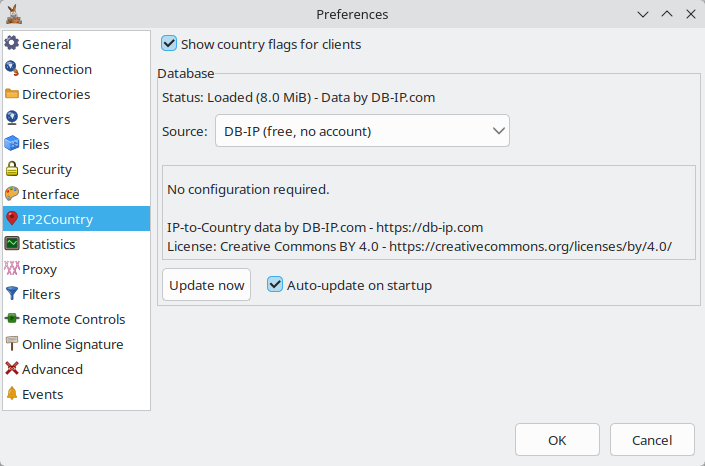
IP2Country is enabled by default. The setting is Show country flags for clients on the Preferences → IP2Country page, stored as GeoIPEnabled in amule.conf.
When the feature is enabled and no database is present yet, aMule downloads one from the selected source straight away. The status line on the preferences page shows whether the database is loaded, its size and the attribution of its provider.
Database providers
Choose where the database comes from with Source (GeoIPSource). All three deliver the same database format, so you can switch at any time.
| Source | GeoIPSource | What you need | Notes |
|---|---|---|---|
| DB-IP (default) | dbip | Nothing | Free IP to Country Lite database from DB-IP, licensed under CC BY 4.0. DB-IP publishes a new edition every month; early in a month, before the new edition is out, aMule falls back to the previous month's. |
| MaxMind GeoLite2 | maxmind | A free MaxMind account and a license key (GeoIPMaxMindLicense) | Free GeoLite2 Country database from MaxMind. Create the license key in your MaxMind account and paste it into License key. MaxMind's terms require the database to be refreshed at least every 30 days, so keep Auto-update on startup enabled. |
| Custom URL | custom | A Download URL (GeoIPCustomUrl) | Any URL that serves a MaxMind DB country database: a plain .mmdb file, or a .gz / .tar.gz archive containing one. Credentials can be embedded in the URL (https://user:pass@host/...). Licensing and attribution are the responsibility of whoever publishes the file. If you host your own copy, make the web server send Last-Modified so that auto-update only downloads it when it changes. |
If MaxMind is selected without a license key, or Custom URL without a URL, aMule cannot download anything: it logs an error and turns Show country flags for clients off. Fill in the missing field, enable Show country flags for clients again and click OK; if no flags appear, click Update now.
The license key and any credentials in a custom URL are stored in plain text in amule.conf, and the log records the full download URL, including them. Remove them before sharing your amule.conf or log, for example in a bug report.
Updating the database
Country assignments change over time, so aMule refreshes the database on its own:
- Auto-update on startup (
GeoIPAutoUpdate, enabled by default) — at every start (and, inamule, when you enable Show country flags for clients), aMule checks the selected source for a newer database and downloads it only if it has changed (see the[HTTPDownload]section ofamule.conf). The check runs in the background and does not delay startup. - Update now — downloads the database from the selected source immediately, even if the server reports it as unchanged. Use it after a failed update or to replace a damaged file.
- Changing the source — in
amuleandamulegui, clicking OK after changing the source, the license key or the download URL downloads the database from the new source automatically.
In amulegui, Update now tells the core to refresh its database; the result appears in the status line. With amuleapi, send POST /api/v1/geoip/update (see below).
The download goes through an HTTP proxy when one is configured (not a SOCKS proxy) and, on macOS and Linux, respects network interface binding. A failed download leaves the current database file in place.
The database file
aMule keeps the database in its configuration directory as geoip.mmdb (~/.aMule/geoip.mmdb on Linux). You never have to handle it yourself, but you can install one by hand, for example on a machine without internet access:
- Obtain a country database in MaxMind DB (
.mmdb) format and decompress it if needed. - Stop aMule and copy the file to the configuration directory as
geoip.mmdb. - Disable Auto-update on startup (
GeoIPAutoUpdate=0) if you do not want aMule to replace it. - Start aMule.
If the file cannot be read, aMule logs a message, deletes it and downloads a fresh copy on the next start (or when you click Update now).
Older aMule versions stored the database as GeoLite2-Country.mmdb; aMule renames it to geoip.mmdb automatically. The legacy GeoIP.dat format used by aMule 2.x is no longer supported. A download URL set in an older version is carried over once as a Custom URL, unless it points to a GeoIP.dat file, in which case aMule switches to DB-IP (see amule.conf → GeoIP).
Configuring a headless amuled
amuled has no preferences window. Configure IP2Country in one of these ways:
-
amule.conf— stopamuled, edit the keys in the[eMule]section and start it again:[eMule]GeoIPEnabled=1GeoIPSource=maxmindGeoIPMaxMindLicense=<your license key>GeoIPAutoUpdate=1 -
amulegui— its Preferences → IP2Country page changes the settings of the core it is connected to. -
amuleapi— the settings are exposed as thegeoippreferences group (GET/PATCH /api/v1/preferences), for example{"geoip": {"source": "maxmind", "maxmind_license": "<your license key>"}}. The other keys areenabled,custom_update_urlandauto_update_enabled.
Changing the source through amule.conf or PATCH /api/v1/preferences does not download a new database by itself: the one already present stays loaded until the next auto-update at startup. To switch immediately, send POST /api/v1/geoip/update (requires an admin login), or click Update now in amulegui. The read-only keys geoip.download_in_progress and geoip.last_update_status show the progress and the result.
Troubleshooting
No flags are shown
- Check that Show country flags for clients is enabled. aMule turns it off by itself when the selected source is missing its license key or URL, or when a download fails and no database is present.
- Look at the status line on the IP2Country preferences page. Not found or Failed to load means there is no usable database: click Update now.
- Check the log for the result of the last download: Download new geoip.mmdb from… is followed by Successfully updated geoip.mmdb or by an error. Skipped download of geoip.mmdb, because requested file is not newer is normal. Lines starting with IP2Country: report a missing license key or URL; Failed to download geoip.mmdb from… means the source could not be reached; Error updating geoip.mmdb or geoip.mmdb is not a readable MaxMindDB file mean the downloaded file is not a country database (check the custom URL).
- If downloads keep failing, check that the machine can reach the source, including through any proxy or VPN interface binding, and that a MaxMind license key or custom URL is correct. On minimal systems and with the static binaries, install your distribution's
ca-certificatespackage: the download uses HTTPS.
The IP2Country page is missing
Your aMule was built without GeoIP support. In amulegui, the page is also hidden when the core it is connected to has no GeoIP support. See Requirements.
Reference
- Preferences → IP2Country — every control on the preferences page.
amule.conf→ GeoIP — the configuration keys and their defaults.