amule — GUI Client
amule is the all-in-one graphical client. It bundles the aMule core and a full wxWidgets-based interface in a single executable, and connects directly to both the eD2k and Kademlia networks.
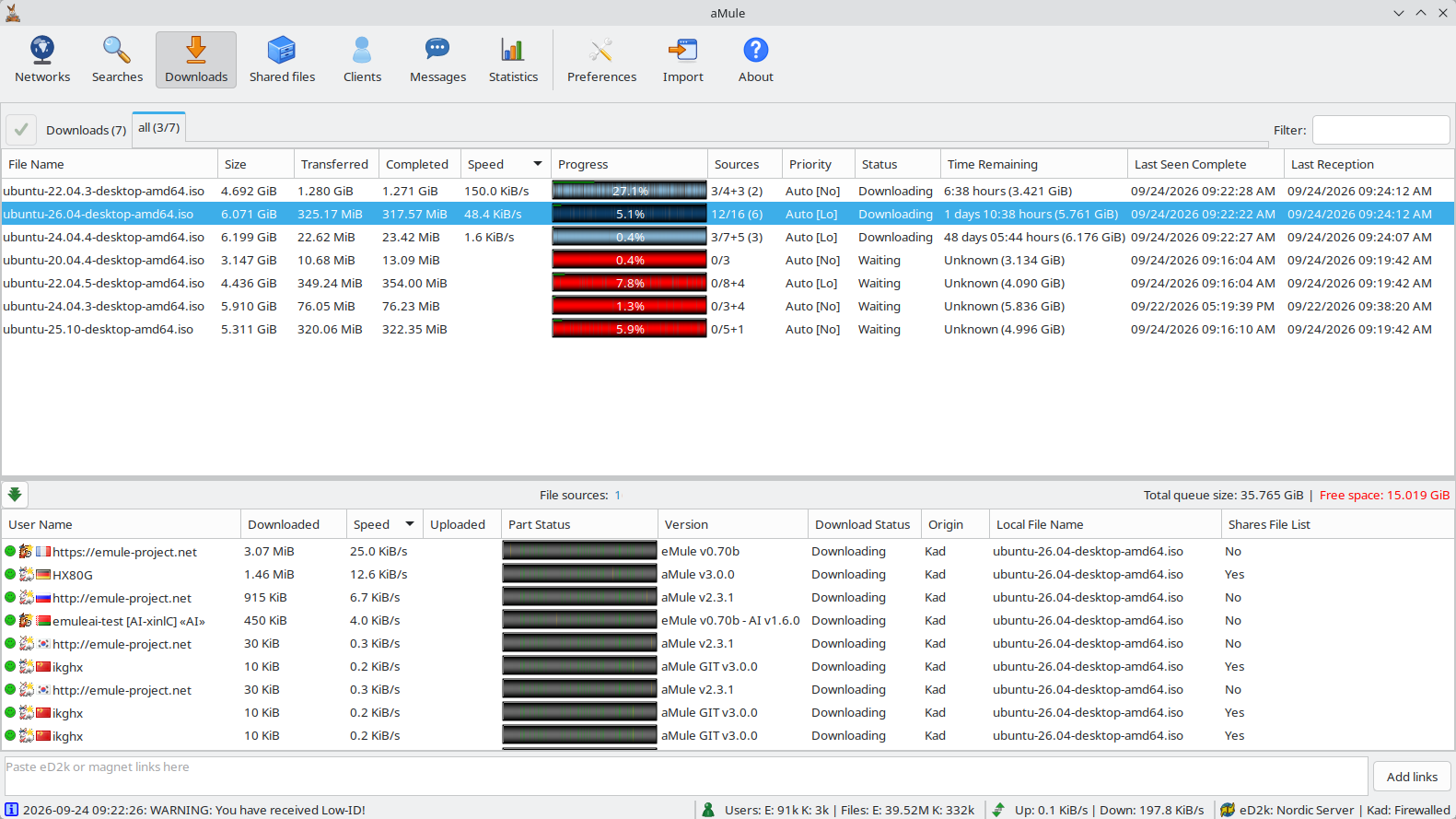
Overview
amule is the most complete way to run aMule: the core and GUI run in the same process, so no remote connection or daemon setup is required. It is the best choice for desktop systems where a persistent graphical session is available.
For headless or server environments, use amuled (daemon) together with amulegui, amuleapi, amulecmd, or the legacy amuleweb.
aMule officially supports more than 60 different hardware and OS configurations. It is built on the wxWidgets toolkit (formerly wxWindows), which provides the multiplatform GUI layer.
Installation
See Installation for pre-built packages, or Compilation to build amule from source.
Configuration
Most settings can be configured directly from the GUI through the Preferences dialog. They are stored in ~/.aMule/amule.conf, which is created automatically on first run.
Starting amule
Launch from a terminal:
amule
On first run, aMule creates its configuration directory (~/.aMule/) and presents a first-run setup wizard for basic setup (nickname, bandwidth, networks and ports, bootstrap files, desktop integration, download and temporary directories).
Command-line flags:
| Flag | Description |
|---|---|
-h, --help | Display help and exit |
-v, --version | Print version and exit |
-c, --config-dir <dir> | Use an alternative configuration directory instead of ~/.aMule/ |
-geometry <geom> | Set the window geometry, using the standard X11 format [=][<width>{xX}<height>][{+-}<xoffset>{+-}<yoffset>] |
-o, --log-stdout | Print log messages to stdout |
-r, --reset-config | Reset config to default values (the old config is backed up as .backup) |
--configure-autostart=on|off | Enable or disable starting amule on user login, then exit |
--configure-protocols=<value> | Register or unregister aMule as the default handler for ed2k:// and magnet: links, then exit. on|off sets both schemes; ed2k:on, ed2k:off, magnet:on or magnet:off sets one |
--configure-file-assoc=on|off | Register or unregister aMule as the handler for .emulecollection files, then exit |
-w, --use-amuleweb <path> | Specify the location of the amuleweb binary |
-d, --disable-fatal | Don't catch fatal exceptions or block exit on assertions (useful under systemd / watchdog scripts). Not available on Windows |
-i, --enable-stdin | Do not close stdin (closed by default). Not available on Windows |
-t, --category <num> | Category for passed eD2k links (default: 0) |
You can also pass one or more eD2k links, magnet: links or .emulecollection files as arguments to enqueue them:
amule -t 1 "ed2k://|file|example.iso|123456|<hash>|/"
Interface
The aMule interface is divided into several panels, switched with the toolbar buttons, their Alt+letter shortcuts or, on macOS, the Navigate menu. Full documentation for each panel is in the GUI guides.
ED2K Link Integration
aMule can register itself with the operating system as the handler for ed2k:// and magnet: links and for .emulecollection files, so clicking one in a browser or file manager queues it in aMule. Turn this on in the first-run wizard, with the Register aMule for ed2k:// links, Register aMule for magnet: links and Open .emulecollection files with aMule options in Preferences → General, or from the command line with --configure-protocols and --configure-file-assoc (see above). A link opened this way is passed to the running aMule instance through the ED2KLinks file.
See eD2k and Magnet Links for the accepted link formats, every way to add a link, how the registration works on each operating system, and handling links for a remote core.