Comments
aMule supports a per-file comment and rating system. Other clients on the network can attach short text comments and quality ratings to files they are sharing. This helps you judge the quality of a file before completing its download — and detect fakes, corrupt files, or low-quality content.
Comment/Rating Icons
When aMule receives comment or rating information about a file in your download queue, an icon appears next to the file name. If at least one source has rated the file, the icon reflects the average of all source ratings; if there are only comments and no ratings, a plain comment icon is shown instead.
| Icon | Meaning |
|---|---|
 | A comment exists but the file has not been rated |
 | Average rating is Invalid / Corrupt / Fake (probably corrupt or a fake) |
 | Average rating is Poor |
 | Average rating is Fair |
 | Average rating is Good |
 | Average rating is Excellent |
The rating icons also appear in the Rating column of the search results when ratings are available.
Comments Window
The Comments window (titled File Comments) shows all comments and ratings that have been reported by other clients for a selected file, including the notes published on the Kademlia network. It is a useful tool for detecting fake or corrupt files.
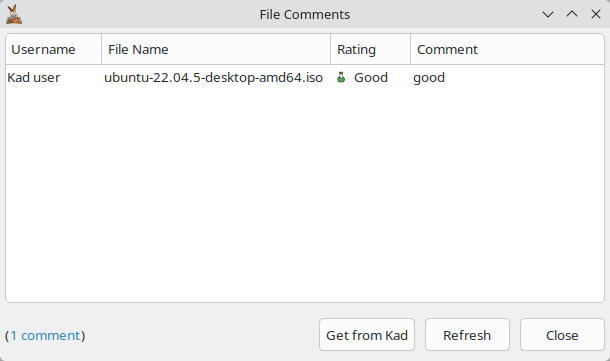
Opening the Window
You can open the Comments window from several places:
- Right-click a file in the Downloads window and choose Show all comments.
- Right-click a result in the Searches window and choose Show all comments (single selection only).
- In the File Details window, click the Show all comments button.
In the Downloads window and in File Details the option is enabled when comments or ratings have already been received for the file, or when Kad is connected, so that notes can be fetched from Kad. In the search results it is available for a single selected result.
Reading Comments
The main list shows all received comments and ratings. Each row contains:
| Column | Description |
|---|---|
| Username | The username of the client who provided the comment/rating |
| File Name | The name that client has given to the file |
| Rating | The rating the client assigned, with its icon |
| Comment | The text comment the client provided |
Click a column header to sort by that column.
The status line at the bottom left shows the number of comments currently listed, in brackets — for example (1 comment), or (No comments) when the list is empty.
Comments that match the filter configured in Preferences → Filters → Comments are hidden from this list and excluded from the count.
Fetching Notes from Kad
Click Get from Kad to search the Kademlia network for notes (comments and ratings) about the file. While the search runs the status line reads Searching Kad for comments... and the list is refreshed every 2 seconds as notes arrive; the search stops after a minute at most. Kad must be connected: otherwise the status line reports that the search cannot be done. In amulegui the search runs on the connected core.
Refreshing and Closing
Click the Refresh button to update the list with any new comments or ratings received since the window was opened, and Close to close the window.
Adding Your Comment/Rating
You can add a comment and/or rating to files you are sharing. This is done from the Shared Files window:
- Right-click the file you want to comment on.
- Select Add Comment/Rating (the entry reads Edit Comment/Rating if the file already has one).
- Enter your comment (maximum 50 characters) and, under File Quality, choose a rating: Not rated, Invalid / Corrupt / Fake, Poor, Fair, Good, or Excellent.
- Click Apply (or press Enter) to save. Use Clear to empty the comment field, or Cancel to discard your changes.
For full instructions see Shared Files — Adding a Comment or Rating.