Downloads
The Downloads window is the central place to manage your downloads. It shows every file in your download queue, its progress, and the sources found for it. Uploads are shown on the Clients page and in the Shared Files window.
Overview
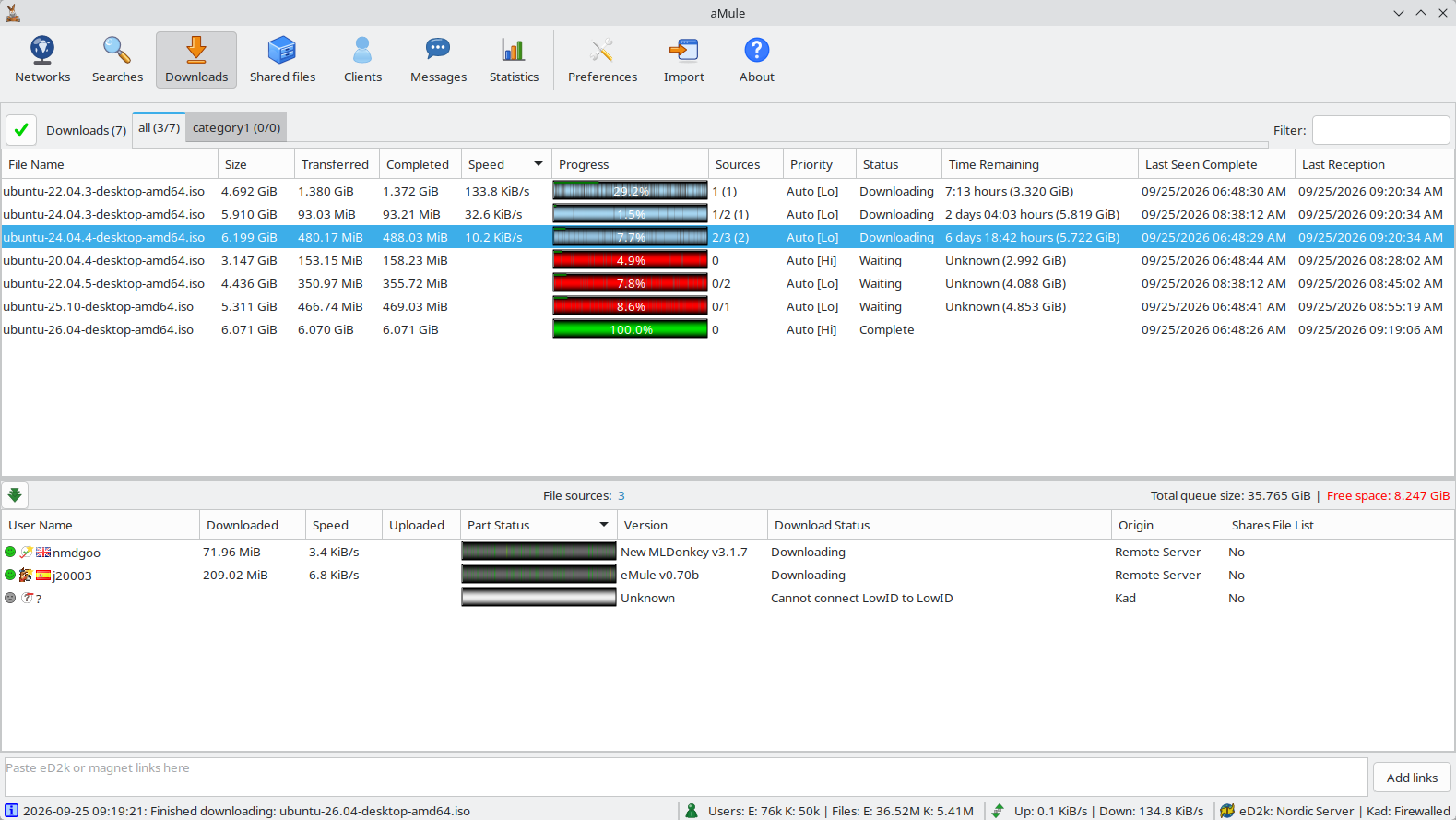
The window is split into two areas by a movable divider:
- Upper area — the download queue: all files you have added for download.
- Lower area — the source list: the individual clients found for the currently selected file(s).
Above the download list, a row of category tabs lets you filter which files are shown. Drag the divider bar to resize either section. Click the arrow button at the left end of the divider header (which shows File sources: N) to hide or show the lower pane.
The Clear completed button at the left of the header removes the finished downloads of the current category from the list. Next to it, the header reads Downloads (N), the number of files shown. Type in the Filter: box at the right end of the header to show only the files whose name contains the typed text (case-insensitive); the list updates as you type. The divider header also shows, on the right:
- Total queue size — the combined size of the downloads currently shown (after the category and filter are applied).
- Free space — the free space in the Temporary directory. It turns red when it is less than the data the queue still has to download (paused and stopped files included), and is left blank when the free space cannot be determined.
aMule itself can pause downloads when free space runs low — see Stop downloads when free disk space reaches n MiB in Preferences → Files and Disk Space Protection.
Download Queue

Columns
| Column | Description |
|---|---|
| Part | The internal part-file number (e.g. 000). Empty when the file is complete. |
| File Name | Name of the file. A smiley icon to the left indicates ratings or comments from other users. |
| Size | Total file size. The eD2k network supports files up to 256 GB. |
| Transferred | Total bytes received so far (including parts later found to be corrupt). |
| Completed | Bytes of the file already written to disk (the file size minus the parts still missing). Can be larger than Transferred thanks to the protocol's compression, or smaller when corrupt data was discarded. |
| Speed | Current download speed for this file. Only shown while actively receiving data. |
| Progress | Visual progress bar (see Progress Bar below). |
| Sources | Format: Asked/All+A4AF (Transferring). Asked = usable sources, i.e. those that have you in their upload queue or are sending to you; All = all known sources; A4AF = sources currently assigned to another file; Transferring = sources actively uploading to you. Each part is shown only when it applies: with no unusable sources only All is shown (e.g. 3), and +A4AF and (Transferring) only when they are not zero. |
| Priority | Download priority: Low, Normal or High. A file on Auto shows Auto [Lo], Auto [No] or Auto [Hi], with the level aMule has currently chosen for it. See Priority. |
| Status | Current state of the download (see File Status below). |
| Time Remaining | Estimated time to completion and remaining bytes, or Unknown when there is no estimate. Empty for completed and completing files. |
| Last Seen Complete | Last time a source was known to have the complete file. |
| Last Reception | Last time any data was received for this file. |
Progress Bar
The progress bar shows the chunk composition of a file at a glance. Each file is split into 9.28 MB chunks:
| Colour | Meaning |
|---|---|
| Black / dark grey | Data already downloaded. |
| Blue (varying shades) | Chunk not yet downloaded; available from sources. Lighter blue/cyan = fewer sources have it; darker/pure blue = more sources. |
| Yellow | Chunk currently being requested and downloaded. |
| Red | Chunk not available from any known source. Downloads stall on red segments — avoid files with many red chunks. |
| Green (thin bar on top) | Overall completion percentage. |
| Solid green | The file is complete (or completing). While a file is being hashed, the hashed part is green and the rest yellow. |
When Show progress percentage is enabled in preferences, the completion percentage is printed over the bar.
File Status
| Status | Meaning |
|---|---|
| Downloading | aMule is actively receiving data for this file. |
| Waiting | aMule is looking for sources or waiting for a slot to open. |
| Paused | Download has been manually paused. |
| Stopped | Download has been manually stopped. Sources are no longer searched. |
| Erroneous | An error occurred (e.g. disk write error). |
| Allocating | Disk space for the file is being pre-allocated. |
| Hashing | Part file is being hashed (e.g. after a restart, or while queued for hash verification). |
| Completing | All data received; aMule is verifying the final hash and moving the file to the Incoming directory. |
| Complete | The file has finished downloading and has been moved to the Incoming directory. |
| Insufficient disk space | Download paused automatically because free space in the Temporary directory fell below the configured minimum, or buffered data could not be written to disk. |
Controlling Downloads
Right-click a file (or a selection of files) to open the context menu:
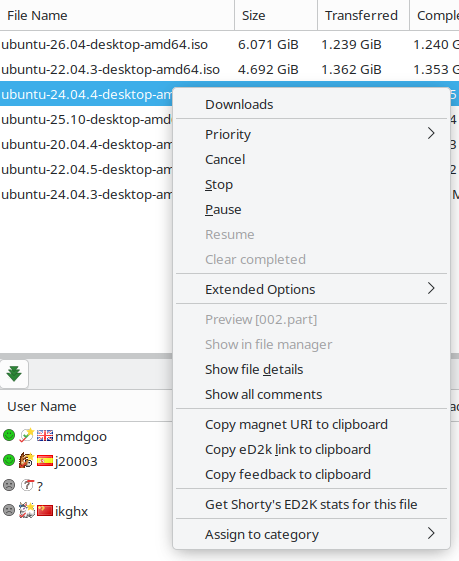
| Option | Action |
|---|---|
| Priority → Low / Normal / High / Auto | Set the download priority. Auto lets aMule manage allocation automatically based on file rarity. |
| Cancel | Remove the file from the queue and delete the partial download. |
| Stop | Stop the download; sources are no longer searched. |
| Pause | Pause the download; can be resumed later. |
| Resume | Resume a paused, stopped, or errored download. |
| Clear completed | Remove the completed files of the current category from the list. |
| Extended Options | Submenu with the three A4AF actions below. Enabled only while the file can be paused (it is downloading or waiting). |
| Extended Options → Swap every A4AF to this file now | Immediately move all sources assigned to other files (Asked For Another File) to this file. |
| Extended Options → Swap every A4AF to this file (Auto) | Automatically swap A4AF sources to this file whenever they become available. |
| Extended Options → Swap every A4AF to any other file now | Release all A4AF sources from this file so they can be used by other files. |
| Preview / Open the file | For an unfinished file, labelled Preview (with the part-file name): open it in the video player configured in Preferences. For a completed file, labelled Open the file: media files open in the configured video player, anything else with the system's default application. Enabled only when the file is on this computer (see Path Mappings for amulegui) and, for an unfinished file, a preview is possible. |
| Show in file manager | Open the folder containing the file in the system file manager. Completed files only. |
| Show file details | Open the File Details dialog with hashes, names, and source breakdown. |
| Show all comments | Open the Comments window with user ratings and comments for this file. Enabled when comments have been received or Kad is connected (so notes can be fetched from Kad). |
| Copy magnet URI to clipboard | Copy a magnet link for the file. |
| Copy eD2k link to clipboard | Copy an ed2k:// link for the file. |
| Copy feedback to clipboard | Copy formatted download feedback text. |
| Get <stats server> for this file | Open the configured statistics web site for the file. Shown only when a statistics server is configured. |
| Assign to category | Move the file to a specific category. Selecting unassign returns it to the default category. Disabled when no user-defined category exists. |
Double-clicking a file (or selecting it and pressing Enter) opens it when it is complete, previews it when it is unfinished and a preview is possible, and otherwise opens File Details. See Keyboard & Mouse Shortcuts for all shortcuts.
- Delete key — with one or more files selected, pressing Delete asks for confirmation and then triggers the Cancel action.
- F2 key — renames the selected partial file (a single file must be selected).
Right-click menus are not available on macOS with a single-button mouse. Use Control-click instead.
Source List
Clicking a file in the download queue populates the source list below with all known clients for that file. Selecting multiple files shows the union of their sources. When IP2Country is enabled, each source shows its country flag next to the user name.

Columns
| Column | Description |
|---|---|
| User Name | Nickname of the remote client. The icon indicates client type and modifier overlays (see Client Icons below). |
| Downloaded | Bytes downloaded from this source in the current session. |
| Speed | Current transfer speed from this source. |
| Uploaded | Bytes uploaded to this source in the current session. |
| Part Status | Bar showing which chunks of the file this source has available. For a source asked for another file (A4AF), the cell shows A4AF: followed by the name of that other file instead. |
| Version | Client software version string. |
| Download Status | Your position in this client's upload queue, or transfer state. |
| Origin | How this source was found (server list, Kad, source exchange, etc.). |
| Local File Name | The name the file has on your system. |
| Remote File Name | The name the file has on the remote client. |
| Shares File List | Whether this client shares its file list. |
Client Icons
Each source row shows a small icon indicating the client software and connection state. The base icon shows the client type:
| Icon | Client |
|---|---|
 | aMule |
 | eMule |
 | Original eDonkey2000 client |
 | lphant |
 | mlDonkey |
 | Shareaza |
 | xMule |
 | A client you have marked as a friend |
 | Unrecognised client |
Overlay badges on the base icon indicate additional attributes:
| Overlay | Meaning |
|---|---|
 | Client has a good credit rating with you (it has uploaded more to you than you to it, so it earns a better position in your upload queue). |
 | Client does not support the extended eMule protocol extensions (source sharing, etc.). |
 | Client identity has been securely verified. |
 | Client failed secure identification and has been flagged as a bad actor. Shown only when the client is not identified. |
 | The connection to this client is obfuscated/encrypted. |
A small status icon to the left of the client icon shows the source status:
| State | Meaning |
|---|---|
 | Client is uploading data or a hashset to you right now. |
 | You are in this client's upload queue (and its queue is not full). |
 | A connection attempt to this client is in progress, or you are currently requesting a file from it. |
 | Client is asked for another file, has no needed parts, has a full upload queue, or cannot be reached (Low ID behind a firewall). |
 | State has not yet been determined. |
Double-clicking a source (or middle-clicking) opens the Client Details dialog.
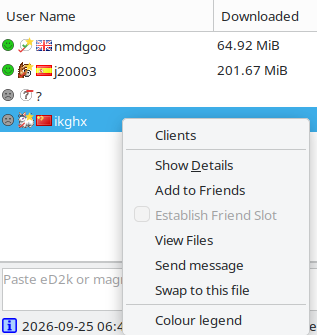
Right-clicking a source opens the same client context menu used in the Clients window, plus two entries specific to this list: Swap to this file (enabled only for a source asked for another file — A4AF — to make it serve the selected file instead) and Colour legend (explains the colours of the Part Status bar; shown while that column is visible).
Transfer Behavior
aMule requests the data of a file from each source in blocks of 180 KiB, asking for several blocks ahead so the data keeps flowing. The number of blocks in flight adapts automatically to each source's speed and latency, between 3 and 24; it is not configurable.
Each part (9.28 MB) is verified against its hash as soon as it completes, and the whole file is hashed again when the download finishes. A corrupted part is repaired through AICH: when a trusted AICH hash set is available, only the damaged 180 KiB blocks are downloaded again instead of the whole part.
Finishing Downloads
Near the end of a download, endgame mode lets a source that has run out of blocks to request take over blocks from a much slower source, so a file does not stall at 99% behind one slow peer. It has no indicator in the lists; it is controlled by the Endgame mode: rotate to faster sources for the final blocks option in Preferences → Files and enabled by default.
Categories
The row of tabs above the download list groups downloads into named categories. The first tab (all by default) always shows all files matching the current view filter.
View Filter (all Tab)
Right-clicking the all tab opens a menu with a Select view filter submenu:
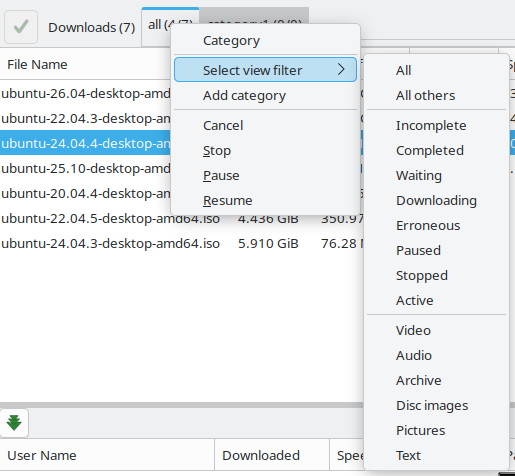
| Filter | Files shown |
|---|---|
| All | Every file in the queue |
| All others | Files not assigned to any user-defined category |
| Incomplete | Files not yet completed |
| Completed | Files that have finished downloading |
| Waiting | Files in Waiting status |
| Downloading | Files actively receiving data |
| Erroneous | Files in Erroneous status |
| Paused | Files in Paused status |
| Stopped | Files in Stopped status |
| Active | Files that are neither paused nor stopped |
| Video | Files of video type |
| Audio | Files of audio type |
| Archive | Archive files |
| Disc images | CD/DVD and disk image files (see the extension list) |
| Pictures | Image files |
| Text | Text and document files |
The view filter applies to every tab: in a user-defined tab it further restricts the files of that category (only All others leaves those tabs unaffected). The selected filter persists between sessions. The tab label is updated to reflect the active filter.
User-Defined Categories
Right-clicking a tab exposes additional category management options (Edit category and Remove category only on user-defined tabs):
| Option | Action |
|---|---|
| Add category | Create a new category in the Category dialog (see below). |
| Edit category | Open the Category dialog for the selected category. |
| Remove category | Delete the selected category; files in it revert to the default category. |
| Cancel / Stop / Pause / Resume | Apply the action at once to every file shown in the selected tab (after the view filter). Cancel asks for confirmation first. |
The Category dialog has these fields:
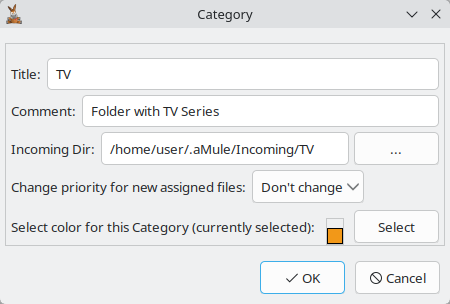
| Field | Description |
|---|---|
| Title | Name shown on the tab (New Category for a new one). Required. |
| Comment | Free-text description. |
| Incoming Dir | Folder where completed files of this category are saved; click ... to browse for it (not available in amulegui). Required. aMule creates it if it does not exist; in amulegui the path is sent to the core unchecked, and the core reports an error if it is not valid. |
| Change priority for new assigned files | Download priority applied to files when they are assigned to the category: Don't change, Low, Normal, High or Auto. |
| Colour | Click Select to choose the text colour of the category's files in the download list (selected rows keep the system highlight colour). |
When Show extended info on categories tabs is enabled in preferences, each tab label shows (downloading/total) file counts.
Up to 99 user-defined categories are supported.
Assigning Files to Categories
- From the right-click menu: right-click a file → Assign to category.
- At search time: in the Searches window, right-click a result → Download in category.
Each category can have its own incoming directory. Completed files are saved to the category's folder instead of the default incoming folder.
Where Are the Files?
While downloading, aMule stores incomplete data in a Temporary directory. Completed files are moved to the Incoming directory. Both paths depend on your platform and can be changed in Preferences → Directories. Per-category incoming folders override the default incoming directory for files assigned to that category.
See Directories for the default paths on each platform.
If you have incomplete downloads from eMule, copy their .part and .part.met files into aMule's Temp directory — aMule will resume them automatically on the next start.