Preferences
The Preferences dialog controls every aspect of aMule's behaviour. Open it from the toolbar's Preferences button or from the menu.
Settings are grouped into sections. Click the appropriate section in the list on the left side of the window to view its options. The sections appear in the order described below.
General
Options regarding general aspects of aMule.
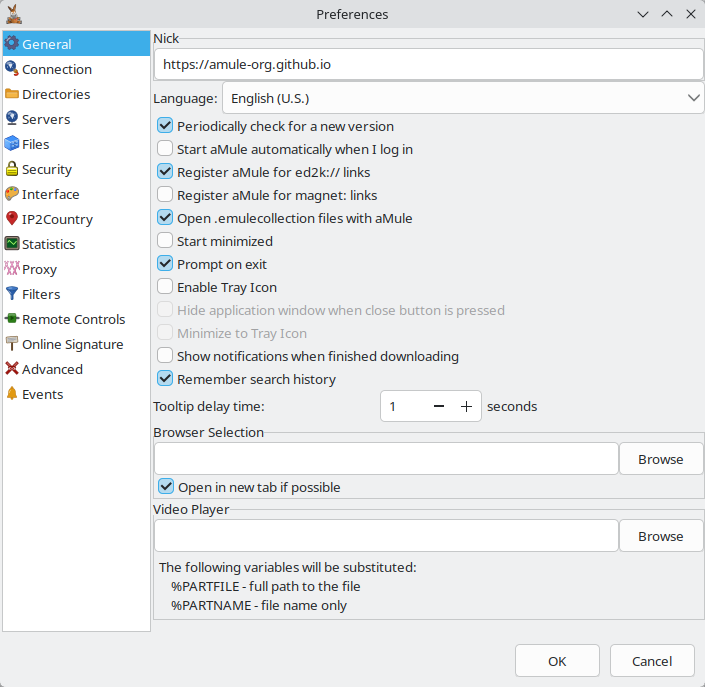
| Setting | Description |
|---|---|
| Nick | Username displayed to other clients on the network. |
| Language | Language for the aMule interface. On UNIX systems this requires the appropriate LC_ALL (or LC_MESSAGES) environment variable. System default uses the system's language. |
| Periodically check for a new version | Check whether a new aMule release is available — at startup and once a day while running — and display a message if so (NewVersionCheck). Hidden in builds compiled without the version check (typically those shipped by OS package managers) and, in amulegui, when the connected core cannot check. |
| Start aMule automatically when I log in | Launch aMule automatically when you log in to your desktop session. The state is stored by the OS (Windows registry Run key, macOS LaunchAgent, Linux XDG .desktop autostart entry), not in amule.conf. The command-line equivalent is --configure-autostart=on|off (see amule). See Starting aMule Automatically. |
| Register aMule for ed2k:// links | Make aMule the default handler for ed2k:// links, so clicking one in a browser or file manager opens it in aMule. Registered with the OS, not stored in amule.conf. |
| Register aMule for magnet: links | Make aMule the default handler for magnet: links. aMule only handles eD2k-compatible magnets (with an xt=urn:ed2k: or xt=urn:ed2khash: hash and an xl size); BitTorrent magnets are not supported. Registered with the OS. |
| Open .emulecollection files with aMule | Associate .emulecollection files with aMule; opening one queues every eD2k link it contains. Registered with the OS. On Windows the association only becomes the default if no other program has claimed the file type. |
| The three registration checkboxes above take effect immediately, not when you click OK. aMule asks before replacing another application's handler, and the checkbox reverts if the registration fails. On macOS a handler cannot be unregistered, so the checkbox is hidden once aMule is the handler. See eD2k and Magnet Links. | |
| Start minimized | Minimize aMule to the taskbar when it starts. |
| Prompt on exit | Show a confirmation dialog when closing aMule. |
| Enable Tray Icon | Show a system tray icon for aMule. Disabled on GTK builds (Linux, BSD) compiled without libayatana-appindicator3. |
| Hide application window when close button is pressed | Instead of quitting, hide aMule to the tray icon when the window's close button is pressed. Requires Enable Tray Icon. |
| Minimize to Tray Icon | When minimizing aMule, hide the window completely so it can only be restored from the tray icon. Requires Enable Tray Icon. Not available on Wayland, which does not report when a window is minimized; launch aMule with GDK_BACKEND=x11 to use XWayland instead. |
| Show notifications when finished downloading | Display a desktop notification each time a download completes. |
| Remember search history | Persist past search terms (in searchhistory.dat) and the results of the searches still open at exit (in StoredSearches.met) across restarts (SearchHistoryEnabled). Turning it off stops recording new terms and deletes the saved results on the next start; the saved terms are kept until you clear them. See Searches. |
| Tooltip delay time | Number of seconds (0–9, default 1) before tooltips appear. Applies to every tooltip in aMule. |
| Browser Selection | Command used to start the browser aMule opens web sites with. Leave it empty to use the system default browser (on macOS the default is /usr/bin/open). Use the Browse button to locate the browser executable. |
| Open in new tab if possible | Open web sites in a new browser tab rather than the current page. Disabled on Windows. |
| Video Player | Command used to preview files: any unfinished download, or a completed audio or video file. The file path is appended as the last argument, unless the command contains one of the variables shown in the panel: %PARTFILE (full path to the file) or %PARTNAME (file name only — for an unfinished download, the .part file's name). Empty by default: completed files are then opened with the desktop's default application, but an unfinished download (.part file) cannot be previewed without a player. Use the Browse button to locate the player executable. |
Connection
Options regarding aMule's network connections.
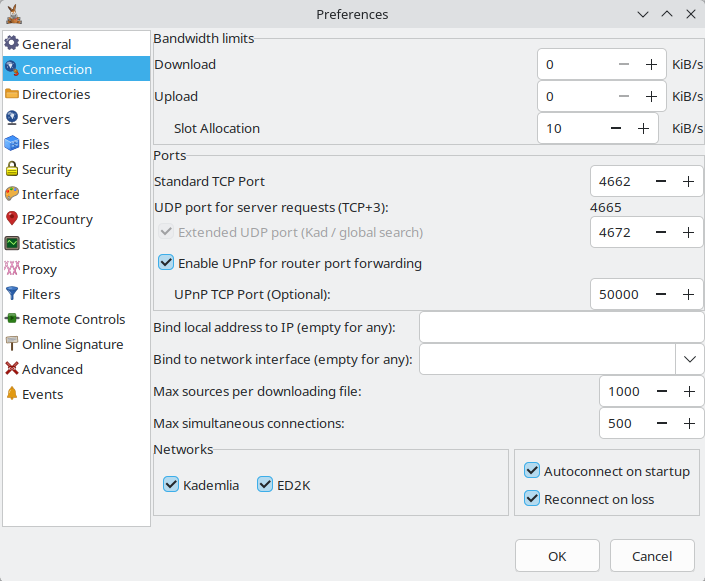
Bandwidth limits
| Setting | Description |
|---|---|
| Download | Maximum download speed to allow (KiB/s). 0 = unlimited. |
| Upload | Maximum upload speed to allow (KiB/s). 0 = unlimited. A low upload limit also caps the download limit: below 4 KiB/s the download limit is set to at most 3× the upload limit, and below 10 KiB/s to at most 4×. |
| Slot Allocation | Target speed per allocated upload slot (KiB/s). Default: 10. aMule derives the number of upload slots from it — see Bandwidth & Upload Slots. |
These values are in kibibytes per second (KiB/s, 1 KiB = 1024 bytes), while ISP speeds are usually advertised in megabits per second (Mbps). To convert approximately, multiply the Mbps figure by 122 (e.g. a 100 Mbps line ≈ 12,200 KiB/s). A good starting point is roughly 80% of your actual line speed. See Slow Download Speeds for why setting realistic limits matters.
Ports
| Setting | Description |
|---|---|
| Standard TCP Port | The standard eD2k client TCP port. Default: 4662. |
| UDP port for server requests (TCP+3) | Read-only display. This port is always the standard TCP port + 3 (default 4665). Shows disabled when the ED2K network is disabled. |
| Extended UDP port (Kad / global search) | Enable and set the extended client UDP port used for Kad and global searches. Default: 4672. Unchecking it frees a UDP port but reduces aMule's performance. While Kademlia is enabled the checkbox is forced on and greyed out, so it can only be unchecked with Kad disabled. |
| Enable UPnP for router port forwarding | Ask a UPnP-capable router to forward aMule's ports automatically. The UPnP controls are disabled in builds without UPnP support and, in amulegui, when the connected core lacks it. |
| UPnP TCP Port (Optional) | Local TCP port aMule's UPnP stack listens on to talk to the router (UPnPTCPPort). It is not forwarded on the router — see UPnP. Default: 50000. |
Limits
These settings sit below the Ports box, outside any group box.
| Setting | Description |
|---|---|
| Bind local address to IP (empty for any) | Local IP address aMule binds its sockets to — the listening sockets and outgoing eD2k connections to clients and servers (Address). Leave empty to bind to any local address. |
| Bind to network interface (empty for any) | Pin aMule's eD2k and Kad sockets (and its HTTP downloads, where wxWidgets' curl backend is available — never on Windows) to a single interface, chosen from the drop-down or typed in by name (e.g. tun0, eth0, en0) or index — not an IP address (NetworkInterface). Unlike Bind local address to IP, this stops traffic leaking out via the default route (useful with a VPN) and usually needs no elevated privileges (some Linux kernels require CAP_NET_RAW). Empty = use any interface. In amulegui this is a plain text field without the drop-down. Not supported on BSD. The External Connections listener has its own setting in Remote Controls. Changing it requires restarting aMule. |
| Max sources per downloading file | Maximum number of sources remembered for each file. Default: 300. |
| Max simultaneous connections | Maximum number of simultaneous connections (5–7500). Default: 500, or lower if the operating system's connection limit is lower. |
Networks
| Setting | Description |
|---|---|
| Kademlia | Enable the Kademlia network. If disabled, connection is only possible by explicitly using the Networks window. |
| ED2K | Enable the eD2k network. If disabled, connection is only possible by explicitly using the Networks window. Disabling it also removes the Servers page from the dialog. |
| Autoconnect on startup and Reconnect on loss are in a separate, unlabelled box to the right of Networks. | |
| Autoconnect on startup | Connect aMule to the enabled networks when it starts. |
| Reconnect on loss | Attempt to connect to a server when disconnected. On error it reconnects to the same server; on explicit server disconnect it tries another server. |
Directories
Options for aMule's file system paths. For full details — default locations on each platform, per-category incoming folders, and how shared directories work — see Directories.
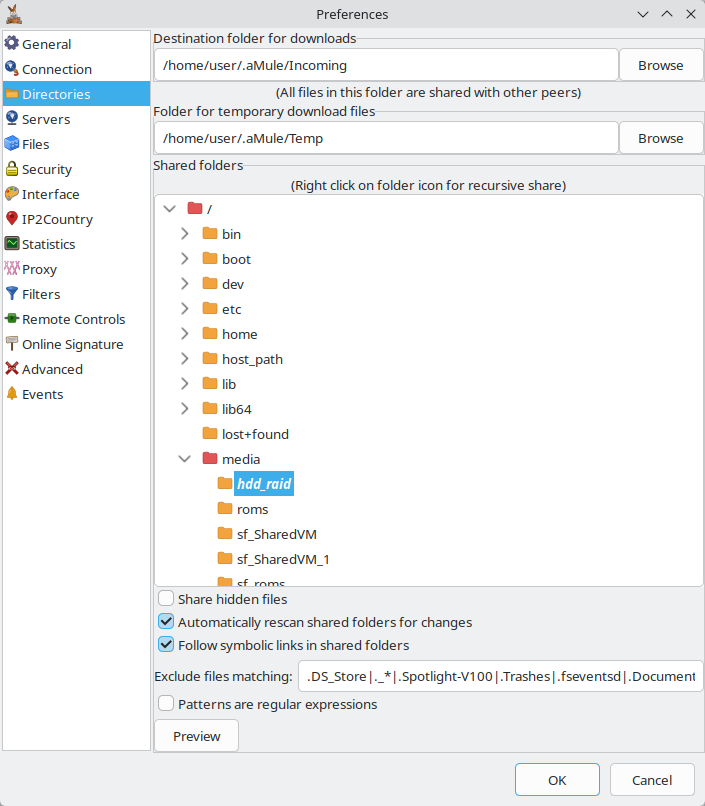
| Setting | Description |
|---|---|
| Destination folder for downloads | Directory where completed files are stored. All files in this folder are shared with other peers. Use the Browse button to select it. |
| Folder for temporary download files | Directory where incomplete downloads are placed. Use the Browse button to select it. In amulegui both Browse buttons are disabled unless the core runs on the same machine (localhost). |
| Shared folders | Directories whose files are shared with the network. Right-click a folder icon to select all its contents recursively. |
| Normal font — directory is not shared. Bold font — directory is shared. Yellow folder — no subdirectories marked as shared. Red folder — subdirectories are marked as shared. | |
In amulegui the tree is replaced by a list of the folders shared by the core: type an absolute path on the core's machine, tick Recursive to also share every sub-folder (including ones created later), and click Add; select an entry and click Remove to stop sharing it. | |
| Share hidden files | Include hidden files from shared directories. |
| Automatically rescan shared folders for changes | Watch the shared folders so files added, changed, removed or renamed outside aMule are picked up automatically. |
| Follow symbolic links in shared folders | Follow symbolic links (to files or directories) when scanning shared folders. Enabled by default; disable it to skip symlinked entries. |
| Exclude files matching | Names to exclude from sharing, given as |-separated wildcard patterns (e.g. .DS_Store|Thumbs.db|*.tmp). Matching is case-insensitive, and files whose name matches are not shared. Maps to ExcludeSharePatterns in amule.conf, which ships with a default list of common OS junk files. |
| Patterns are regular expressions | Treat the whole Exclude files matching field as a single regular expression instead of a |-separated list of wildcards (ExcludeSharePatternsUseRegex). |
| Preview | Show how many of the currently shared files the exclusion patterns would remove (Would exclude X of Y shared files, or Invalid regular expression), so you can check a pattern before applying it. Hidden in amulegui. |
Path Mappings
This panel appears only in amulegui (remote-GUI builds). It is not shown in the monolithic amule client, where the core and the files it reports are always on the same machine.
Options for translating the file paths a remote core reports into paths that are reachable from the machine running amulegui.
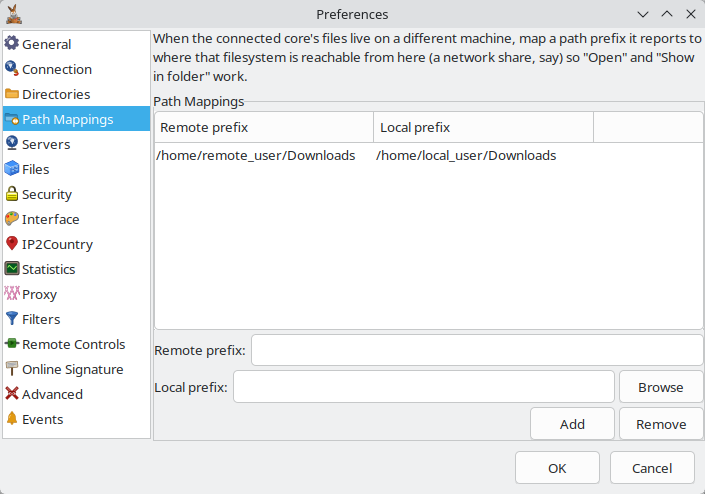
When the connected core's files live on a different machine, its Open the file and Show in file manager actions use paths that do not exist locally. A path mapping rewrites a remote prefix (a path as the core reports it) to a local prefix (where that same folder is reachable from here, for example a mounted network share), so those actions resolve correctly.
Each mapping is checked in list order and the first matching prefix wins. A prefix only matches up to a path separator, so /mnt/data matches /mnt/data/file but not /mnt/data-old; trailing separators are stripped when a mapping is added. The mappings are persisted to remote.conf.
| Setting | Description |
|---|---|
| Remote prefix | A path prefix exactly as the core reports it, e.g. /home/user/downloads/incoming. |
| Local prefix | Where that same folder is reachable from this computer. Use the Browse button to select a local folder. |
| Add | Add the current Remote prefix → Local prefix pair to the list. Both fields are required; a remote prefix that is already mapped is rejected. |
| Remove | Remove the selected mapping from the list. |
Servers
Options for connecting aMule to eD2k servers. This page is removed from the dialog when the ED2K network is disabled in Connection.
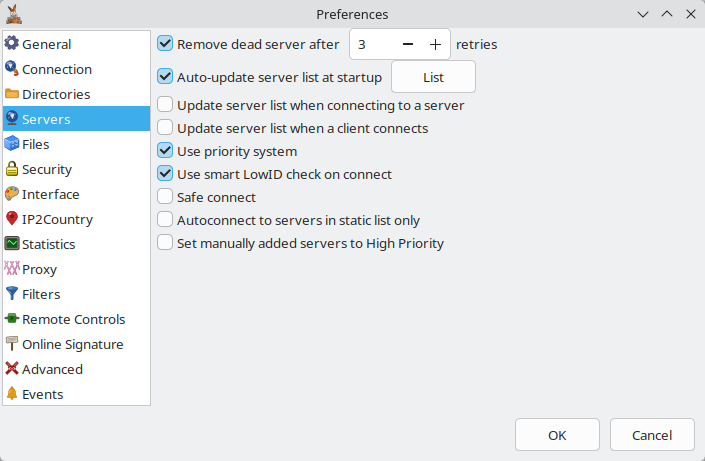
| Setting | Description |
|---|---|
| Remove dead server after n retries | Number of times a server may fail before it is removed from the server list. Failed connection attempts and failed UDP pings add to one counter: the periodic ping sweep removes a server once it reaches n, and the sweep after a successful server connection removes servers above n. Servers marked static are never removed, even when unreachable. Range 1–10, default 3; the number field is enabled only while the checkbox is ticked. |
| Auto-update server list at startup | Download the server list from one or more URLs at startup. Click the List button to edit URLs (stored in addresses.dat). The checkbox cannot be ticked while addresses.dat exists but is empty. A fresh install has no addresses.dat at all: the checkbox can then be ticked, but nothing is downloaded and aMule only logs that no address was found at every start. |
| Update server list when connecting to a server | After connecting to a server, request its full list of known servers and add any new entries. |
| Update server list when a client connects | When connecting to a client, request its server ID and add it if not already known. |
| Use priority system | Assign Low/Normal/High priority to servers via right-click. aMule contacts servers in priority order. |
| Use smart LowID check on connect | Perform a smart check for a LowID when connecting to a server. |
| Safe connect | When enabled, aMule tries to connect to one server at a time. When disabled, it makes two simultaneous attempts. |
| Autoconnect to servers in static list only | aMule attempts to connect only to servers marked as static. |
| Set manually added servers to High Priority | Servers added manually get High priority. The priority can be changed later. |
Files
Options for downloading and sharing files.
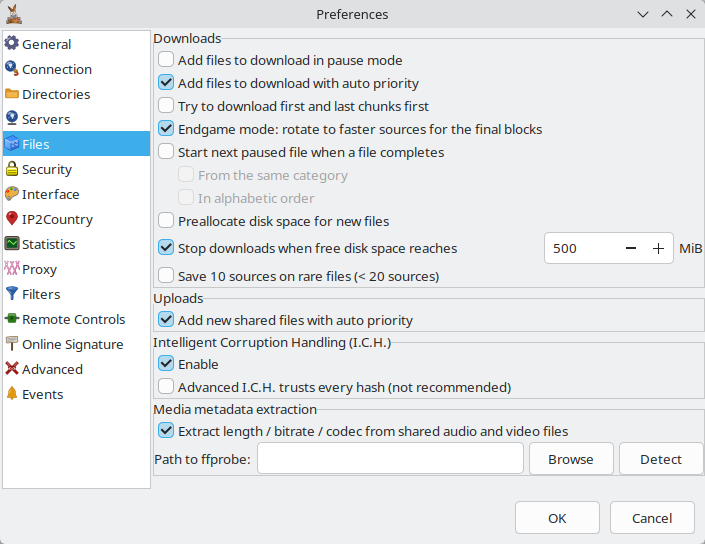
Downloads
| Setting | Description |
|---|---|
| Add files to download in pause mode | Newly added downloads start in the paused state. |
| Add files to download with auto priority | Newly added downloads get automatic priority. |
| Try to download first and last chunks first | Always try to download the beginning and end of files first. Useful for previewing audio and video files. |
| Endgame mode: rotate to faster sources for the final blocks | When a file with more than 4 parts has no more than 4 parts' worth of data (about 38.9 MB) left to download, a source that has run out of blocks to request cancels the transfer of another source downloading at less than half its speed (one that holds blocks it can use) and takes over those blocks, so a download does not stall at 99% behind one slow peer (Endgame). No block is requested twice. Enabled by default. |
| Start next paused file when a file completes | When a file completes, automatically resume the highest-priority paused file. |
| From the same category | When the above option is enabled, resume the highest-priority paused file in the same category (if one exists). |
| In alphabetic order | When resuming the next paused file, pick it in alphabetic order instead of by priority. |
| Preallocate disk space for new files | Reserve the full file size on disk when a download starts, reducing fragmentation. |
| Create new files as sparse files | Create part files as sparse files, so they only occupy disk space for the parts already downloaded (CreateSparseFiles). Enabled by default. This setting affects only a Windows core: the monolithic amule hides the checkbox on macOS, Linux and BSD, where part files are sparse anyway, while amulegui always shows it because it cannot tell the core's platform. |
| Stop downloads when free disk space reaches n MiB | Pause downloads when free disk space would fall below the given minimum (in MiB; 1–1000000, default 500). The number field is enabled only while the checkbox is ticked. See Disk Space Protection. |
| Save 10 sources on rare files (< 20 sources) | On shutdown, save 10 sources for files with few sources so they can be reused on next startup. |
Uploads
| Setting | Description |
|---|---|
| Add new shared files with auto priority | Files added to shared directories, or completed downloads, get automatic share priority. |
Intelligent Corruption Handling (I.C.H.)
| Setting | Description |
|---|---|
| Enable | Enable Intelligent Corruption Handling. |
| Advanced I.C.H. trusts every hash (not recommended) | When unchecked (recommended), aMule applies sanity checks to received AICH hashes instead of blindly trusting them. |
Media metadata extraction
aMule can run ffprobe on shared audio and video files to extract their length, bitrate and codec, plus the artist, album and title tags when the file carries them. These fields fill the Length, Bitrate, Codec, Artist, Album and Title columns of the Shared Files list, and are published with the file to eD2k servers and Kad, so other clients see them in their search results and the servers and Kad nodes that index the file can use them to answer searches. See the [MediaMetadata] section of amule.conf for the underlying keys.
| Setting | Description |
|---|---|
| Extract length / bitrate / codec from shared audio and video files | Enable media-metadata extraction (Enabled, on by default). Despite the label, it also extracts the artist, album and title tags. Requires ffmpeg (the ffprobe binary) to be installed. The controls below are greyed out while it is off. |
| Path to ffprobe | Full path to the ffprobe binary (FFProbePath). Leave empty to auto-detect it on startup. Use Browse to locate it, or Detect to search the system PATH and the standard install locations. Browse and Detect are hidden in amulegui, since they would act on the GUI's machine rather than the core's. |
See Events for a flexible event system that can run a command when a download completes, plus chat notifications and disk-space alerts.
Security
Options for aMule's security features, including protocol obfuscation and IP filtering.
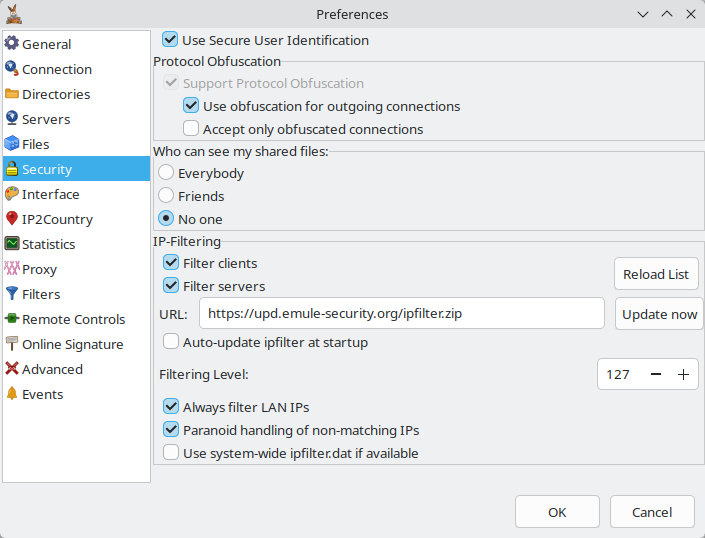
| Setting | Description |
|---|---|
| Use Secure User Identification | Use the Secure User Identification protocol when identifying to other clients. Recommended. |
Protocol Obfuscation
| Setting | Description |
|---|---|
| Support Protocol Obfuscation | Enable protocol obfuscation, which disguises aMule traffic to make it harder to detect and throttle. |
| Use obfuscation for outgoing connections | Initiate outgoing connections using obfuscation when supported by the remote client. |
| Accept only obfuscated connections | Reject incoming connections that are not obfuscated. |
The three checkboxes depend on each other: Use obfuscation for outgoing connections needs Support Protocol Obfuscation, and Accept only obfuscated connections needs Use obfuscation for outgoing connections. While a dependent option is ticked, the one it relies on is locked and cannot be unticked. Changing protocol obfuscation support requires restarting aMule.
| Setting | Description |
|---|---|
| Who can see my shared files | Controls who can browse your shared files: Everybody, Friends, or No one. Hiding them from everyone is recommended. |
IP-Filtering
The IP filter blocks all traffic to and from a configurable list of IP addresses and ranges, read from ipfilter.dat and ipfilter_static.dat. Each option below maps to a key in amule.conf.
| Setting | Description |
|---|---|
| Filter clients | Apply the IP filter to client connections (IpFilterClients). |
| Filter servers | Apply the IP filter to server connections (IpFilterServers). |
| Reload List | Reload ipfilter.dat and ipfilter_static.dat from disk and re-check all active connections. |
| URL | URL of the ipfilter.dat file to download (IPFilterURL). |
| Update now | Download the filter from the URL immediately. |
| Auto-update ipfilter at startup | Download an updated filter from the URL every time aMule starts (IPFilterAutoLoad). |
| Filtering Level | Filter level, 0–255 (default 127). A range is blocked when its access level is strictly less than this value, so a higher level blocks more ranges and a lower level blocks fewer (FilterLevel). |
| Always filter LAN IPs | Always block IPs that claim to be in a local LAN range (FilterLanIPs). See always-filtered ranges. |
| Paranoid handling of non-matching IPs | Reject a packet if the client IP differs from the IP it was received from. Use with caution (ParanoidFiltering). |
| Use system-wide ipfilter.dat if available | If the local ipfilter.dat cannot be loaded, fall back to the system-wide file (IPFilterSystem). |
aMule always blocks the reserved RFC 3330 IP ranges regardless of these settings; see always-filtered ranges.
Interface
Options for aMule's graphical interface.
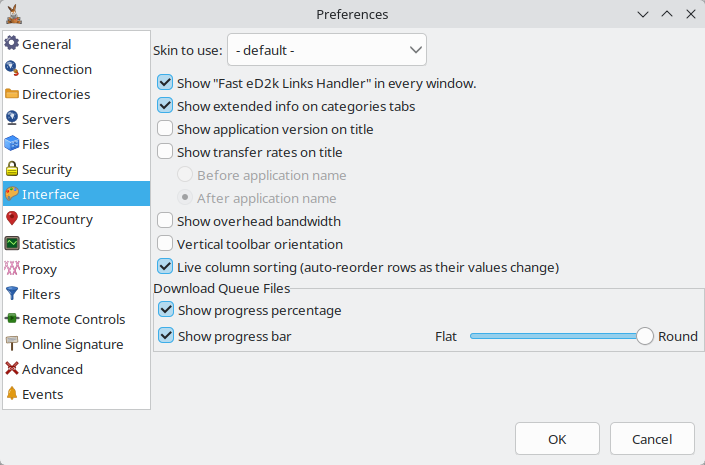
| Setting | Description |
|---|---|
| Skin to use | Select the skin (bitmap theme) for aMule. - default - uses the built-in bitmaps. See Skins. |
| Show "Fast eD2k Links Handler" in every window. | Show the eD2k Link Handler in all windows, not only the Searches window. |
| Show extended info on categories tabs | Display the number of downloading files and total files in each category tab title. |
| Show application version on title | Show the aMule version in the window title bar. Always on (and greyed out) in development builds. |
| Show transfer rates on title | Show transfer speeds in the window title bar, either Before application name or After application name. These two choices are enabled only while the checkbox is ticked. |
| Show overhead bandwidth | Show protocol overhead bandwidth in the status bar. |
| Vertical toolbar orientation | Show the toolbar vertically (enabled) or horizontally (disabled). |
| Live column sorting (auto-reorder rows as their values change) | Keep the list views (downloads, uploads and others) sorted live as rows update, not only when you click a column header (LiveListSort). |
Download Queue Files
| Setting | Description |
|---|---|
| Show progress percentage | Display the completed percentage for each file in the download queue, above the progress bar. |
| Show progress bar | Show a progress bar indicating chunk availability for each file in the download queue. |
| Flat – Round slider | Unlabelled slider next to Show progress bar that sets the progress bar's 3D depth, from Flat to Round. |
IP2Country
Options for the GeoIP country database that provides the country flags shown next to clients and servers. For an overview of the feature, its database providers and how updates work, see IP2Country (Country Flags).
This panel appears only in builds compiled with GeoIP support (the standard release builds) and in amulegui; in amulegui it is also removed when the connected core has no GeoIP support. Country flags require a valid GeoIP country database — use Update now to download one.
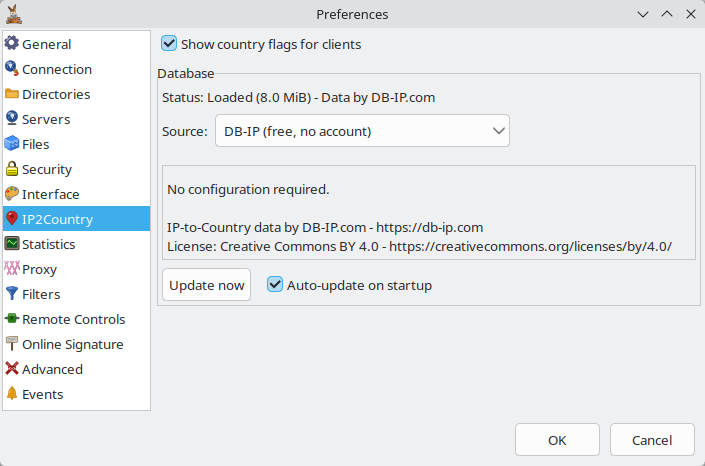
The keys behind this panel are documented in the GeoIP section of amule.conf. Every control except Show country flags for clients sits inside the Database group box and is greyed out while that checkbox is off.
| Setting | Description |
|---|---|
| Show country flags for clients | Enable GeoIP and display a country flag next to clients and servers (GeoIPEnabled). Requires a valid GeoIP country database. |
| Status line (read-only) | Unlabelled line showing the state of the database: Status: Loaded (x MiB) with its data attribution, Status: Failed to load - click 'Update now' to refresh. or Status: Not found - click 'Update now' to download. In amulegui it shows the attribution and the result of the last update. |
| Source | GeoIP database provider (GeoIPSource): DB-IP (free, no account), MaxMind GeoLite2 (free, account required), or Custom URL. The fields below change to match the chosen source, and an information text below the selector shows the source's terms: DB-IP needs no configuration (CC BY 4.0 licence); MaxMind needs a free account and licence key and must be refreshed at least every 30 days; for a custom URL, licence and attribution are the upstream's responsibility. |
| License key | MaxMind license key (GeoIPMaxMindLicense), entered in a masked field. Shown only when the source is MaxMind. |
| Download URL | URL of a custom GeoIP database (GeoIPCustomUrl). Shown only when the source is Custom URL; it must point to an .mmdb file or a .gz / .tar.gz containing one, and may include credentials (https://user:pass@host/...). |
| Update now | Download the database from the selected source immediately. In amule, a failed update shows an IP2Country update failed message; in amulegui the result appears in the status line. |
| Auto-update on startup | At every startup (and, in amule, when you enable Show country flags for clients), check for a newer GeoIP database and download it if there is one (GeoIPAutoUpdate). Only while Show country flags for clients is enabled. |
In amule and amulegui, clicking OK after changing the source, or the selected source's license key or download URL (with GeoIP enabled), downloads the database from the new source automatically.
Statistics
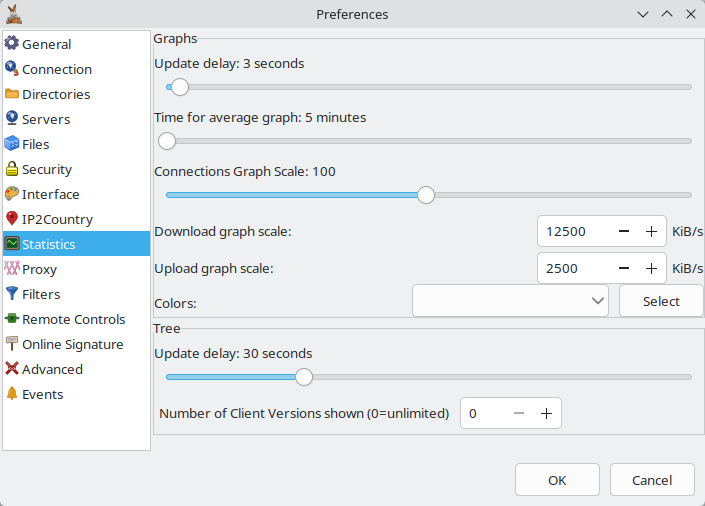
Options for aMule's Statistics display.
Graphs
| Setting | Description |
|---|---|
| Update delay | Refresh interval for statistics graphs (seconds, 0–120, default 3). |
| Time for average graph | Time interval used to calculate running averages in graphs (minutes, 5–100, default 5). |
| Connections Graph Scale | Maximum number of connections the connections graph can represent (2–200, default 100). |
| Download graph scale | Download line capacity (KiB/s, default 12500): the maximum the download graph represents. Also sets the tray-icon speed bar and the download-limit presets in the tray menu; it does not throttle transfers by itself. |
| Upload graph scale | Upload line capacity (KiB/s, default 2500): the maximum the upload graph represents. Also sets the upload-limit presets in the tray menu; it does not throttle transfers by itself. |
| Colors | Select colours for each item in the statistics display. Choose the item from the menu, then click Select. |
Tree
| Setting | Description |
|---|---|
| Update delay | Refresh interval for the statistics tree (seconds, 5–100, default 30). |
| Number of Client Versions shown (0=unlimited) | Maximum number of client versions displayed for each client application in the statistics tree (0–255, default 0). |
Proxy
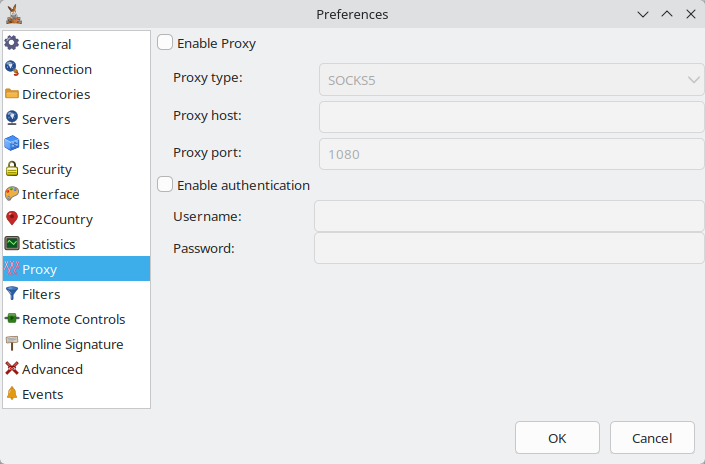
Options for connecting through a proxy server. See Proxy configuration for a full explanation of how the proxy feature works.
| Setting | Description |
|---|---|
| Enable Proxy | Enable the use of a proxy. |
| Proxy type | Protocol of the proxy: SOCKS5 (default), SOCKS4, HTTP, or SOCKS4a. |
| Proxy host | Hostname or IP address of the proxy server. |
| Proxy port | Port through which the proxy is accessed. Default: 1080. |
| Enable authentication | Use a username and password to log into the proxy. If disabled, anonymous login is performed. |
| Username | Username to log into the proxy. |
| Password | Password to log into the proxy. |
Changing any proxy setting requires restarting aMule for HTTP transfers to use it.
Filters
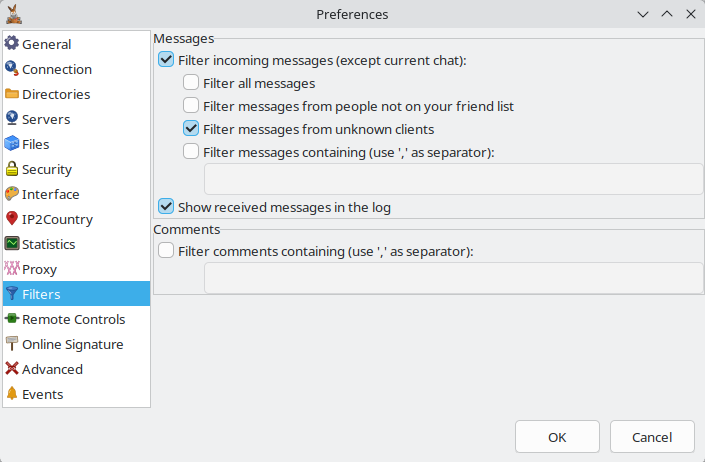
Options for filtering incoming chat messages and file comments.
Messages
| Setting | Description |
|---|---|
| Filter incoming messages (except current chat) | Enables Filter all messages and the word filter below. Filter messages from people not on your friend list and Filter messages from unknown clients are only greyed out when this is unticked — their saved state still applies. Messages from a client you are currently chatting with are never filtered. |
| Filter all messages | Ignore all incoming messages. |
| Filter messages from people not on your friend list | Ignore all messages from users not in the friends list. |
| Filter messages from unknown clients | Ignore messages from clients that have not sent a user name. Enabled by default. |
| Filter messages containing (use ',' as separator) | Ignore messages containing any of the comma-separated strings listed in the box. Each string is trimmed of surrounding spaces and matched case-insensitively as a substring of the message; a value of exactly * filters every message. |
| Show received messages in the log | Include the text of accepted incoming messages in the aMule log. Filtered messages are only logged as Message filtered from …, without their text. |
Comments
| Setting | Description |
|---|---|
| Filter comments containing (use ',' as separator) | Hide file comments containing any of the comma-separated strings listed in the box. |
Remote Controls
Options for controlling aMule remotely: External Connections (used by amulegui, amuleapi, amulecmd and the legacy amuleweb), the built-in amuleapi daemon, and the legacy web server.
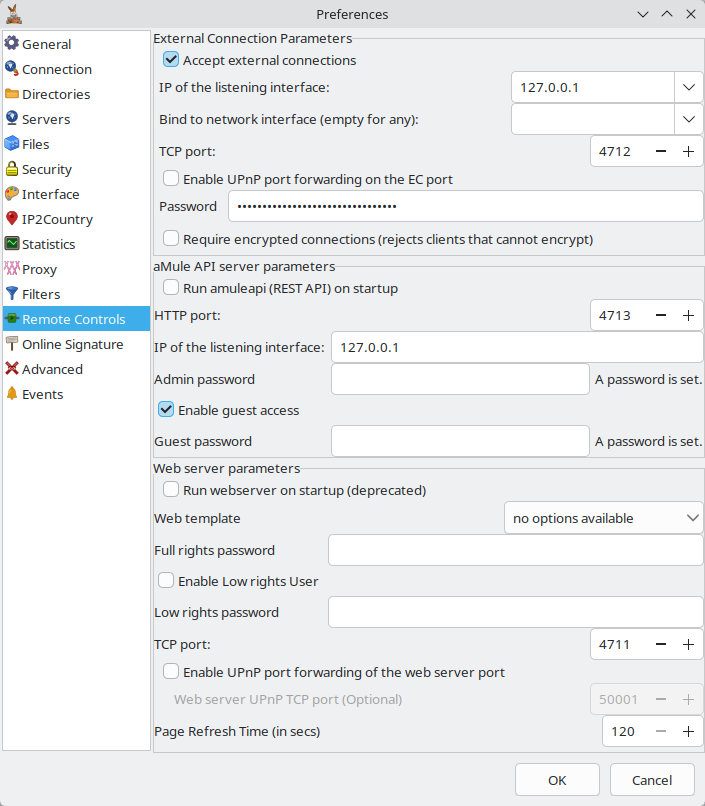
The web server and amuleapi connect to the core over External Connections, so both require Accept external connections to be enabled. If you tick either while External Connections are off, aMule shows "The web server and aMule API require external connections to be enabled." and reverts the checkbox; unticking Accept external connections while one of them is enabled clears it too.
In amulegui the whole External Connection Parameters group is hidden, together with the web-server and EC UPnP controls: these settings belong to the core and are configured on the machine running it.
External Connection Parameters
| Setting | Description |
|---|---|
| Accept external connections | Allow aMule to accept External Connection requests from remote applications (amulegui, amuleapi, amulecmd, amuleweb). |
| IP of the listening interface | IP address of the interface that listens for external connections, in a.b.c.d format (ECAddress, default 127.0.0.1). Choose from the drop-down (127.0.0.1, 0.0.0.0 and the local IPv4 addresses) or type one in. Empty or 0.0.0.0 means any interface. |
| Bind to network interface (empty for any) | Bind the EC listener to a single interface, given by name (e.g. tun0, eth0, en0) or index — not an IP address (ECNetworkInterface). The drop-down lists the local interfaces. Empty = all interfaces. |
| TCP port | TCP port where aMule listens for external connections (ECPort, 1025–65535, default 4712). |
| Enable UPnP port forwarding on the EC port | Ask a UPnP-capable router to forward the external-connection port. |
| Password | Password remote applications must supply to connect. OK is refused while external connections are enabled without a password. |
| Require encrypted connections (rejects clients that cannot encrypt) | Require EC connections to be encrypted and reject any client that cannot encrypt (RequireEncryption). |
Changing the EC port, the EC listening address or interface, or Accept external connections requires restarting aMule.
The EC authentication-throttle keys AuthFailureWindowSeconds, AuthFailureThreshold and AuthLockoutSeconds have no field in this panel — they are edited directly in the [ExternalConnect] section of amule.conf.
aMule API server parameters
Controls the built-in amuleapi daemon (the modern REST API and Web UI), which aMule can auto-start as a child process. See the [AmuleApi] section of amule.conf for the stored keys.
| Setting | Description |
|---|---|
| Run amuleapi (REST API) on startup | Auto-start amuleapi when aMule launches (Enabled). |
| HTTP port | HTTP port on which amuleapi serves the REST API and Web UI (HttpPort). Default: 4713. |
| IP of the listening interface | Address amuleapi listens on (BindAddress). 127.0.0.1 = loopback only. |
| Admin password | Full-access (admin) password. Stored passwords cannot be shown, so leaving this empty keeps the current one. The label next to it reads A password is set. or No password set. |
| Enable guest access | Enable a read-only guest role. Turning this off clears the stored guest password. |
| Guest password | Read-only (guest) password, with its own A password is set. / No password set. label. Same rules as the admin password: leave empty to keep the current one. Enabled only while Enable guest access is ticked; OK is refused if guest access is enabled but no guest password is set or stored. |
Changing Run amuleapi (REST API) on startup, the HTTP port or the listening IP requires restarting aMule (aMule only prompts for it when Accept external connections is ticked and an EC password is set); password changes apply immediately.
Web server parameters
| Setting | Description |
|---|---|
| Run webserver on startup (deprecated) | Start amuleweb automatically when aMule launches. Ticking it shows a reminder that the web server is deprecated and suggests the aMule API instead. |
| Web template | Template (skin) to use for the legacy WebUI. |
| Full rights password | Password for administration (full rights) access to amuleweb. |
| Enable Low rights User | Enable a low-privilege account for amuleweb with view-only access. |
| Low rights password | Password for the view-only account. |
| TCP port | Port where amuleweb listens for incoming connections. |
| Enable UPnP port forwarding of the web server port | Ask a UPnP-capable router to forward the web server port. |
| Web server UPnP TCP port (Optional) | External TCP port to request for the web server via UPnP. |
| Page Refresh Time (in secs) | Time between page refreshes in amuleweb (seconds). |
| Enable Gzip compression | Gzip-compress the HTTP responses amuleweb sends to the browser. |
Online Signature
Options for the Online Signature feature used by cas and wxcas.
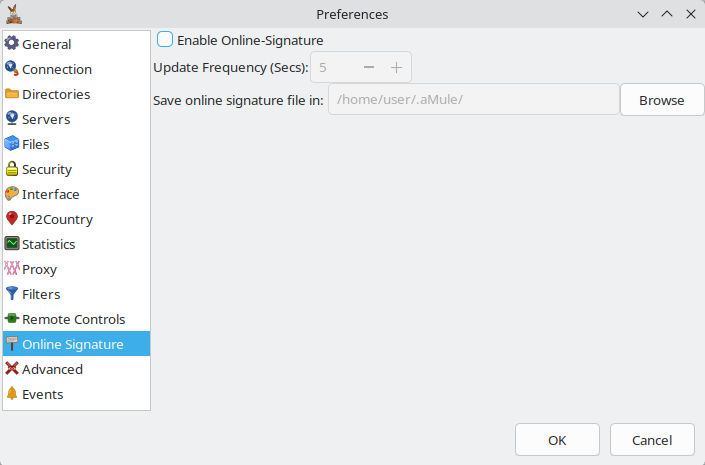
| Setting | Description |
|---|---|
| Enable Online-Signature | Enable aMule to write the Online Signature file. |
| Update Frequency (Secs) | Interval (seconds, 0–600, default 5) between Online Signature updates. |
| Save online signature file in | Directory where the Online Signature file is written. Use the Browse button to select it (hidden in amulegui). |
Update Frequency and the directory are enabled only while Enable Online-Signature is ticked.
Advanced
Advanced options for aMule's core engine. A !!! WARNING !!! banner reminds you that wrong values here can harm aMule's performance — change them only if you understand their effect.
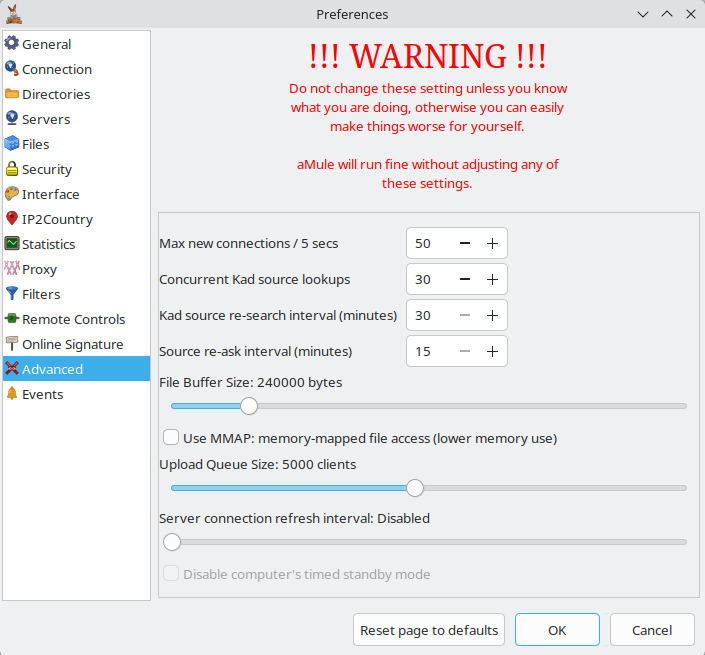
| Setting | Description |
|---|---|
| Max new connections / 5 secs | Maximum number of new connections to establish per 5-second window (20–500, default 50). |
| Concurrent Kad source lookups | Maximum number of concurrent Kad source searches (KadMaxSourceSearches). Range 5–50, default 30. |
| Kad source re-search interval (minutes) | Minimum interval between Kad source re-asks (KadSourceReaskMinutes). Range 30–60, default 30. |
| Source re-ask interval (minutes) | Minimum interval before re-asking a source for a file (SourceReaskMinutes). Range 15–60, default 15. |
| File Buffer Size | Maximum amount of memory (bytes) each file can use for write buffering. Slider in steps of 15000 bytes, from 15000 to 1500000; default 240000. |
| Use MMAP: memory-mapped file access (lower memory use) | Map part files into memory instead of buffering them on the heap, lowering the process memory footprint (MMapEnabled). May reduce download speed on some disks. Off by default. This checkbox appears only when the core supports memory mapping (not on Windows). |
| Upload Queue Size | Maximum number of clients that can be queued in the upload queue. Slider in steps of 100 clients, from 500 to 10000; default 5000. |
| Server connection refresh interval | Ping interval to the server (minutes, 0–30), to avoid being disconnected due to inactivity. At 0 the label reads Disabled and the keep-alive ping is off (default). |
| Disable computer's timed standby mode | Prevent the computer from entering automatic standby/sleep while aMule is downloading. Available only on Windows and macOS; greyed out on Linux, BSD and in amulegui. |
| Reset page to defaults | Reset every setting on the Advanced page to its default value, after a confirmation prompt. Only the fields are reset: OK saves the defaults, Cancel discards them. This button is shown only on this page. |
Events
Configure commands aMule runs when specific events occur, such as when a download completes or when disk space runs out. The command can do anything, e.g. send an email notification.
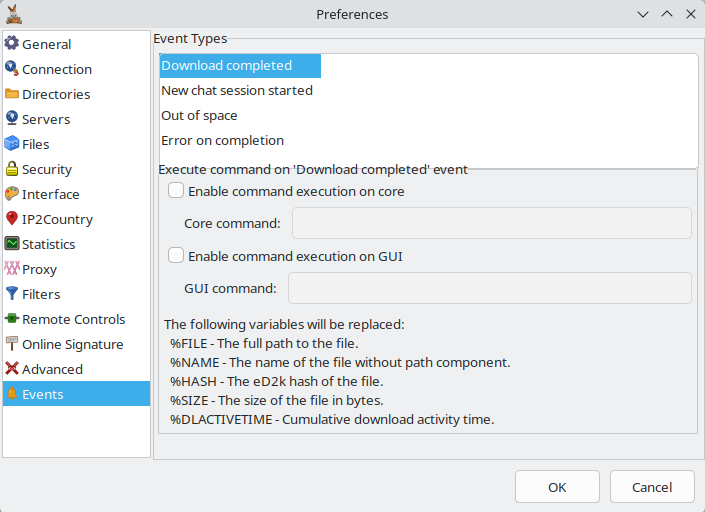
Select an event in the Event Types list (Download completed, New chat session started, Out of space, Error on completion) to show its settings in the Execute command on '…' event group box below the list.
| Setting | Description |
|---|---|
| Enable command execution on core | Run the core command when the event fires (CoreEnabled). |
| Core command | Command run by the core (amuled or the monolithic amule) (CoreCommand). |
| Enable command execution on GUI | Run the GUI command when the event fires (GUIEnabled). |
| GUI command | Command run by the GUI (GUICommand). |
Below the fields, the panel lists the variables that will be replaced in the commands for the selected event. The settings are stored in the [UserEvents] section of amule.conf. See the dedicated Events page for a full description of event types, variables, and example scripts.
Debugging
Advanced options for logging and debugging aMule.
This section only appears in aMule builds compiled with debugging enabled (__DEBUG__). It is not present in standard release builds used by most users.
| Setting | Description |
|---|---|
| Enable Verbose Debug-Logging. | Write extra debug output to the aMule log (VerboseDebug). |
| Only to Logfile | Write verbose debug output only to the log file, not to the on-screen log (VerboseDebugLogfile). |
| Message Categories | Once verbose logging is enabled, select exactly which categories of debug messages to include. |
This section is intended for developers and advanced troubleshooting only. The options will not be described further here.