System Tray Icon
The system tray icon (also called the notification-area icon or systray icon) gives you quick access to aMule's status and basic controls without opening the main window.
The exact menu and behaviour depend on your platform and desktop environment. On Windows and macOS aMule uses the native tray icon described below. Linux and BSD (GTK) builds use a StatusNotifierItem indicator instead — the kind modern Linux desktops show (GNOME with the AppIndicators extension, KDE Plasma, Wayland compositors such as Sway) — which offers a smaller menu and no per-icon speed bar or hover tooltip. The indicator requires a build with libayatana-appindicator; without it there is no tray icon at all, and Enable Tray Icon is greyed out in Preferences. The differences are noted in each section.
Mouse Clicks
| Action | Effect |
|---|---|
| Single left-click | On macOS, open the context menu. On Windows, raise (show) or hide the main aMule window. With the Linux indicator, the same toggle when the installed libayatana-appindicator supports it (0.6.0 or later); with an older library a left click opens the menu |
| Double-click | Raise (show) or hide the main aMule window (native tray icon only) |
| Right-click | Open the context menu (described below) |
See Keyboard & Mouse Shortcuts for the shortcuts of the main window.
Context Menu
Right-clicking the tray icon opens a menu. The items below describe the native tray menu (Windows and macOS). The modern Linux indicator shows a reduced version of this menu.
| Item | Description |
|---|---|
| aMule version | First item; displays the running aMule version |
| Hide aMule / Show aMule | Hide the main aMule window, or raise it when it is hidden |
| Speed limits | Current upload (UL) and download (DL) speed limits, in KiB/s (None when unlimited) |
| Download speed | Currently active download speed |
| Upload speed | Currently active upload speed |
| Client Information | |
| ↳ Nickname | Your username |
| ↳ ClientID | Your client ID on the server |
| ↳ ServerName | Name of the eD2k server you are connected to |
| ↳ ServerIP | IP address of the server you are connected to |
| ↳ IP | Your external IP address (if known) |
| ↳ TCP port | Your standard client TCP port |
| ↳ UDP port | Your extended client UDP port |
| ↳ Online Signature | Whether the online signature feature is enabled |
| ↳ Uptime | How long aMule has been running |
| ↳ Shared files | Number of files you are sharing |
| ↳ Queued clients | Number of clients currently waiting in your upload queue |
| ↳ Total DL | Total data downloaded ever |
| ↳ Total UL | Total data uploaded ever |
| Upload limit | Set the upload speed limit (see Speed-limit presets) |
| Download limit | Set the download speed limit |
| Disconnect / Connect | Disconnect from all networks, or connect to all enabled networks |
| Exit | Close aMule |
Speed-limit presets
The Upload limit and Download limit submenus offer Unlimited followed by five presets: the full line capacity, then ½, ¼, 1/10 and 1/50 of it, labelled in KiB/s (for example 2500 KiB/s). The line capacity is the Upload graph scale / Download graph scale set in Preferences → Statistics; if it is unlimited, 100 KiB/s is assumed. Picking a preset changes the speed limit in Preferences → Connection immediately.
Modern Linux (StatusNotifierItem) menu
On modern Linux desktops aMule uses a StatusNotifierItem indicator with a leaner menu. To keep the menu static between connection changes (avoiding flicker), it omits the continuously-updating values and shows only:
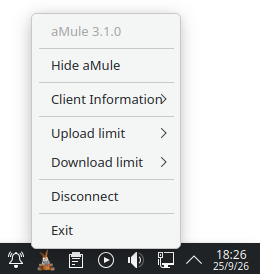
| Item | Description |
|---|---|
| aMule version | First item; displays the running aMule version |
| Show aMule / Hide aMule | Raise or hide the main aMule window |
| Client Information | |
| ↳ eD2k | eD2k status: Connected (HighID), Connected (LowID) or Disconnected |
| ↳ Kad | Kademlia status: Connected, Connected (firewalled) or Disconnected (see open vs firewalled) |
| ↳ Server | Name of the server you are connected to |
| ↳ Server IP | IP address of the server you are connected to |
| ↳ IP | Your external IP address (if known) |
| ↳ TCP port | Your standard client TCP port |
| ↳ UDP port | Your extended client UDP port |
| Upload limit | Set the upload speed limit (same presets as above) |
| Download limit | Set the download speed limit |
| Connect / Disconnect | Connect to or disconnect from all networks |
| Exit | Close aMule |
Compared with the native menu, this version drops the live speed-limit and speed lines at the top, and the Client Information submenu does not include Nickname, ClientID, Online Signature, Uptime, Shared files, Queued clients or the total download/upload counters. Those live values are available in the main aMule window.
On Wayland sessions, where aMule cannot reliably detect whether the window has been minimised, the show/hide toggle is replaced by two separate Show aMule and Hide aMule entries.
Icon Appearance
The tray icon changes to reflect aMule's current connection status and activity.
The speed bar described below applies only to the native tray icon. The modern Linux indicator uses a fixed icon that does not change with the connection state (the state is shown in its menu) and does not draw a speed bar.
Speed Bar
A thin vertical bar along the right edge of the icon shows the current download speed as a percentage of the maximum download rate configured for the graphs in Preferences. The higher the bar, the closer to that configured maximum.
Mule Head Colour
The mule head in the icon indicates the overall connection status:
| Icon | Meaning |
|---|---|
 | Not connected to any network |
 | Connected to eD2k with a Low ID |
 | Connected with a High ID (also shown when connected only to Kademlia) |
Tooltip
Hovering over the tray icon for a few seconds shows a tooltip:

The tooltip has this format:
aMule (Up: <upload speed> | Down: <download speed> | <status>)
Where <status> is either Connected or Disconnected. If the show overhead option is enabled in Preferences, each speed is followed by its protocol-overhead rate in parentheses.
The modern Linux indicator does not show this tooltip on hover; the same text is exposed as the indicator's accessible title instead, which screen readers read out and some desktops show as a hover popup — KDE Plasma does, as in the screenshot above.